Connecting Zoom to graph8
Overview
The graph8 Zoom integration allows you to seamlessly create Zoom meetings directly from your graph8 appointment scheduling system. This integration automatically generates Zoom meeting links for your scheduled appointments, providing a smooth video conferencing experience for both you and your clients.
Adding the App
Prerequisites
An active graph8 account with access to the Appointments feature
A Zoom account (Free, Pro, or Business)
Administrative permissions in both platforms
Step-by-Step Installation Guide
Access graph8 Appointments
Log in to your graph8 account
Navigate to the Appointments section from the main menu under Engage
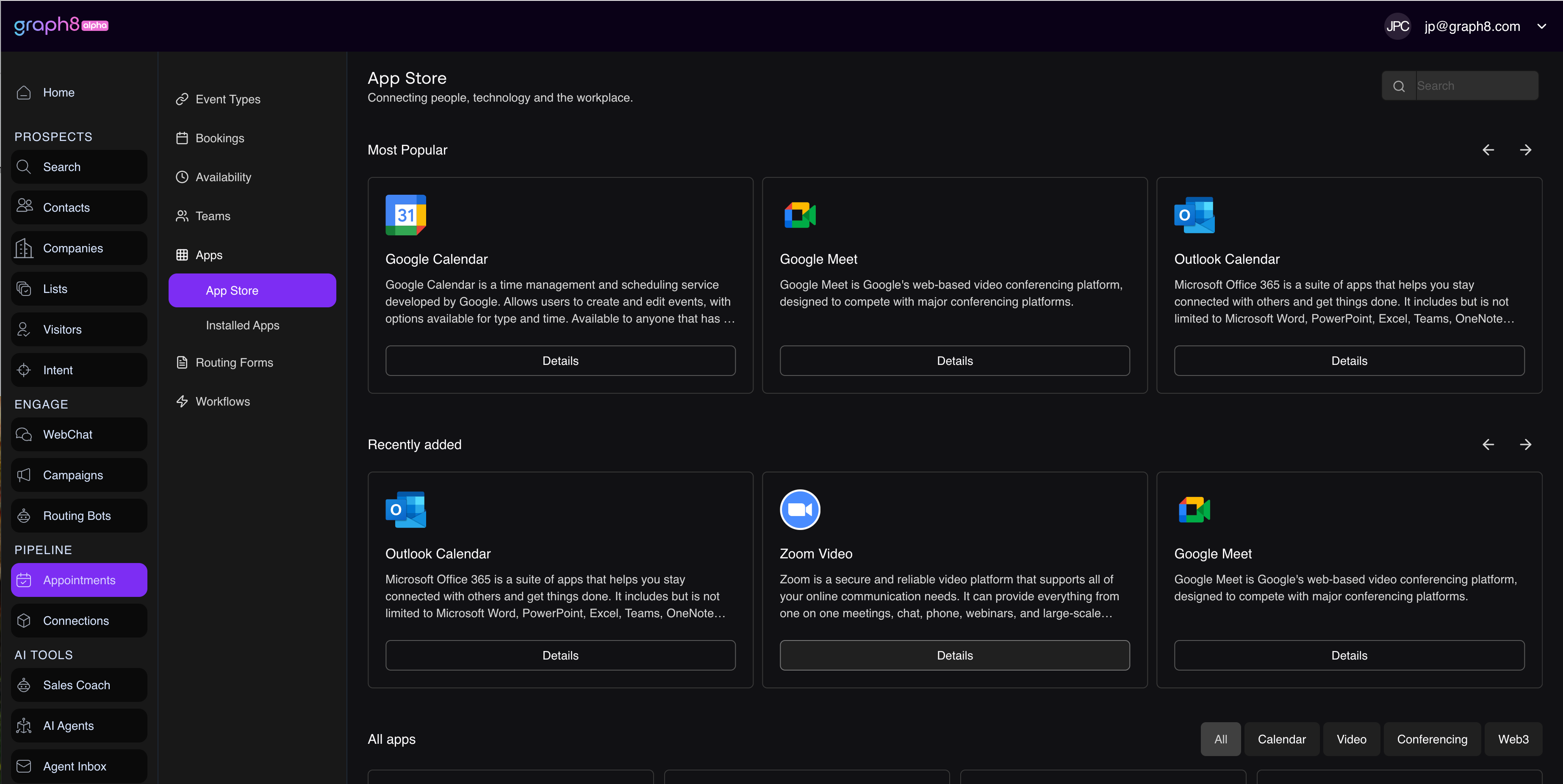
Open App Store
In the Appointments dashboard, click on Apps in the left sidebar
Select App Store from the Apps menu
Install Zoom Integration
Search for "Zoom Video" or locate it in the conferencing section
Click on the Zoom Video app tile
Click the Install App button
Grant Permissions
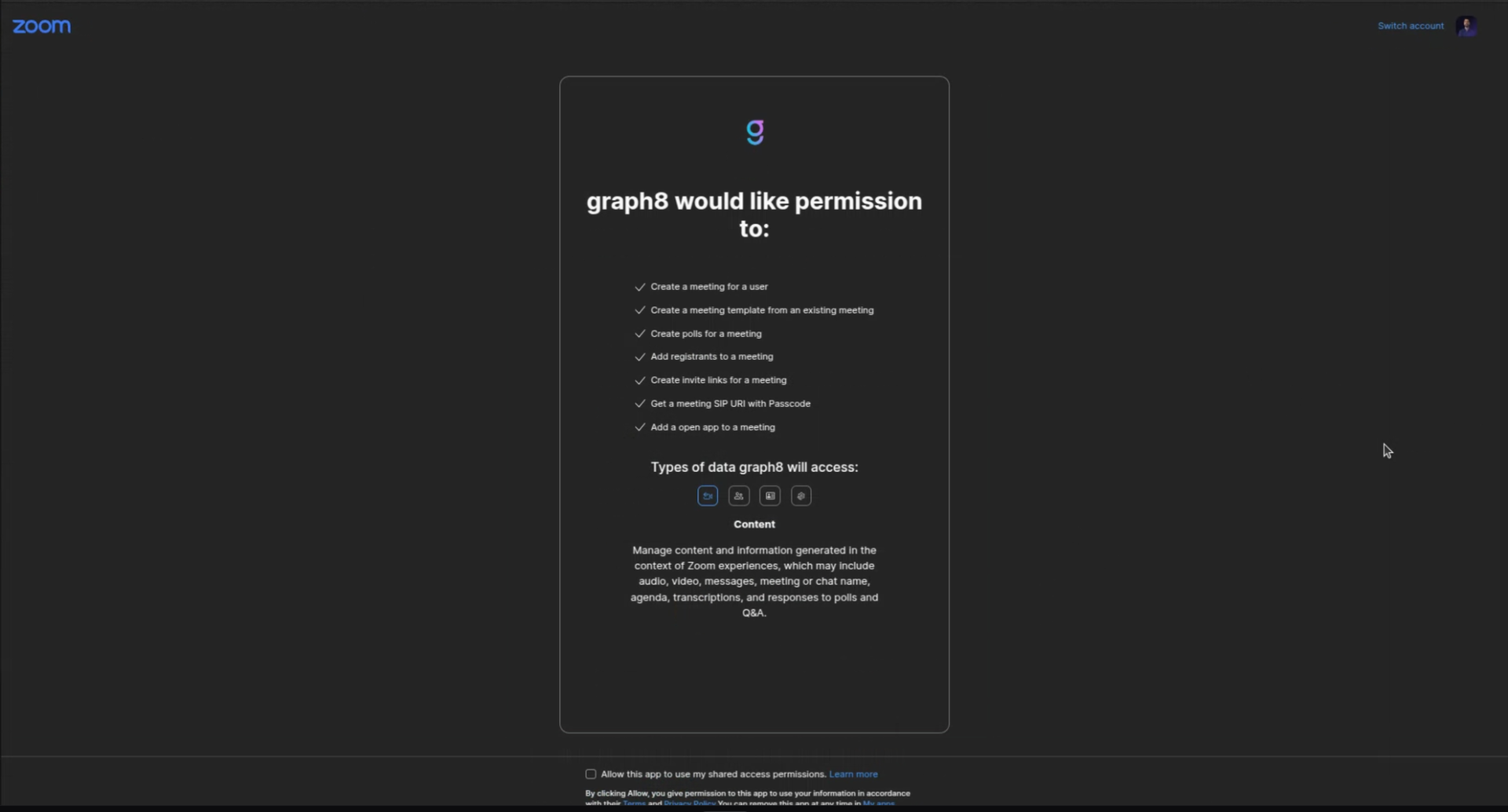
You'll be redirected to Zoom's authorization page
Review the permissions that graph8 is requesting:
Create a meeting for a user
Create a meeting template from an existing meeting
Create polls for a meeting
Add registrants to a meeting
Create invite links for a meeting
Get a meeting SIP URI with Passcode
Add a open app to a meeting
Click Allow to grant these permissions
Confirm Connection
You'll be redirected back to graph8
Verify that Zoom Video now shows as "Connected" in your Apps list
Troubleshooting Installation Issues
Issue: Authorization fails or times out
Ensure you're logged into the correct Zoom account
Check that your Zoom account has the necessary permissions
Try clearing your browser cache and attempting the connection again
Issue: Zoom doesn't appear in the app store
Refresh the page and check your internet connection
Ensure your graph8 account has the Appointments feature enabled
Contact graph8 support if the issue persists
Issue: Permissions are denied
Verify you have admin rights in your Zoom account
If using a corporate Zoom account, check with your IT administrator about app installation policies
Usage
Creating Appointments with Zoom Integration
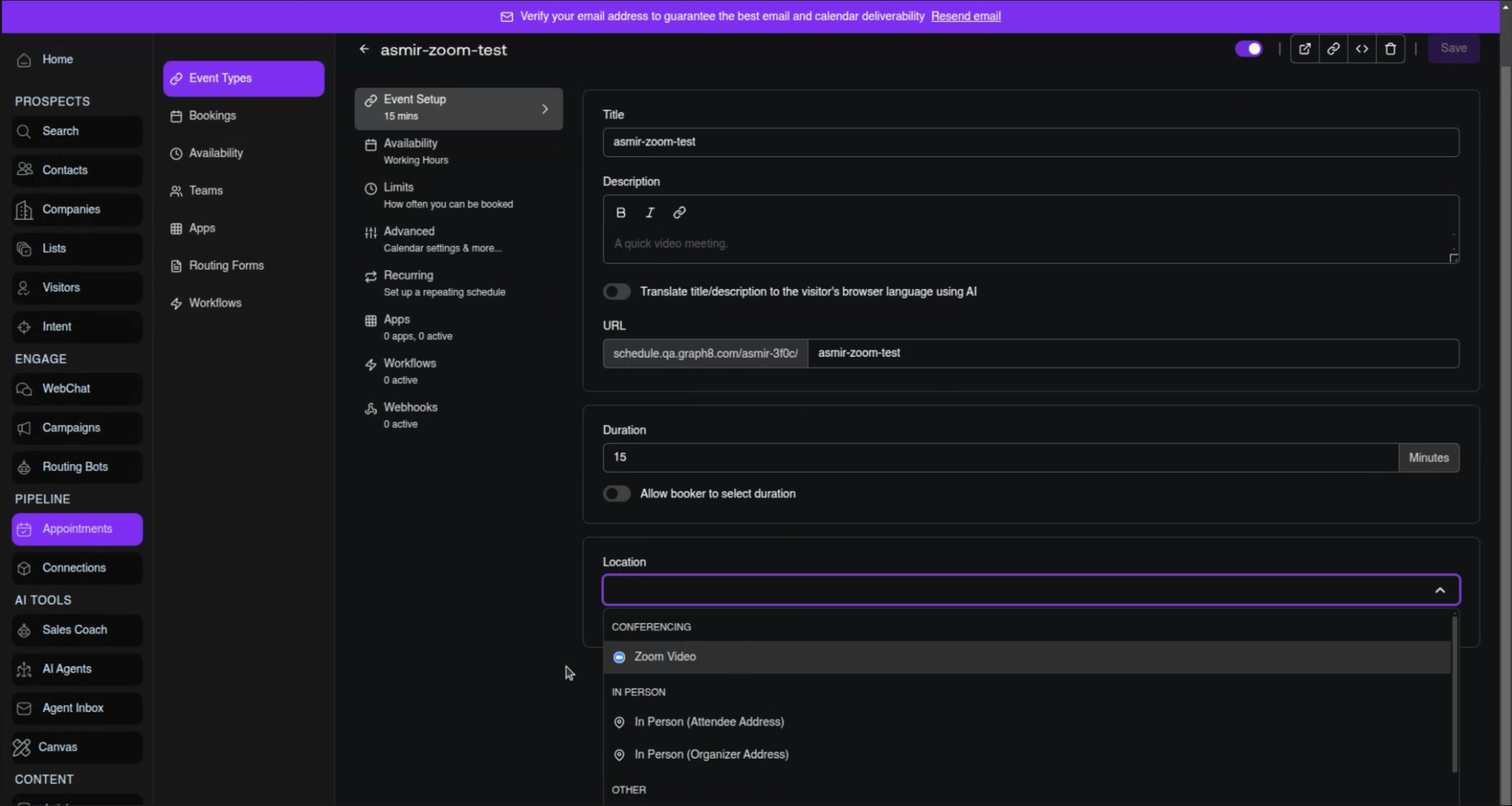
Create a New Event Type
In graph8 Appointments, go to Event Types
Click Create or edit an existing event type
Fill in the basic event details (Title, Description, Duration)
Configure Zoom as Location
In the Location section of your event setup
Select Zoom Video from the conferencing options
The system will automatically generate unique Zoom meeting links for each booking
Event Settings
Duration: Set your preferred meeting length (matches your appointment duration)
Allow booker to select duration: Toggle this if you want clients to choose meeting length
URL: Your scheduling link will be automatically generated
Save and Publish
Click Save to activate your Zoom-enabled event type
Share your scheduling URL with clients
How Appointments Work
For You (Host):
When someone books an appointment, you'll receive a confirmation email with the Zoom meeting details
The meeting link and details are automatically added to your calendar
You can join the meeting directly from the calendar invite or graph8 dashboard
For Your Clients:
Clients receive a booking confirmation with the Zoom meeting link
Meeting details are automatically added to their calendar if they provide calendar integration
They can join the meeting using the provided link at the scheduled time
Managing Zoom Meetings
All Zoom meetings created through graph8 appear in your Zoom account under Meetings
You can modify meeting settings directly in Zoom if needed
Recurring appointments automatically create separate Zoom meetings for each occurrence
Removing the App
Important Considerations Before Removal
Data Implications:
Existing Zoom meetings created through graph8 will remain active in your Zoom account
Future appointments will no longer automatically generate Zoom links
Clients with existing bookings will retain access to their scheduled meetings
What Happens to Your Data:
graph8 will no longer have access to create new Zoom meetings on your behalf
No data is deleted from either platform during disconnection
Your appointment history and meeting records remain intact
Method 1: Remove from graph8
Access Apps in graph8
Log in to your graph8 account
Navigate to Appointments > Apps
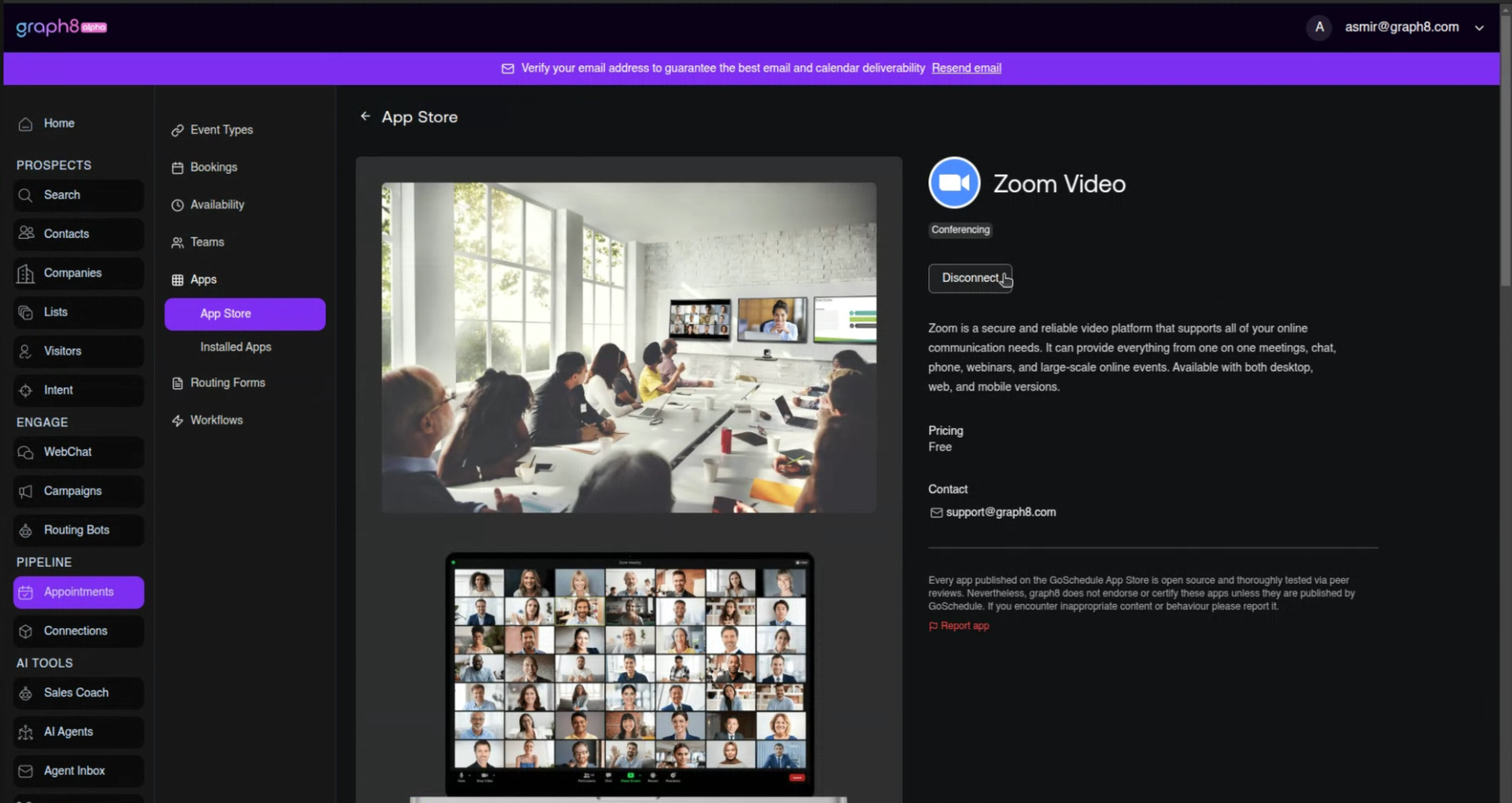
Locate Zoom Integration
Find "Zoom Video" in your connected apps list
Click on the app or the settings icon next to it
Disconnect
Click Disconnect or Remove
Confirm the removal when prompted
Method 2: Remove from Zoom Marketplace
Access Zoom App Marketplace
Log in to your Zoom account
Navigate to the Zoom App Marketplace
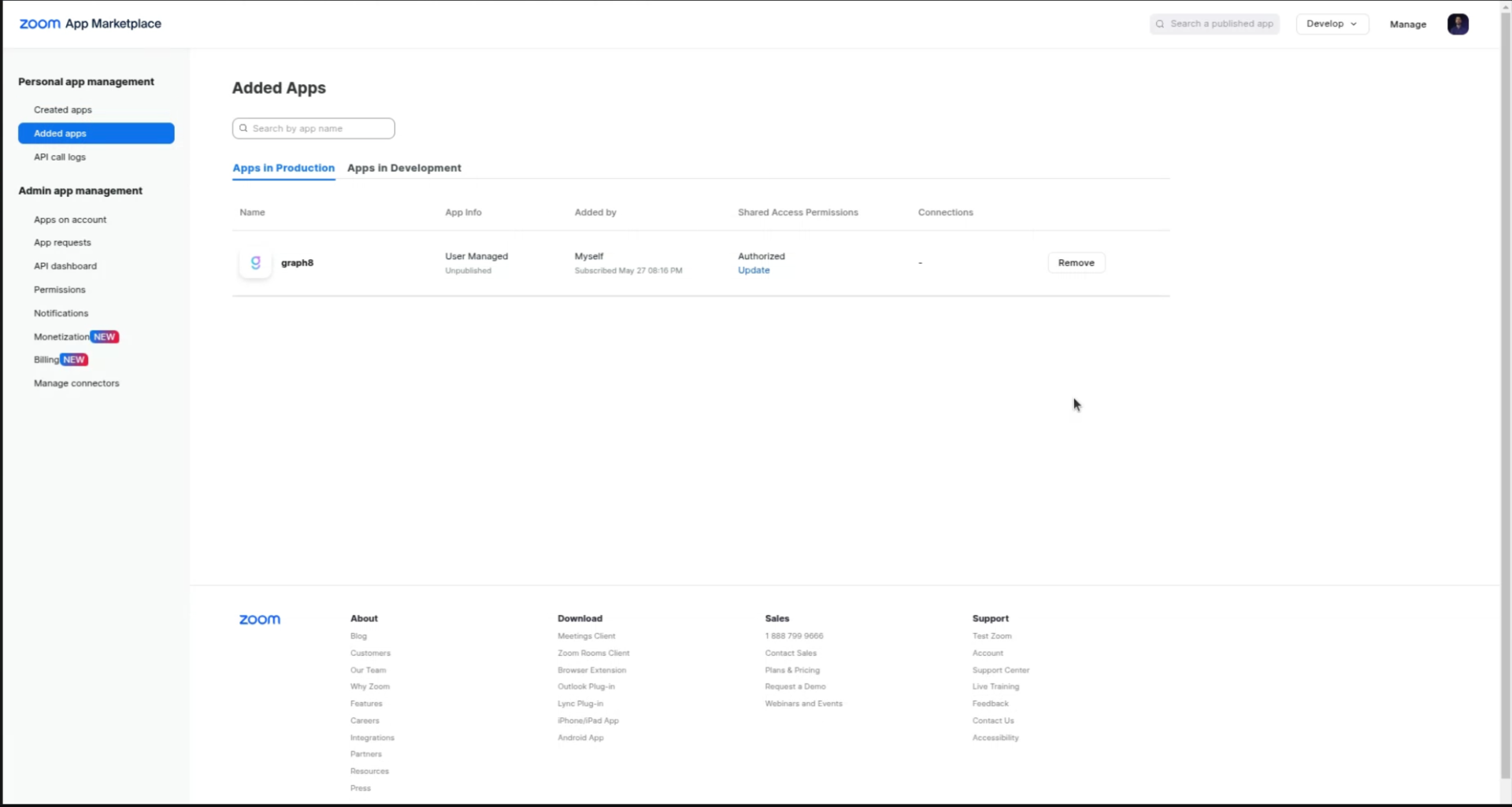
Manage Apps
Click Manage in the top right corner
Select Added Apps from the dropdown menu
Remove graph8
Locate "graph8" in your list of added apps
Click Remove next to the app entry
Choose a removal reason from the dropdown (optional)
Click Remove to confirm
Confirmation
You'll see a confirmation message: "The app is removed - All permissions for this app have been revoked"
Post-Removal Steps
Update Existing Event Types
Review your graph8 event types that were using Zoom
Update the location settings to use alternative conferencing solutions or in-person meetings
Notify Clients
If you have upcoming appointments, consider notifying clients about any changes to meeting links
Existing Zoom meetings will continue to work normally
Alternative Solutions
Consider other conferencing integrations available in the graph8 App Store
You can always reconnect Zoom integration in the future if needed
Support and Additional Resources
graph8 Support: Contact support through the in-app chat or reach out to [email protected]
Zoom Support: Visit Zoom Help Center for Zoom-specific issues
Reconnection: You can reinstall the integration at any time by following the installation steps again