CRM Integrations
Overview
Want to streamline the way you work between graph8 and the rest of your tech stack? Learn how to integrate third-party platforms and tools with graph8 to connect, synchronize, and benefit from the powerful push and pull of data, including contacts, deals, companies, and appointments.
Getting Started: Accessing Integrations
To connect your CRM to your graph8 platform, follow these simple steps:
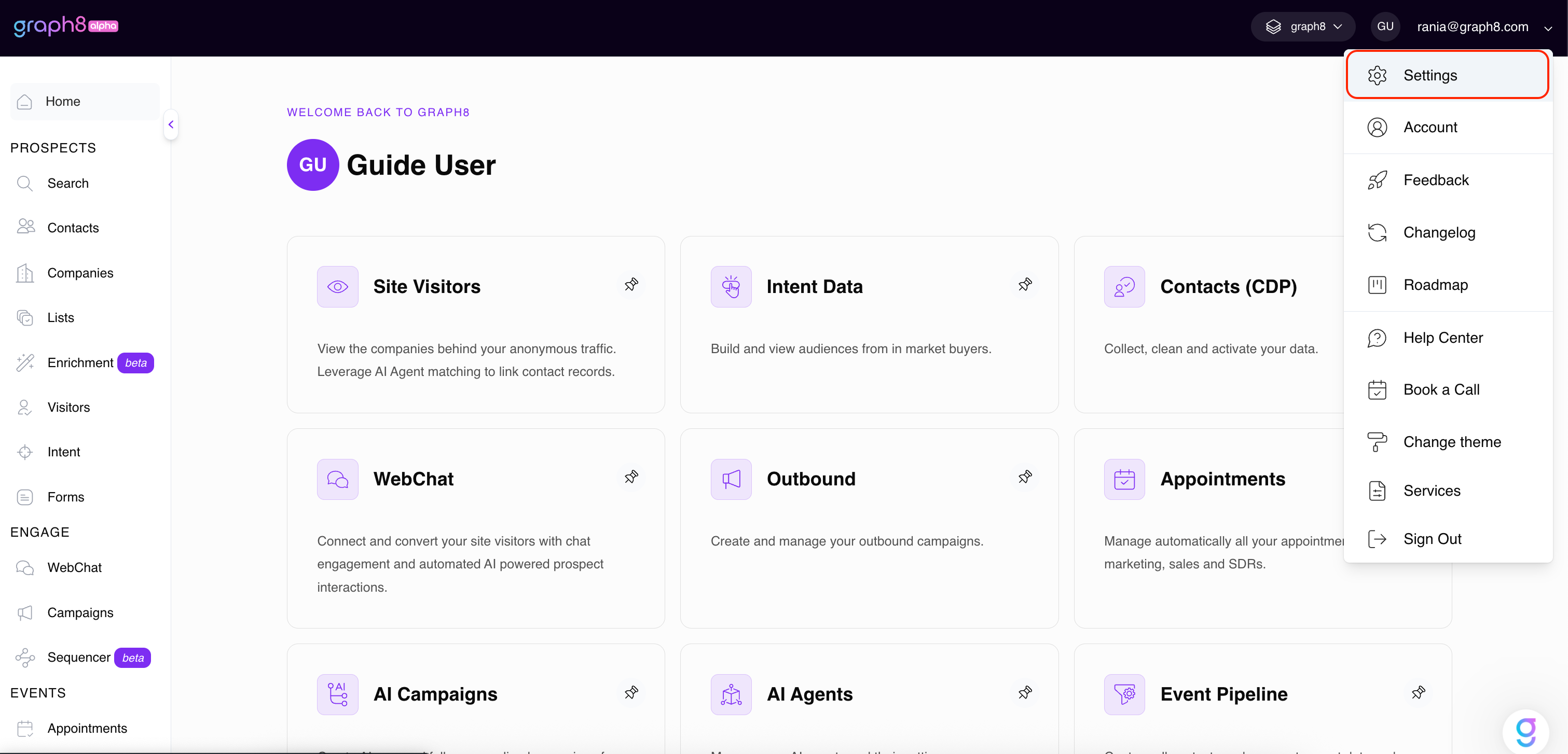
From the Home dashboard, click on your user profile icon (e.g., GU) in the top-right corner, and select Settings from the dropdown menu (see Screenshot 1).
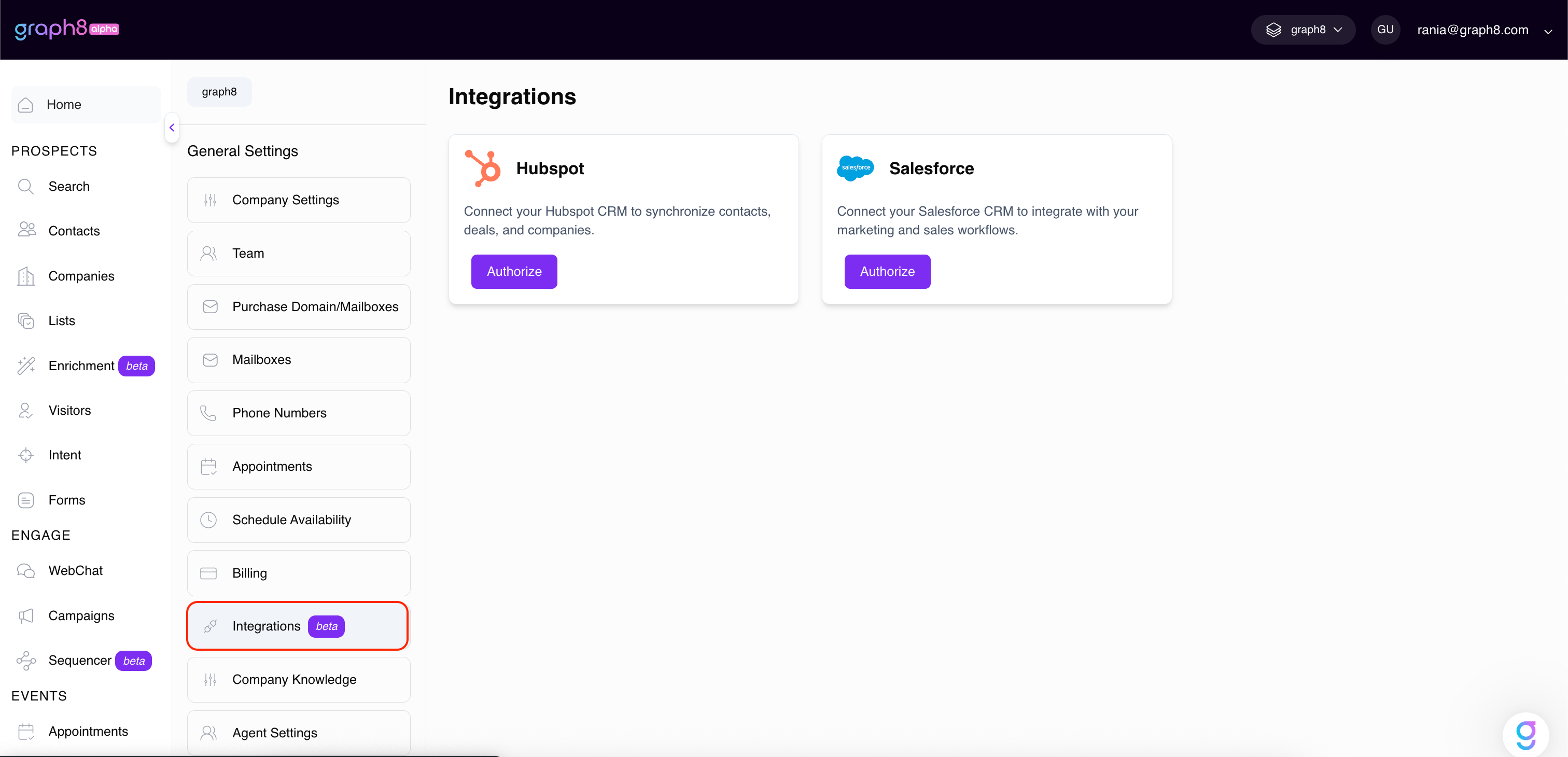
In the settings navigation panel on the left, under the General Settings section, click on Integrations (see Screenshot 2).
The Integrations page will display the available CRM options: HubSpot and Salesforce.
Screenshot 1: Settings Menu
Screenshot 2: Integrations in Settings Menu
How the Integration Works — Technical Overview
Once you connect your CRM (Salesforce, HubSpot, or Pipedrive) to graph8, the integration establishes a secure data connection between both platforms. This connection allows your teams to synchronize contacts, and appointments automatically, based on your selected settings.
Below is an overview of how the integration works and what happens behind the scenes.
1. What happens once a CRM is connected
When you first authorize and connect your CRM account to graph8:
A secure link is created between both platforms using the CRM’s authentication process (OAuth).
Even before adjusting any settings, some actions happen by default:
Appointment Sync: Whenever an appointment is created in graph8, the system automatically creates or updates a Contact record in your CRM and logs a related Activity/Meeting record under that contact.
User and List Access: graph8 starts reading available Users and Lists/Segments from your CRM to make them available inside graph8 for assignment, filtering, and mapping.
Once connected, you can further configure what data is synchronized through the Integration Settings (Pull, Push, Appointments, and Field Mapping).
2. Which data graph8 reads and updates
graph8 reads and writes data based on your enabled settings:
You can manage this behavior from the Integration Settings page by toggling Push, Pull, or Appointment sync on or off.
3. How the API connection works
graph8 connects to your CRM securely through the platform’s OAuth 2.0 authorization process.
Once connected:
graph8 receives a secure access token that allows it to communicate with your CRM through its official REST API.
All data synchronization happens via these API calls — no direct database access is ever used.
The token is stored securely and can be revoked at any time by disconnecting the integration.
No CRM user licenses are consumed — graph8 acts as an external application authorized under your account’s API access, not as a CRM seat or user.
4. Understanding Push, Pull, Appointments, and Field Mapping
Pull: Imports data from your CRM into graph8.
Example: syncing contacts or companies so your team can use them in sequences or lists.
Push: Sends updated or newly created data from graph8 to your CRM.
Example: creating a new contact or deal record in your CRM when it’s added in graph8.
Appointments: Keeps meetings and appointments aligned across both systems by creating a contact (if not existing) and logging a meeting record automatically.
Field Mapping: Defines how data fields match between graph8 and your CRM.
You can choose which CRM field corresponds to each graph8 field and control how data flows using:
Overwrite — replaces existing CRM data with graph8 data.
Auto-fill — fills empty CRM fields if graph8 has relevant data.
This mapping ensures consistency between both systems and prevents accidental data loss.
5. Security and Permissions Summary
All connections use OAuth 2.0 secure authorization — no credentials are stored directly in graph8.
API tokens are encrypted and revocable at any time.
graph8 never modifies your CRM schema (no structural or metadata changes).
Data synchronization respects your CRM’s user permissions — graph8 can only read or update objects your connected CRM account has access to.
Disconnecting the integration immediately stops all data exchange.