Connections
Set up the JS Snippet on your website
During the Magical Onboarding, you are given a small script to put in your website. This will enable the website visitor tracking, forms and web chat.
1. Get the snippet
To retrieve the script after the Magical Onboarding, head over to Connections > Sites > Setup Instructions:
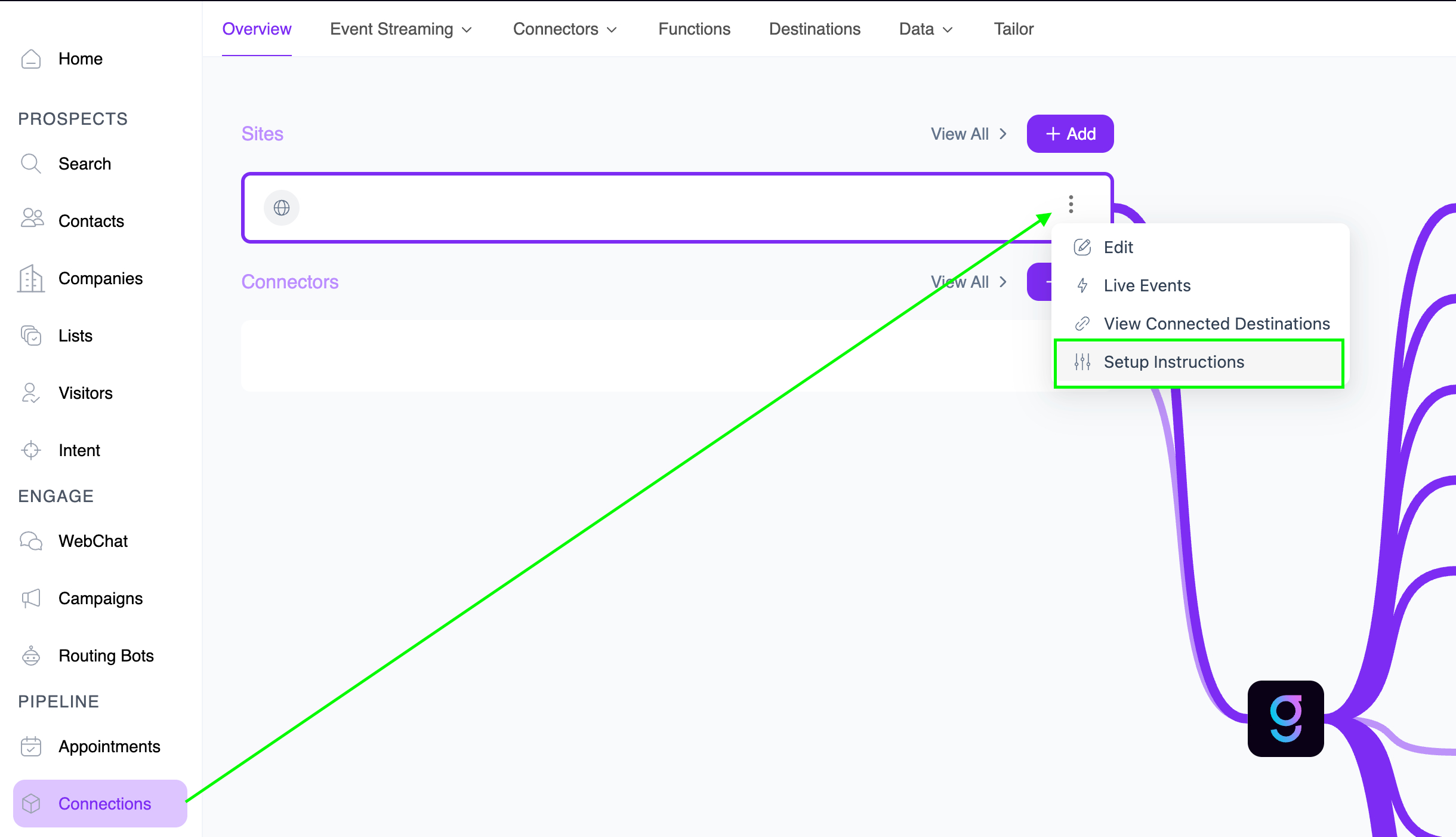
And you’ll be directed to the HTML snippet page where you’ll be able to copy it and paste in on your website code or Google Tag Manager:

It looks like this:
<script async src="https://events.flow.graph8.com/p.js" data-write-key="YOUR_WRITE_KEY"> </script> 2. Open Your Website Code
If you manage the site directly, open the HTML files.
If you use a CMS (like WordPress, Webflow, Wix, etc.), look for the Custom Code or Header Code Injection section.
3. Place the Snippet in the <head>
Paste the snippet just before the closing
</head>tag on every page you want to track.Example:
<head> ... <script async src="https://events.yourdomain.jitsu.com/p.js" data-write-key="YOUR_WRITE_KEY"> </script> </head> 4. Save & Publish
Save your changes and publish the site.
If you’re using a CMS, hit “Update” or “Publish” after pasting the code.
5. Verify It’s Working
Open your website in a browser.
Right-click → Inspect → go to the Network tab.
Refresh the page and look for calls going to your graph8 snippet endpoint (e.g.,
events.events.flow.graph8.com).You should also see events appearing in the Jitsu dashboard.
👉 That’s it — graph8 is now collecting events from your site.