Welcome to graph8
Getting Started with Magic Onboarding
Overview
graph8's Magic Onboarding helps you set up your account quickly by guiding you through a step-by-step process to collect essential information about your business. The system will use this information to automatically create intent keyword lists, ICP (Ideal Customer Profile) lists, and campaigns tailored to your business needs.
Where to start
Creating your Account
You have three options to create your account:
Enter your business email address in the field provided and click "Sign up"
Click "Sign up with Google" to use your Google account
Click "Sign up with Microsoft" to use your Microsoft account
After this, follow the verification instructions sent to your inbox
Step 1: Business Data
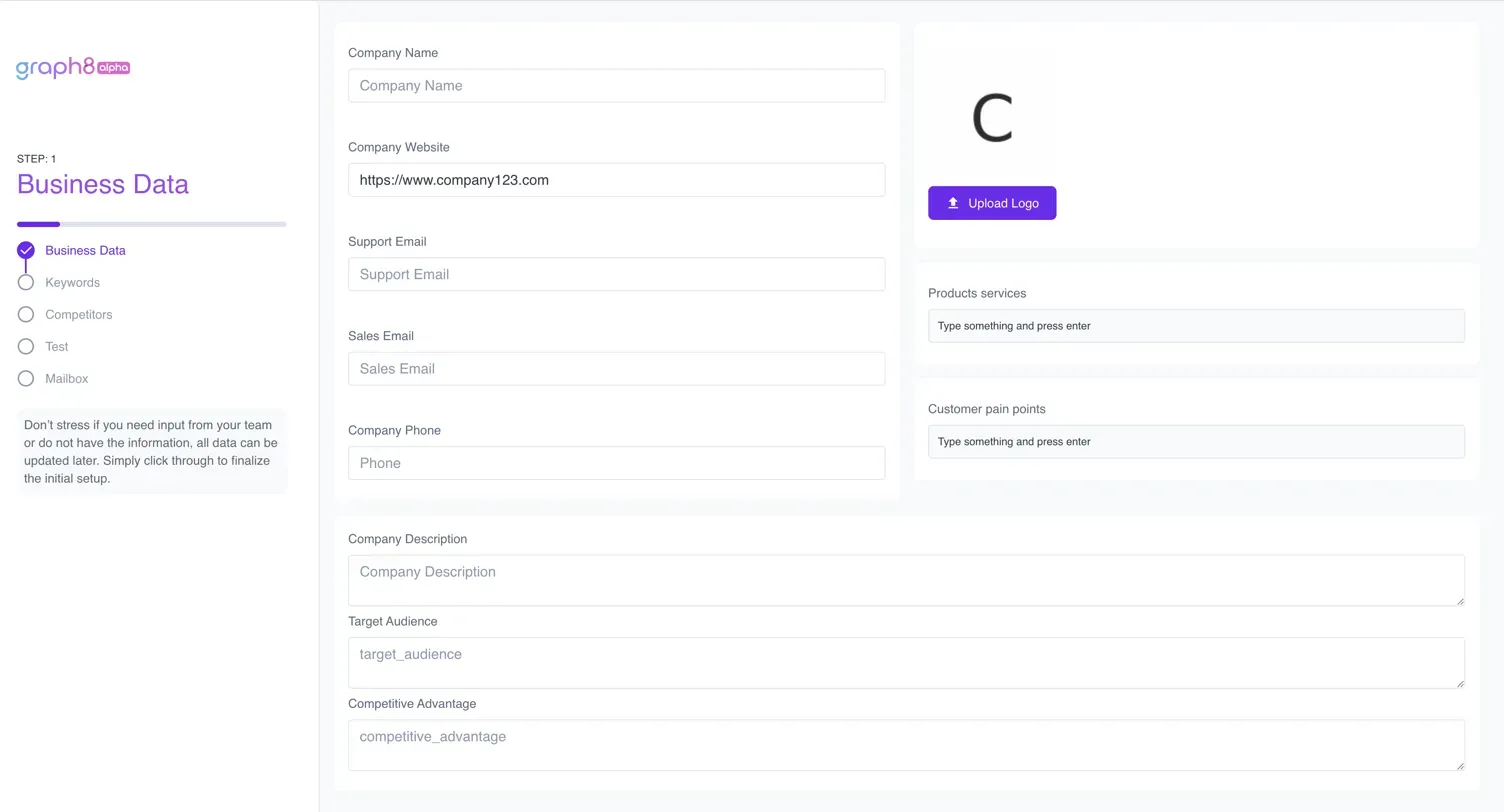
After creating your account, the Magic Onboarding process begins with collecting your business information.
Enter your company details in the form provided:
Company Name
Company Website
Support Email
Sales Email
Company Phone
Company Description
Target Audience
Competitive Advantage
Some fields may already be filled out with information automatically scraped from your domain.
For "Products services" and "Customer pain points," type your information and press enter to add each item.
Don't worry if you don't have all information available—you can update it later.
Step 2: Keywords
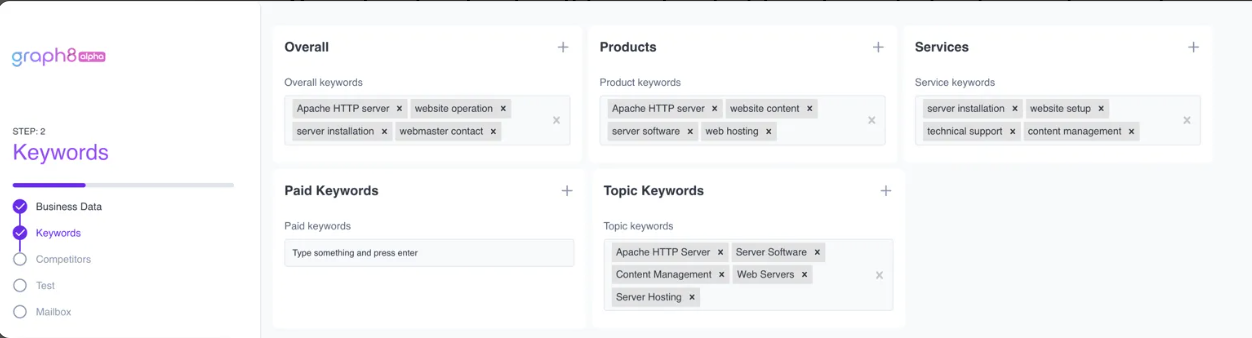
Next, you'll need to specify keywords related to your business.
Review the pre-populated keyword suggestions in each category:
Overall keywords
Product keywords
Service keywords
Click the "+" button in each section to add more keywords.
For Paid Keywords and Topic Keywords, type your entries and press enter.
Fill out as many keywords as possible—this information is crucial for the intent keyword feature and will help graph8 generate more accurate results for your business.
Step 3: Competitors
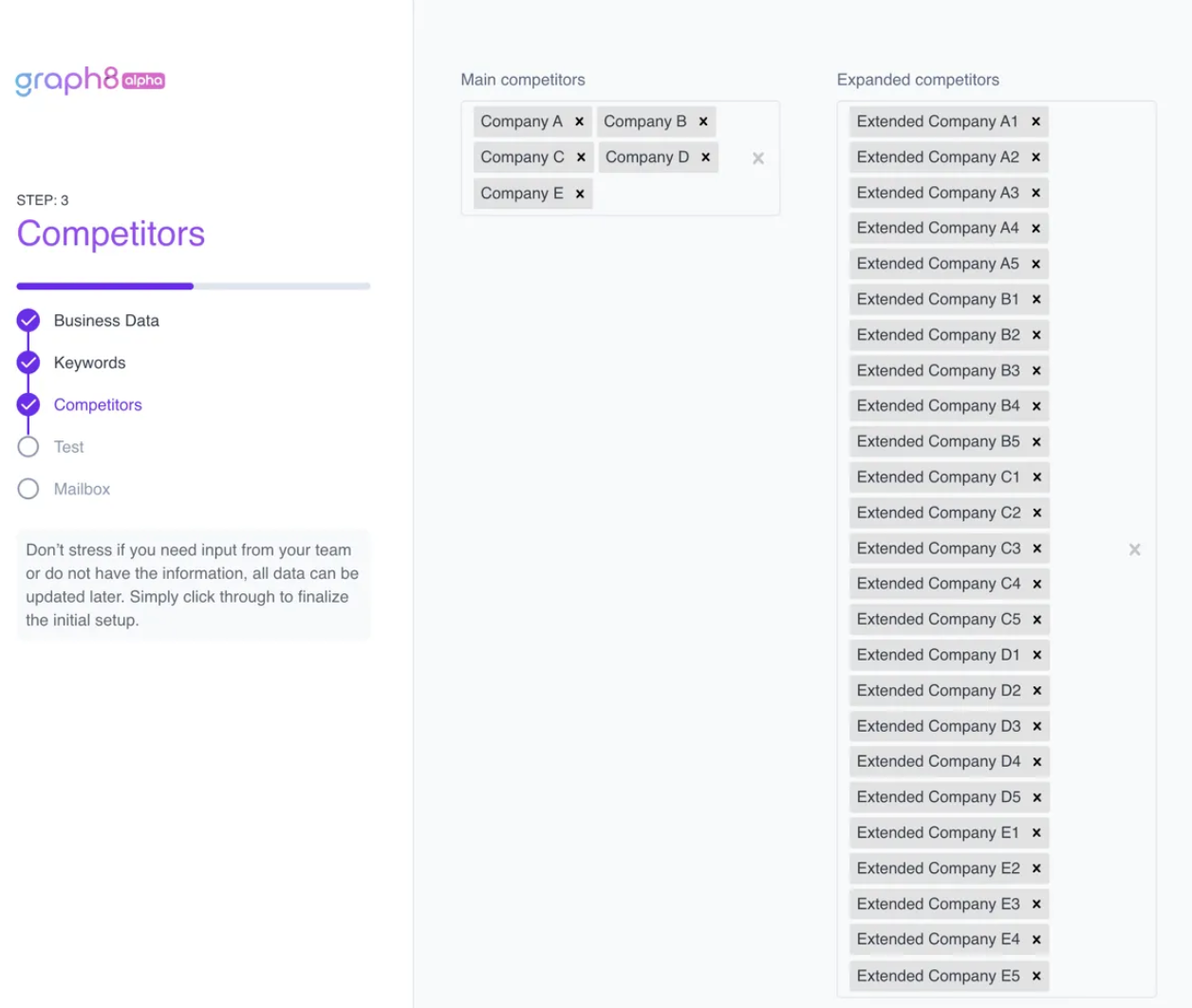
Identifying your competitors helps graph8 create more effective intent keyword lists.
Under "Main competitors," add the names of your primary competitors.
Under "Expanded competitors," add additional competitors in your market space.
Type each competitor's name and press enter to add them to the list.
Click the "×" next to any entry you wish to remove.
Add as many competitors as possible for the best results with the intent keyword feature.
Step 4: Preview & Test
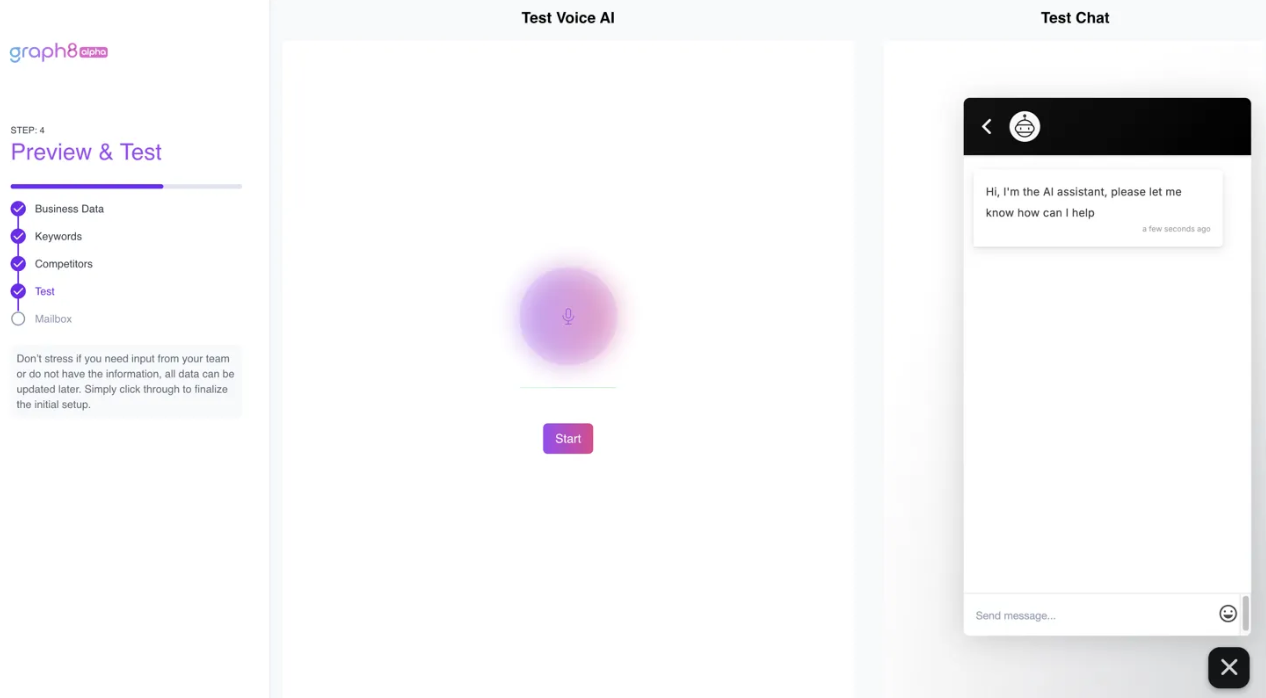
Before finalizing your setup, you can test graph8's AI features.
Test Voice AI:
Click the "Start" button in the Voice AI section.
Speak clearly to interact with the voice assistant.
Note that you'll be able to customize this by recording your own voice later.
Test Chat:
Type messages in the chat interface to test how the AI responds to questions about your company.
Review responses to ensure they accurately reflect your business.
Step 5: Connect Mailbox
The final step is connecting your email system to graph8.
Choose one of the following options:
Connect with Google (recommended for Google Workspace users).
Connect via SMTP (for other email providers).
Follow the prompts to authorize access or enter your SMTP details.
Verify the connection is successful.
For more information on connection mailboxes, please check our Mailboxes article.
Additional Step: JavaScript
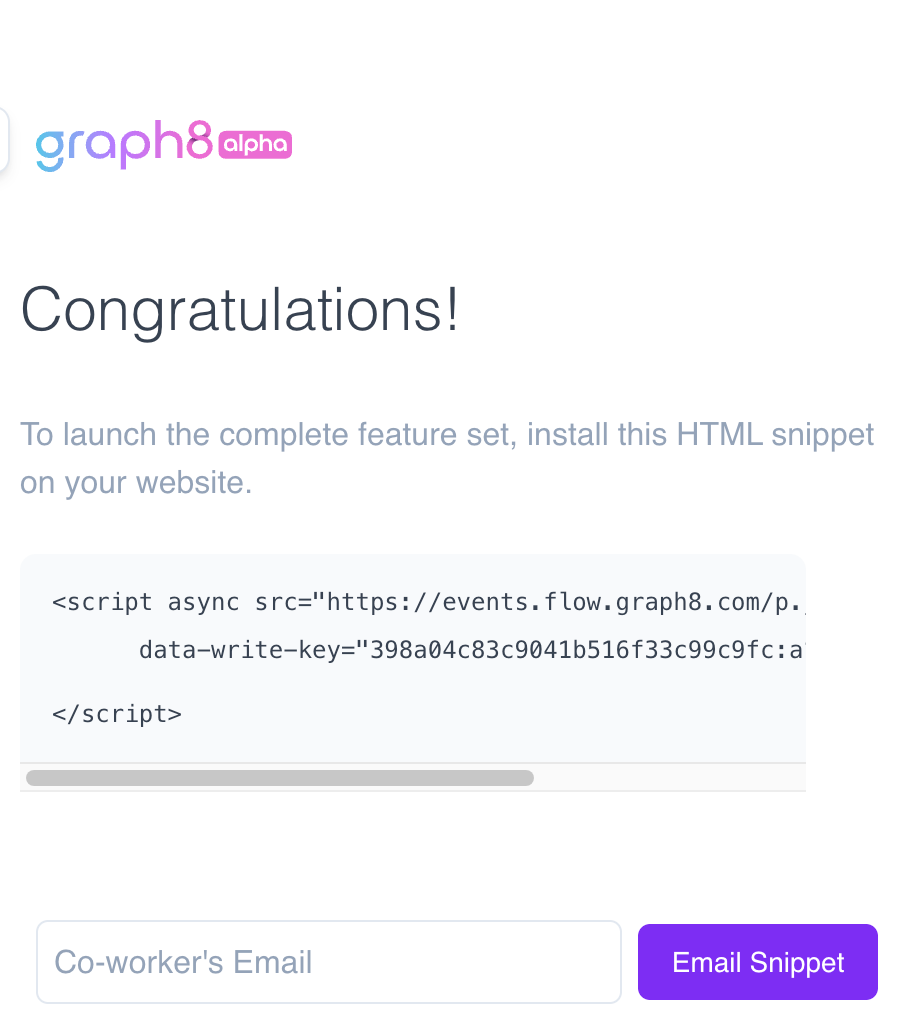
To launch the complete feature set, please install this HTML snippet on your website after going through the onboarding. You can also send it to yourself or a colleague. Please do not skip this step.
Additional Step: Scheduling Onboarding
You can also schedule some time with the graph8 team:

Completion
After completing all steps, graph8 will automatically:
Create company and competitor buying intent keyword lists.
Generate ICP (Ideal Customer Profile) lists.
Set up campaigns for intent and your ICP.
Track website visitors.
Enable the in-website chat application.
Your graph8 account is now ready to use! You can access all features from your dashboard and modify any settings as needed.
Read the Documentation
graph8 provides comprehensive documentation to help you make the most of all features.
Access the graph8 Knowledge Base.
Browse articles by category or use the search function to find specific information.
Each article includes step-by-step instructions, screenshots, and video tutorials where applicable.
If you need additional assistance at any point:
Send an email to [email protected].
Use the in-app chat by clicking on the chat icon in the bottom right corner of any page.
We're committed to helping you succeed with graph8 and welcome your questions and feedback!