Team Settings
Overview
The Team Settings section provides comprehensive user and team management for your graph8 account. This centralized hub allows you to manage team members, control access permissions, track invitations, and organize users into specialized teams for better collaboration and workflow management.
Team Management Tabs
Users
The Users tab displays all current members of your graph8 account and provides tools for user management.
Team Member Display
Each team member entry shows:
Profile Avatar - Visual identifier with initials or profile image
Name and Email - Full contact information for each team member
Sign In Count - Number of times the user has logged into the system
Last Sign In - Timestamp of their most recent login
Owner Designation - Identifies account owners and administrators
Access List - Shows what permissions each user has
Actions Menu - Individual user management options (change name, email and role), or remove user
Add New Team Member
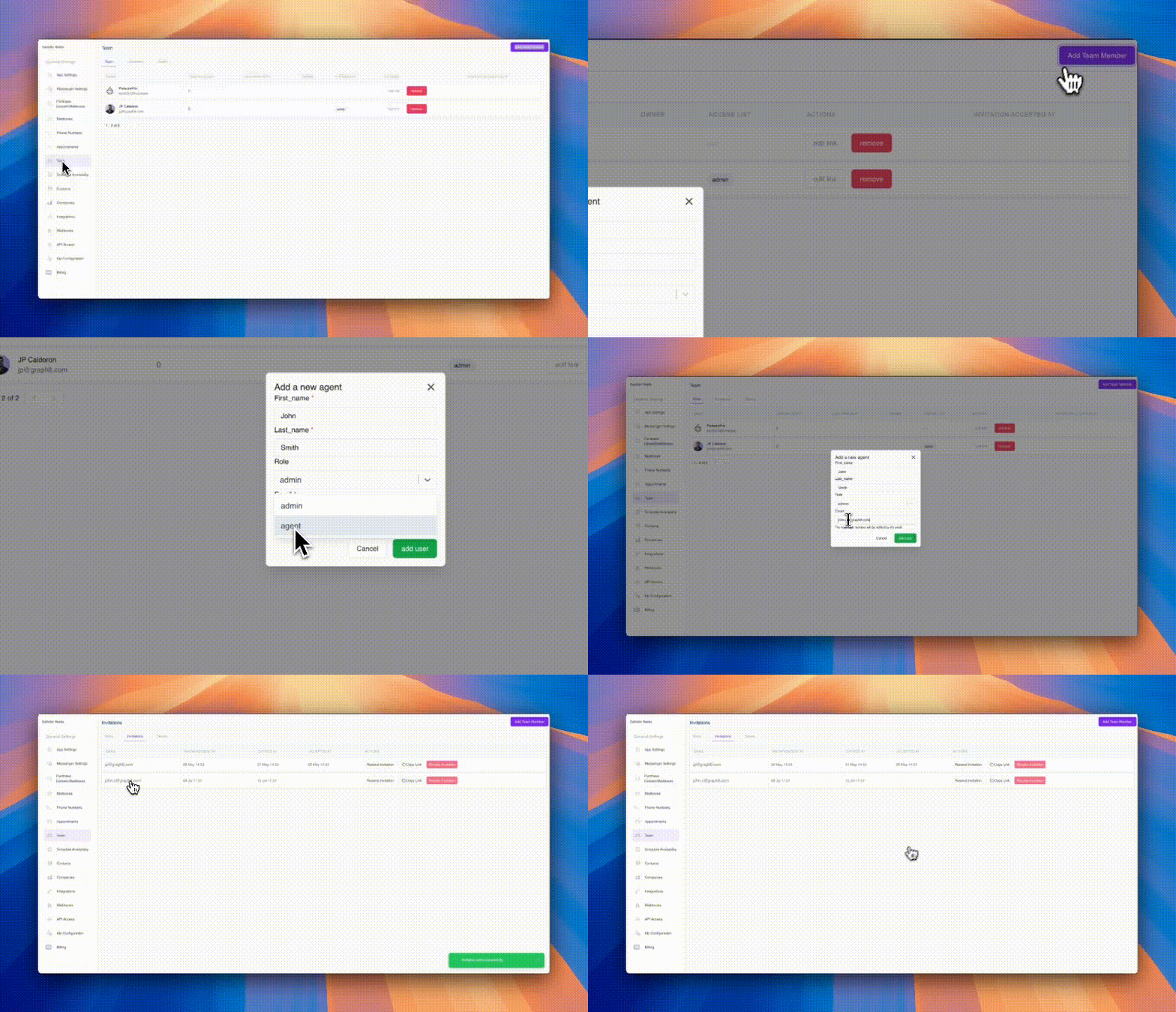
When adding team members, you'll configure:
Required Information:
First Name - Team member's first name (required field)
Last Name - Team member's last name (required field)
Email - Primary email address for login and notifications (required field)
Role Selection - Choose between Admin and Agent permissions
User Roles
Admin - Full administrative access to all account features
Agent - Standard user access for day-to-day operations
Notification Process:
New team members receive email notifications with login instructions
Automatic invitation system handles onboarding communications
Members can accept invitations and set up their accounts independently
Invitations Tab
The Invitations tab tracks all pending and completed invitation processes.
Invitation Tracking:
Email Address - Shows who was invited
Invitation Sent At - Timestamp of when invitation was sent
Expires At - Deadline for invitation acceptance
Accepted At - When the invitation was accepted (if applicable)
Invitation Management Actions:
Resend Invitation - Send reminder emails to pending invites
Copy Link - Share invitation links directly
Revoke Invitation - Cancel pending invitations
Invitation Status Monitoring: Track the progress of all team invitations to ensure proper onboarding and follow up on pending requests.
Teams Tab
The Teams tab allows you to create and manage specialized groups within your organization.
Team Organization:
Add Team - Purple "Add Team" button to create new teams
Team Names - Organize users into functional groups
Role Assignment - Set team-specific roles and permissions
Team Actions - Manage team membership and settings
Team Management Features:
Edit Link - Modify team settings and membership
Manage Participants - Add or remove team members
Remove Teams - Delete teams when no longer needed
Benefits of Team Organization:
Workflow Separation - Keep different departments or projects organized
Permission Management - Apply role-based access by team
Collaboration Enhancement - Improve coordination within specialized groups
Resource Allocation - Assign sequences, contacts, and campaigns to specific teams
Best Practices for Team Management
User Role Assignment - Carefully consider whether new users need Admin or Agent permissions based on their responsibilities.
Regular Access Review - Periodically review team member access and remove inactive users to maintain security.
Team Structure - Organize teams based on functional areas, projects, or departments for optimal workflow management.
Invitation Follow-up - Monitor pending invitations and follow up with team members who haven't accepted within the expiration period.
Permission Auditing - Regularly review user permissions and team assignments to ensure appropriate access control.
Effective team management ensures your Graph8 account remains secure, organized, and optimized for collaboration across your sales and marketing teams.