Mailboxes
Overview
Connecting your email mailboxes to graph8 is essential for automating outreach campaigns and managing communications with prospects. This article explains how to set up different types of mailboxes within the platform, giving you flexibility based on your company's email infrastructure.
graph8 supports multiple mailbox connection methods to accommodate various business needs:
Google Workspace integration for seamless connection with your Google accounts
SMTP configuration for non-Google email providers
Bulk upload capability for efficiently connecting multiple SMTP mailboxes at once
Whether you're setting up a single email address or need to connect dozens of team mailboxes, the following sections will guide you through each process step by step.
Connecting your Google Mailbox to graph8
Google Workspace integration offers the simplest way to connect your email accounts to graph8, with automatic authentication and configuration.
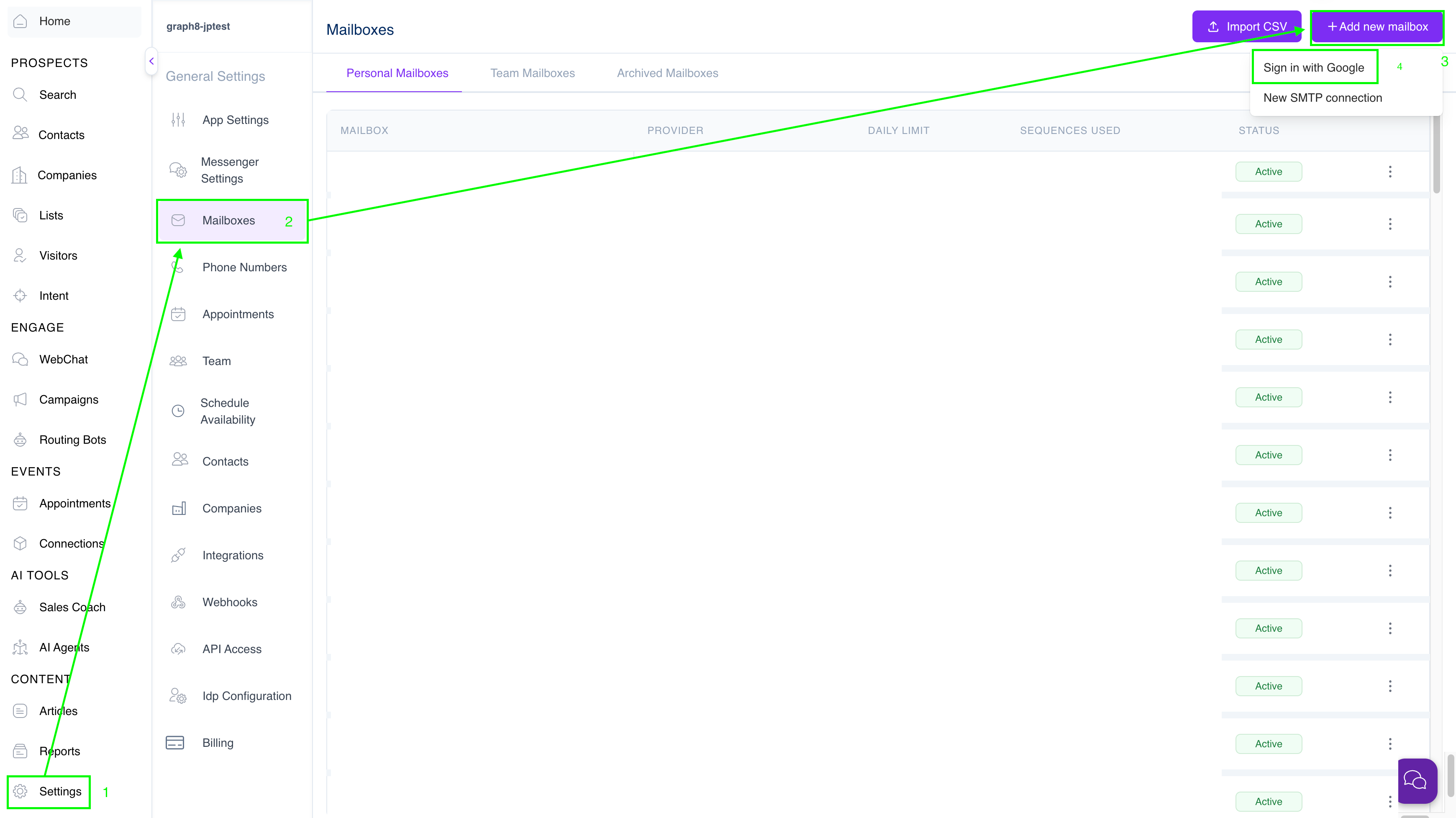
Navigate to the Mailboxes section in graph8:
Click on "Settings" in the left sidebar.
Select "Mailboxes" from the settings menu.
Access the mailbox connection options:
Click the "+ Add new mailbox" button in the top-right corner.
A dropdown menu will appear with connection options.
Select Google authentication:
Click "Sign in with Google" from the dropdown menu.
A Google authorization window will open in a new tab or popup.
Complete the Google authorization process:
Select the Google account you want to connect.
Review the permissions requested by graph8.
Click "Allow" to grant graph8 access to your email.
Verify the connection:
You'll be redirected back to graph8.
Your Google mailbox will appear in the "Personal Mailboxes" tab.
The status column should display "Active" when the connection is successful.
Configure sending limits (optional):
graph8 automatically detects Google's daily sending limits.
You can adjust these limits if needed by clicking the settings icon in the mailbox row.
Note: Google mailboxes are subject to Google's sending limits and policies. graph8 helps you stay within these limits to maintain good deliverability rates.
Connecting an SMTP Mailbox
For email providers that don't support Google authentication or if you prefer manual configuration, graph8 allows you to connect mailboxes via SMTP and IMAP settings.
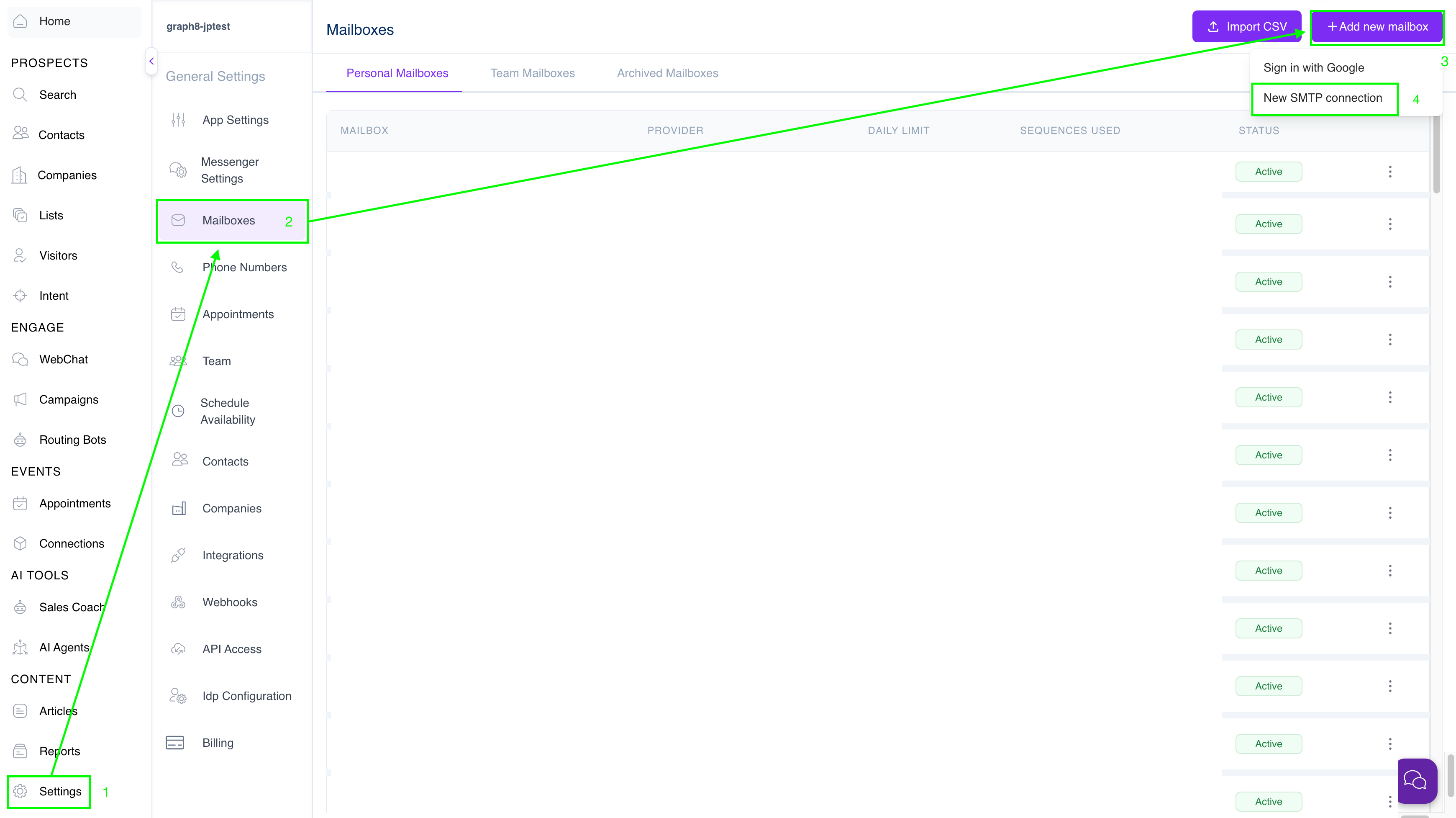
Navigate to the Mailboxes section:
Click on "Settings" in the left sidebar.
Select "Mailboxes" from the settings menu.
Initiate a new SMTP connection:
Click the "+ Add new mailbox" button in the top-right corner.
Select "New SMTP connection" from the dropdown menu.
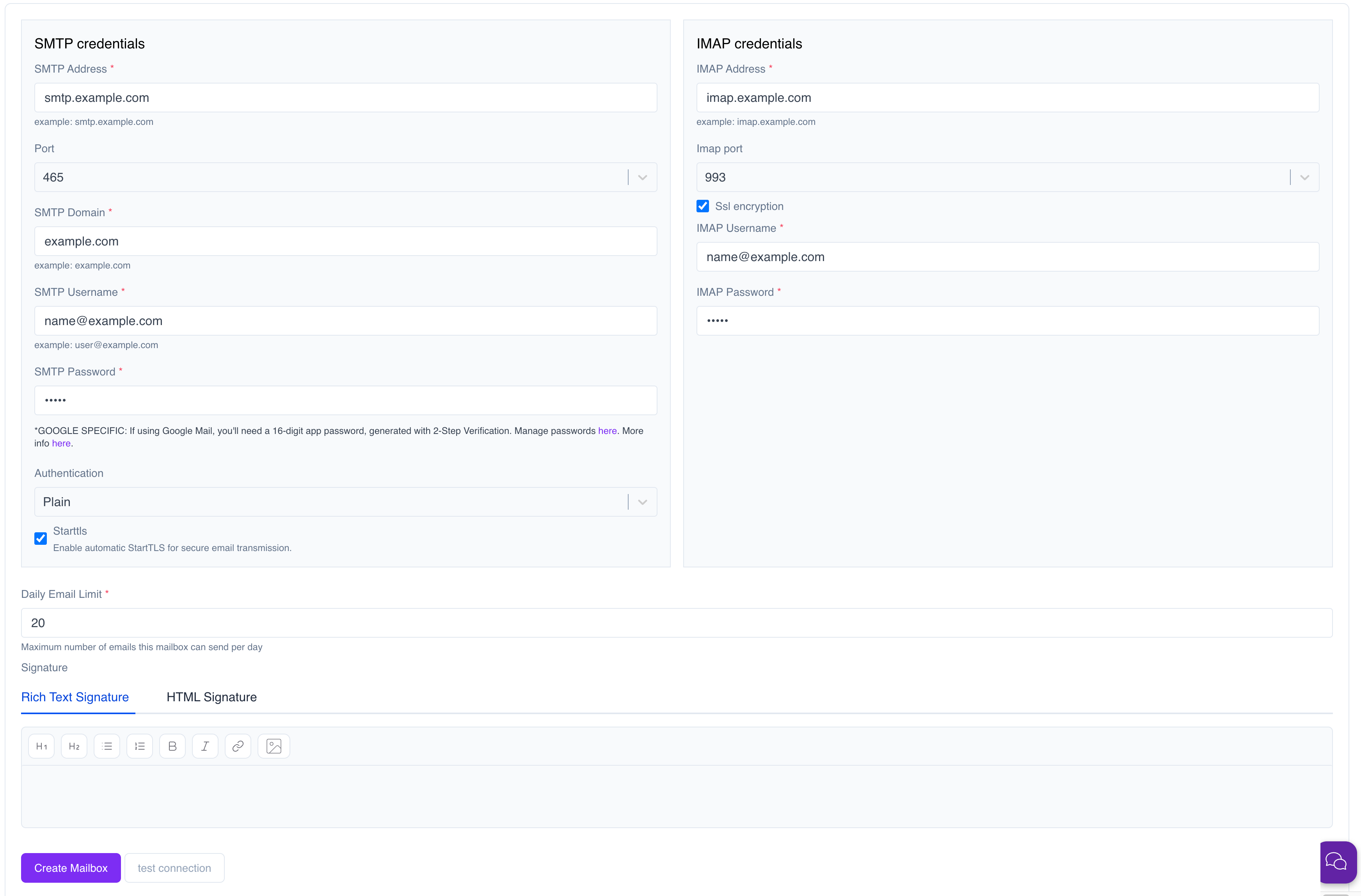
Enter your SMTP credentials (for sending emails):
SMTP Address: Enter your mail server address (e.g., smtp.example.com).
Port: Select the appropriate port (typically 587 for TLS or 465 for SSL).
SMTP Domain: Enter your email domain (e.g., example.com).
SMTP Username: Enter your email username/address.
SMTP Password: Enter your email password or app password.
Enter your IMAP credentials (for receiving emails):
IMAP Address: Enter your IMAP server address (e.g., imap.example.com).
IMAP Port: Select the appropriate port (typically 993 for SSL).
Check "SSL encryption" (recommended for security).
IMAP Username: Usually the same as your email address.
IMAP Password: Usually the same as your SMTP password.
Configure security settings:
Authentication: Select the authentication method required by your email provider.
Check "StartTLS" to enable secure email transmission (recommended).
Set daily email limits:
Enter the maximum number of emails this mailbox can send per day.
This helps prevent your account from being flagged for spam.
Create an email signature (optional):
Switch between "Rich Text Signature" or "HTML Signature" tabs.
Use the formatting tools to create a professional signature.
Add your name, title, company info, and contact details.
Test and save the connection:
Click "test connection" to verify your settings are correct.
If successful, click "Create Mailbox" to save the configuration.
Important Notes:
For Google accounts, you'll need to use an app password instead of your regular password if you have 2-Step Verification enabled.
Check with your email provider for the correct SMTP/IMAP server addresses and ports.
Some corporate email systems may require additional security settings or whitelisting.
Bulk upload of SMTP Mailboxes
For organizations with multiple email accounts to connect, graph8 offers a bulk import feature that saves you from manually configuring each mailbox individually.
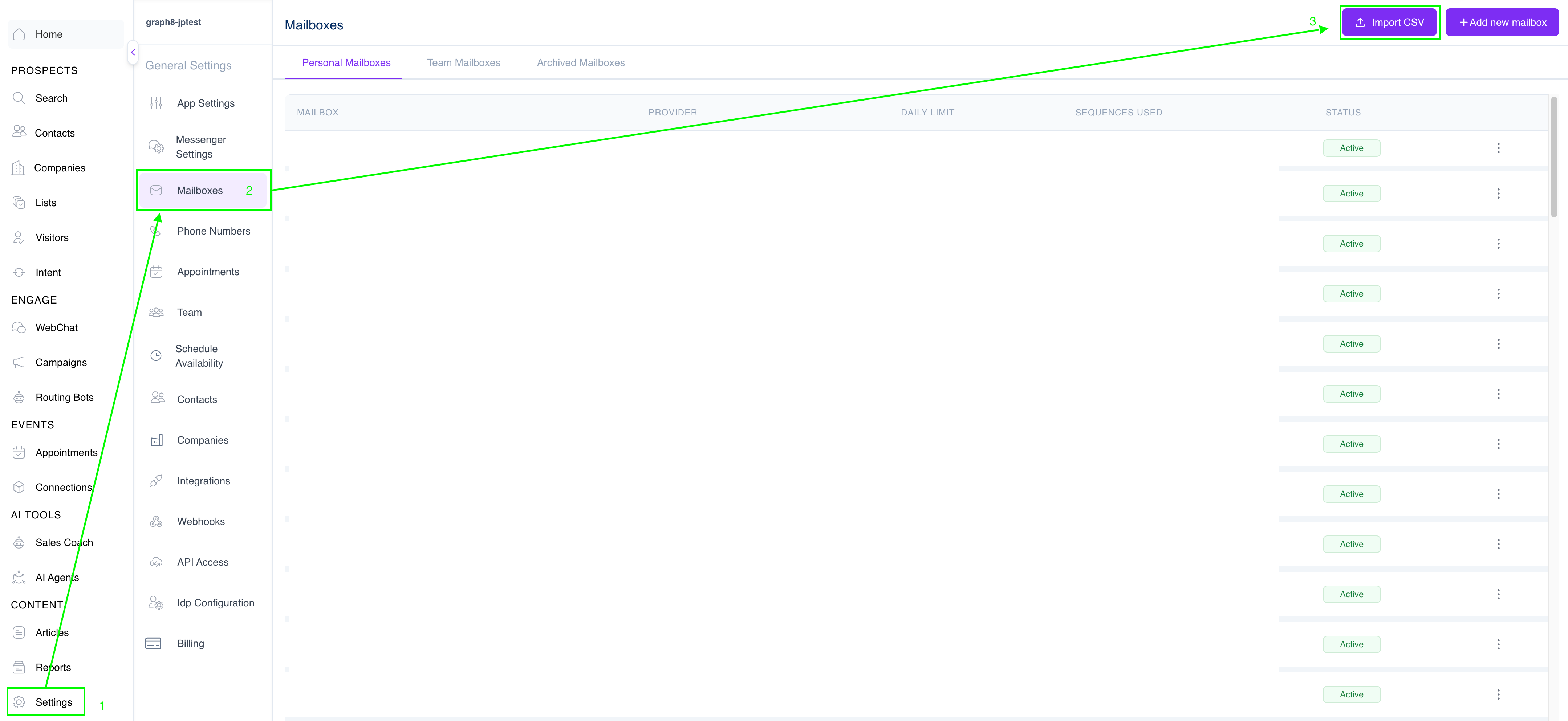
Navigate to the Mailboxes section:
Click on "Settings" in the left sidebar.
Select "Mailboxes" from the settings menu.
Access the bulk import feature:
Click the "Import CSV" button in the top-right corner.
This will open the import interface.
Prepare your CSV file:
Open the sample in a spreadsheet application (Excel, Google Sheets, etc.).
Fill in the required information for each mailbox:
Email address
SMTP server
SMTP port
SMTP username
SMTP password
IMAP server
IMAP port
IMAP username
IMAP password
Daily sending limit
Save the file as CSV format.
Upload your completed CSV:
Click "Choose File" on the import screen.
Select your prepared CSV file.
Click "Import Mailboxes" to begin the process.
Monitor the import progress:
graph8 will validate each mailbox configuration.
Successfully connected mailboxes will appear in your mailbox list.
Any errors will be displayed for troubleshooting.
Best Practices:
Use app passwords instead of regular passwords for enhanced security
Ensure your CSV has no formatting issues or extra columns
Test a single mailbox manually before attempting a bulk import
Set reasonable daily sending limits to avoid triggering spam filters
Verify all mailboxes show "Active" status after import
Note: The bulk import feature works only for SMTP/IMAP mailboxes. Google account connections must be added individually through the Google authentication method.