Integrate HubSpot with graph8
Overview
If you have contact, company, or deal data in HubSpot that you'd like to make available in graph8, or if you want to keep your data in graph8 synchronized with HubSpot, use the integration to sync contacts and appointments.
Connect HubSpot to graph8
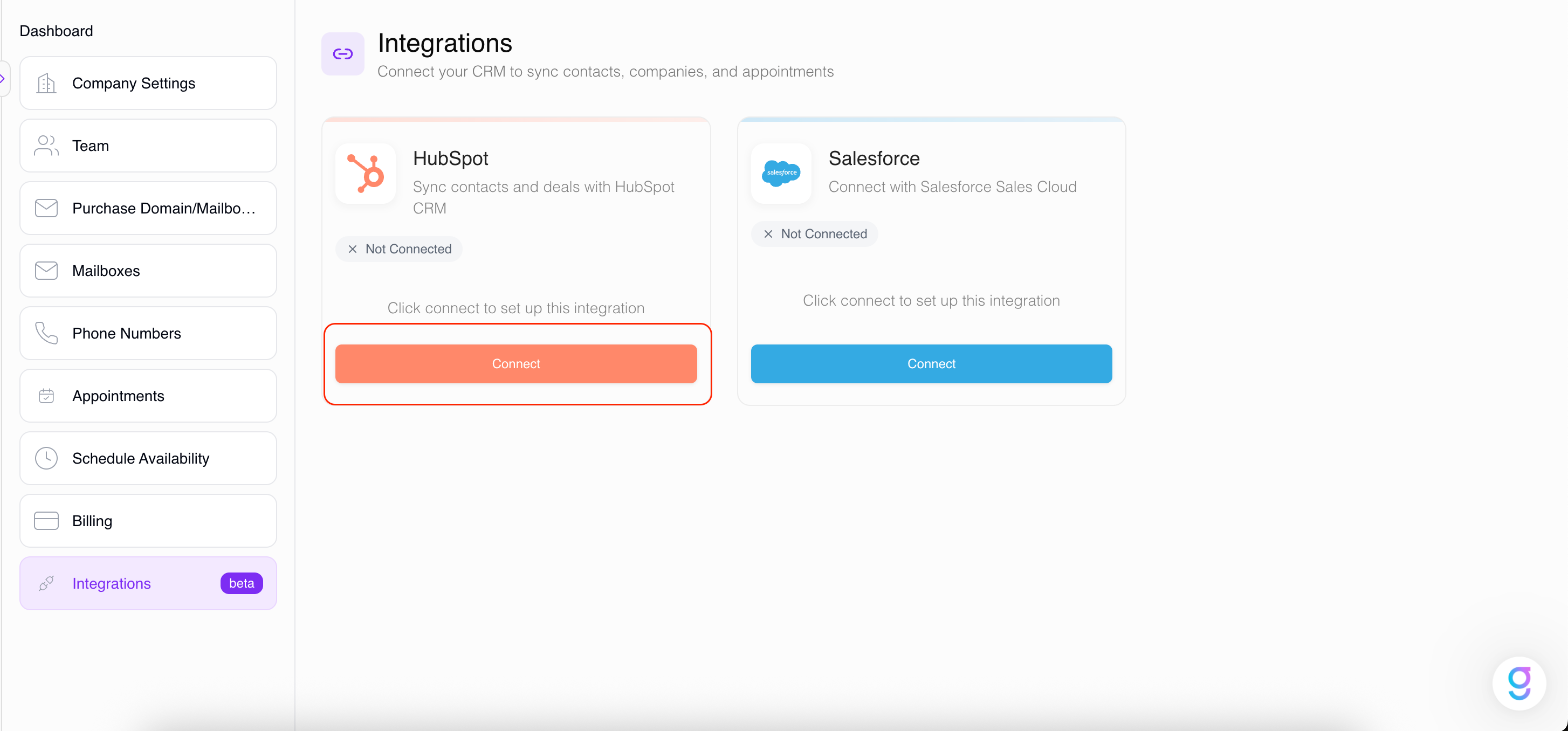
On the Integrations page, click Connect next to the HubSpot card.
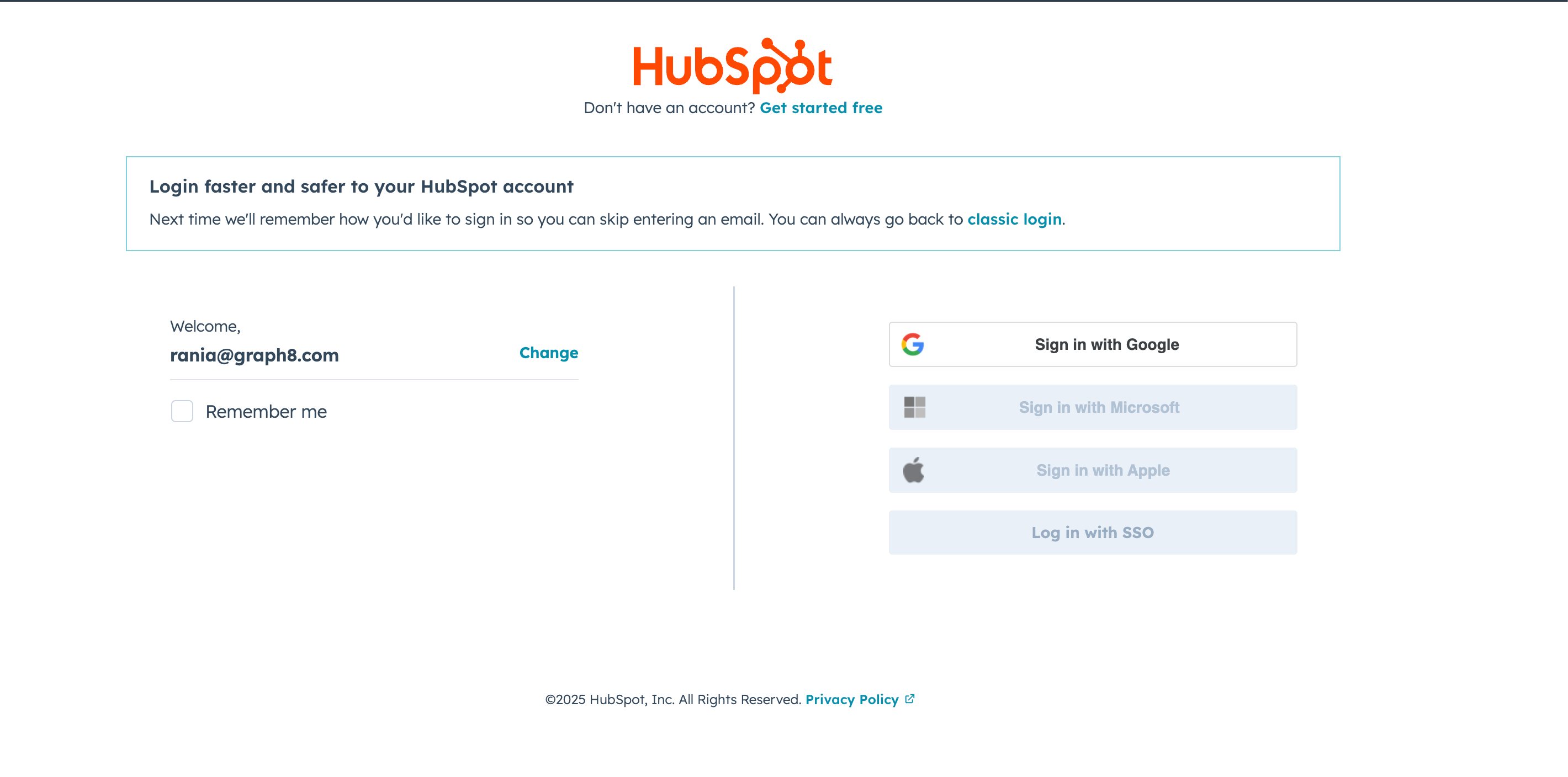
You'll be directed to a screen to connect your accounts. Here, you have two options:
Click Create a new HubSpot account.
Click Sign in to your HubSpot account .
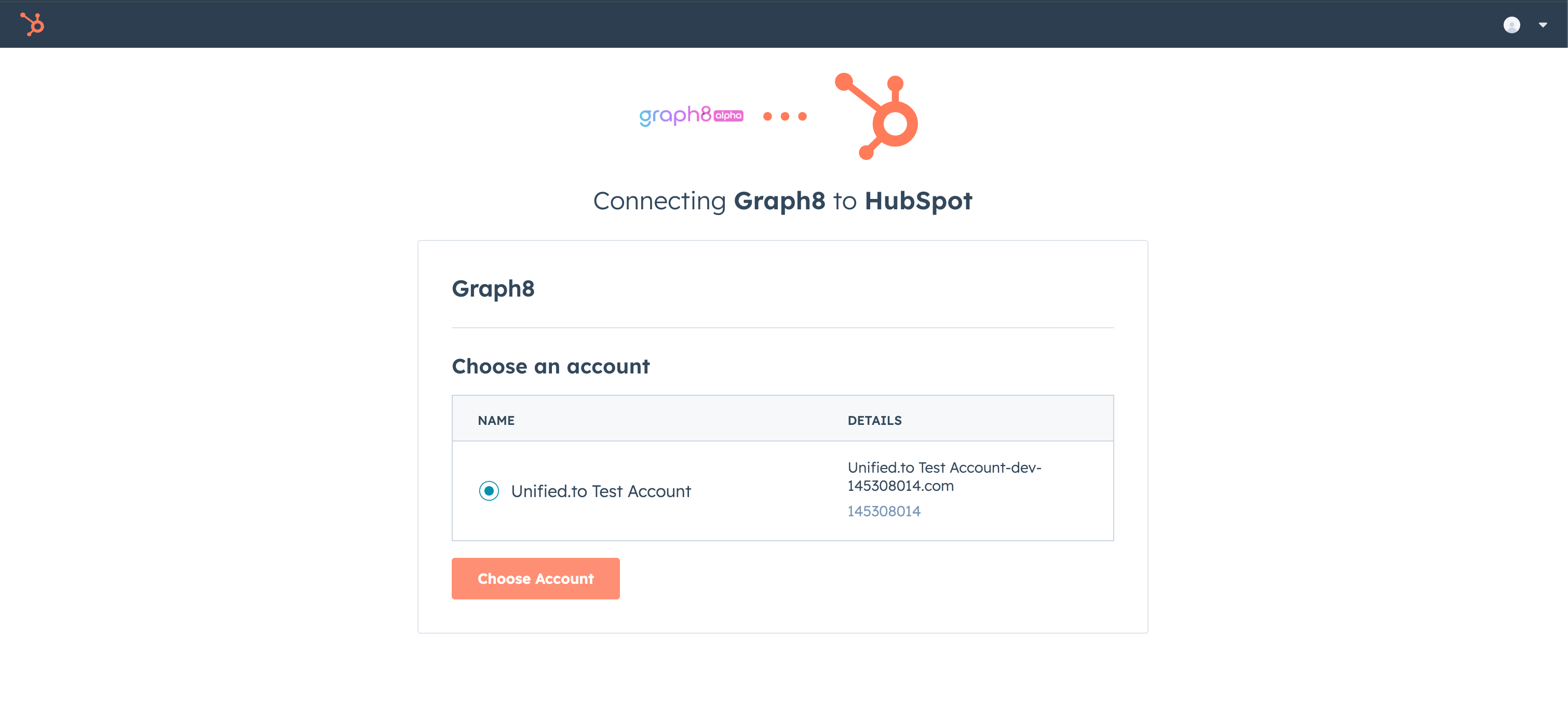
If signing in, when HubSpot redirects you, select the HubSpot account you want to connect with graph8 and click Choose Account > Connect app.
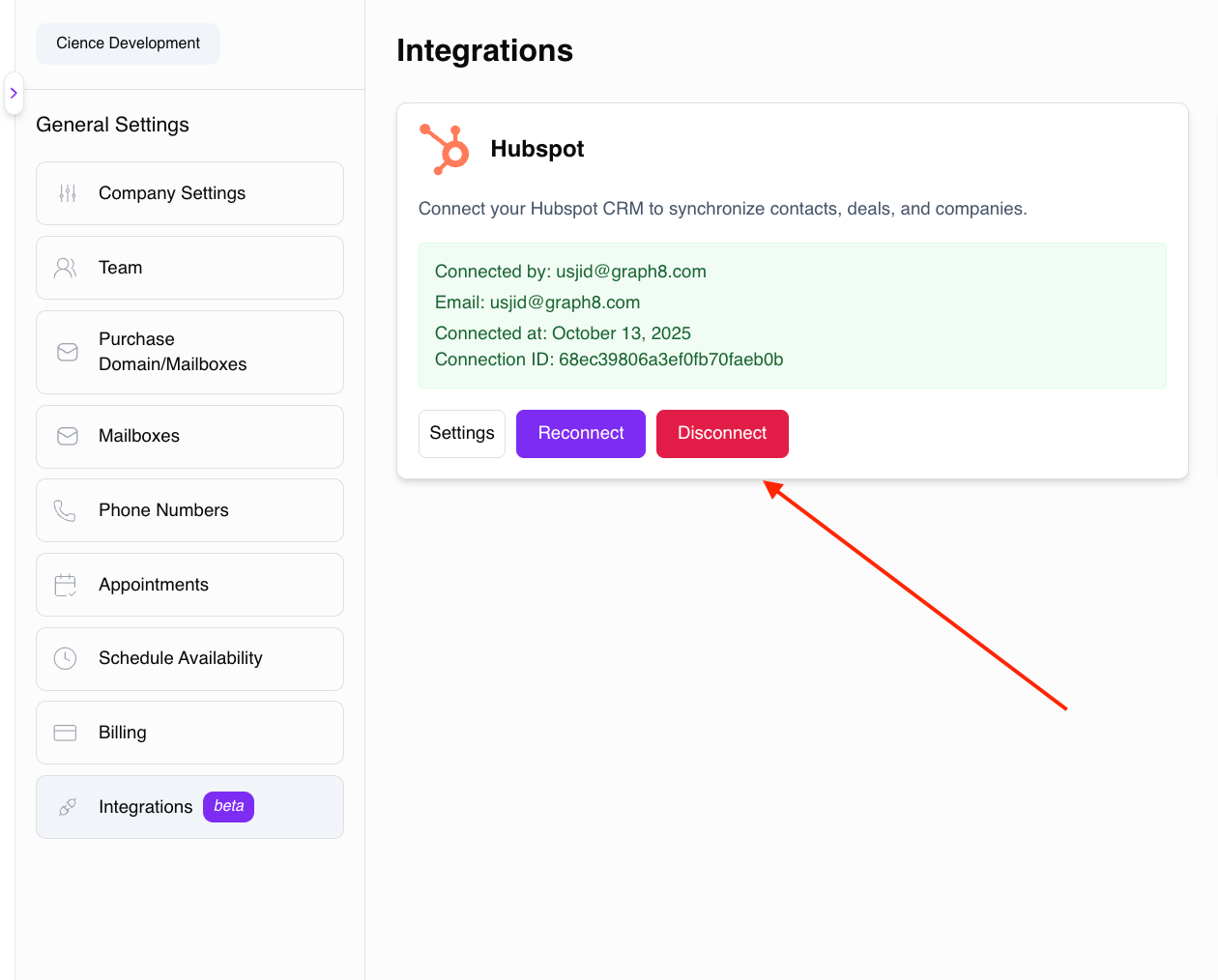
Your HubSpot account is now connected to graph8. The Integrations page will update to show your connected details .
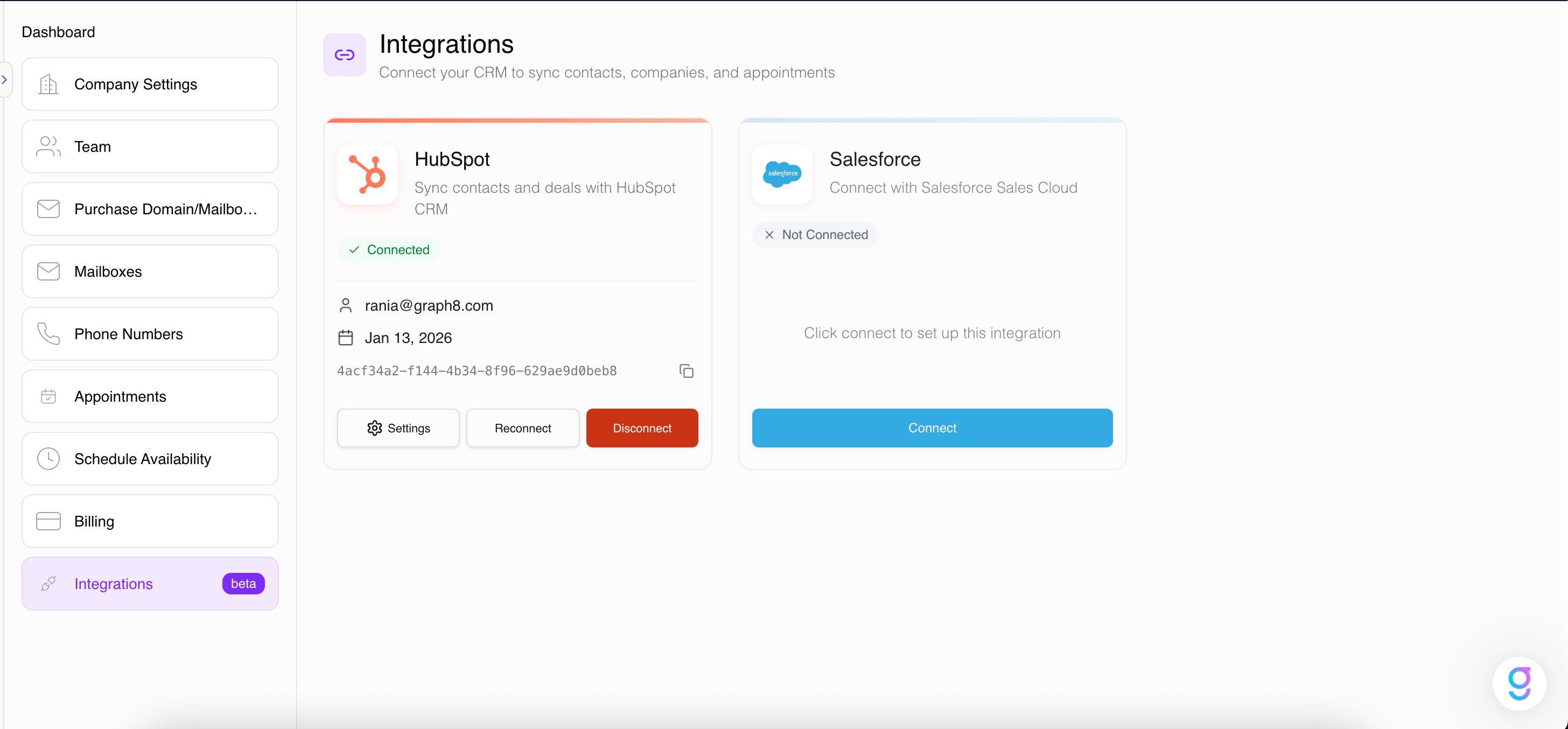
HubSpot Integration Settings
Now that you've successfully connected your HubSpot account with graph8, you can configure the data synchronization flow. Click Settings on the connected HubSpot card to manage four key areas: Pull, Push, Fields Mapping, and Appointments.
1. Pull Contacts Settings (HubSpot → graph8)
The Pull settings allow you to bring contact data from HubSpot into graph8. You can pull all contacts or select specific HubSpot segments.
Automatic and Manual Sync
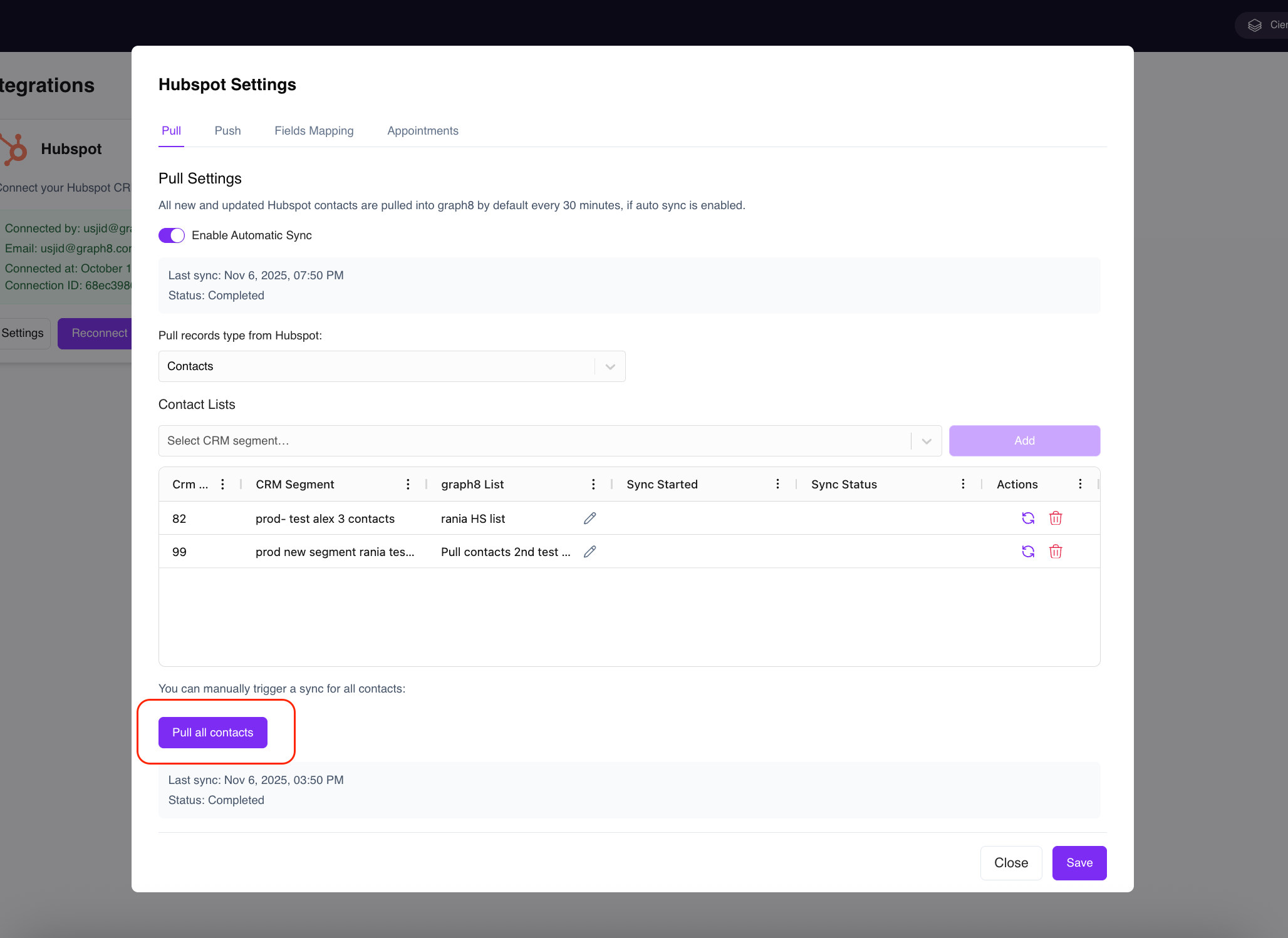
Enable Automatic Sync: Toggle this on to have all new and updated HubSpot contacts automatically pulled into graph8 every 30 minutes.
Pull All Contacts: You can manually trigger a one-time sync of all contacts from HubSpot to graph8 by clicking Pull all contacts (see Screenshot 1).
Screenshot 1: Pull all contacts
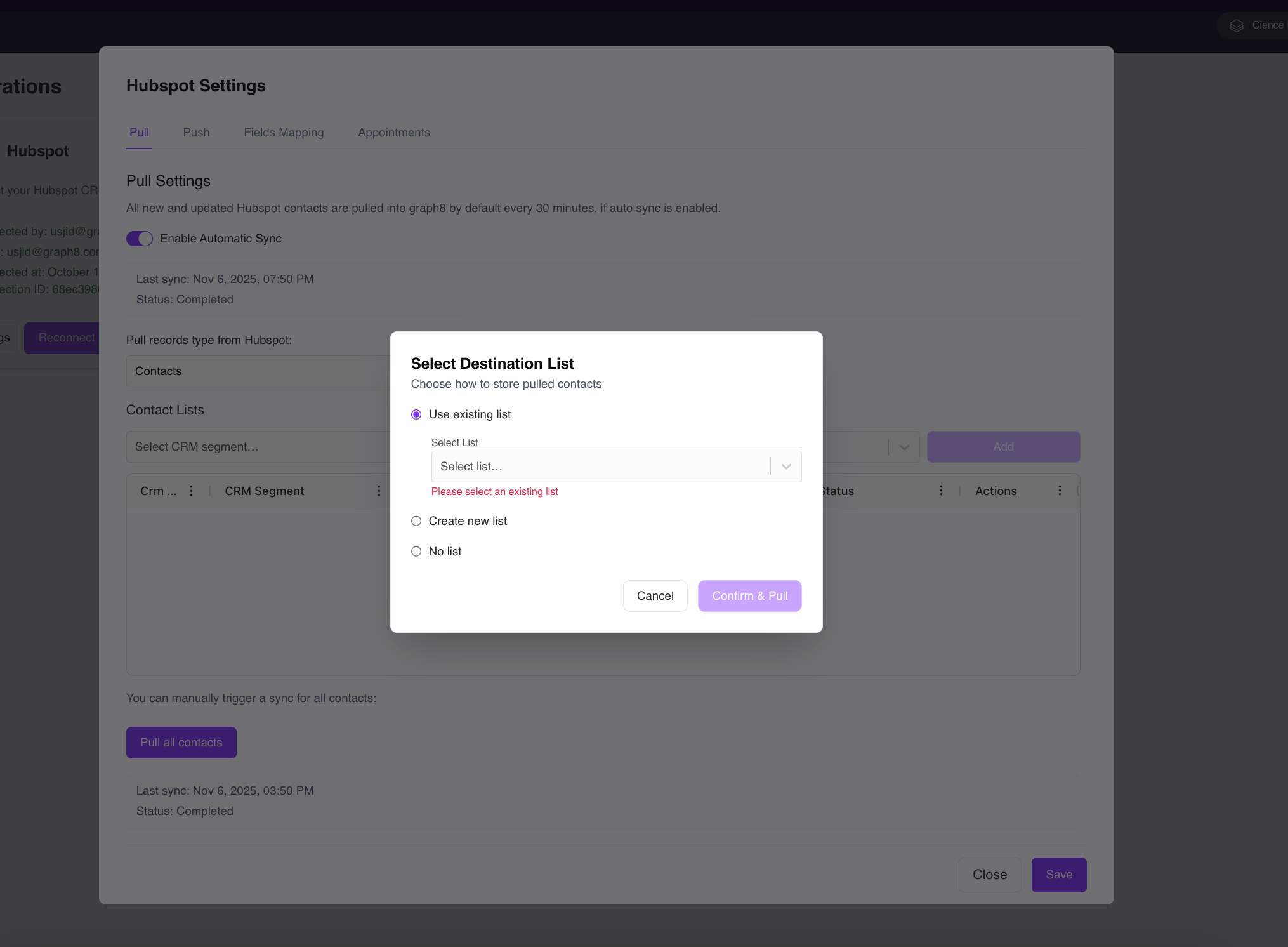
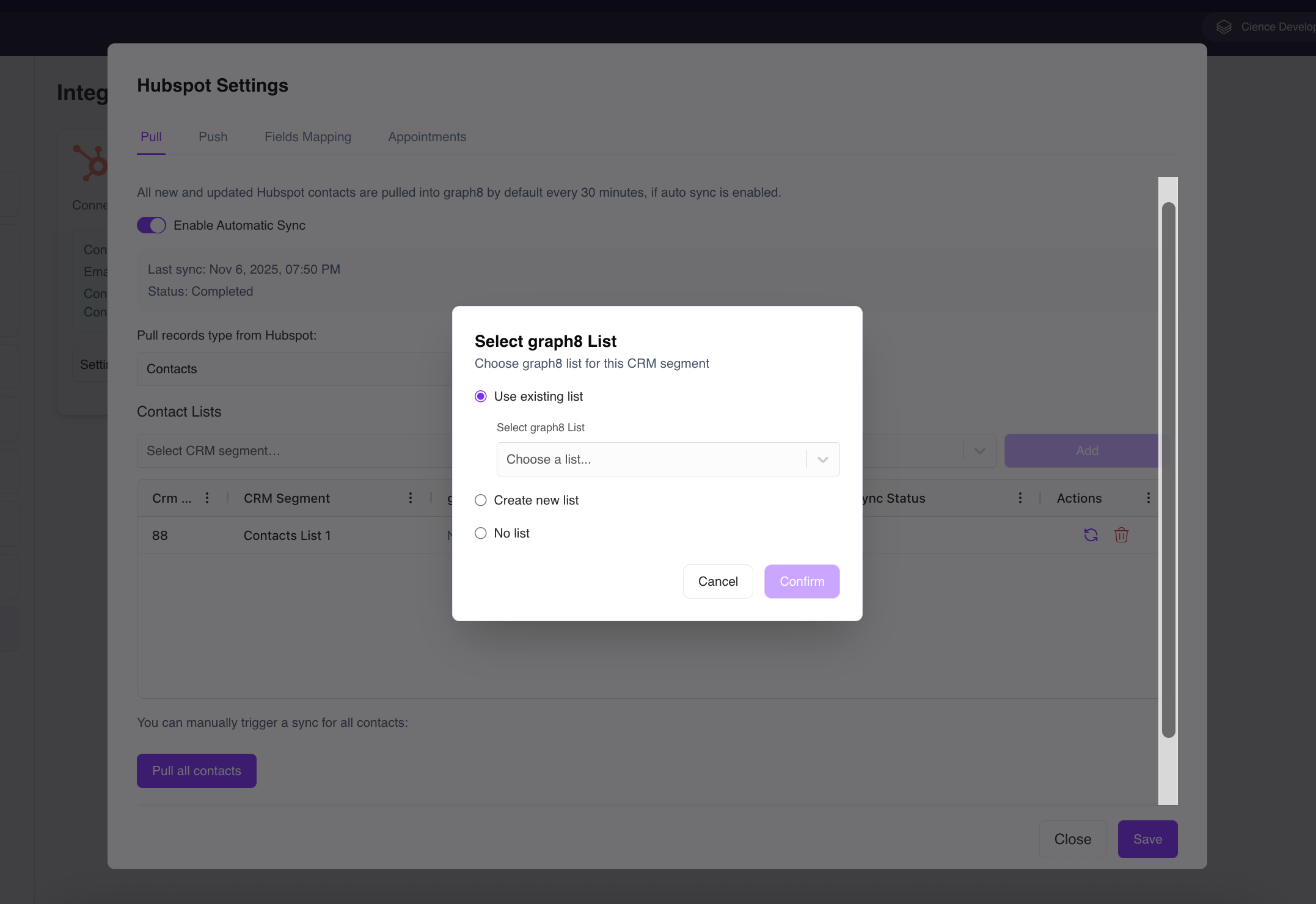
When you initiate a pull, you must select the Destination List in graph8 where these contacts will be stored (see Screenshot 2):
Use Existing List: Add the pulled contacts to a list you have already created in graph8's Lists section.
Create New List: A new list will be automatically generated in graph8 to house the pulled contacts.
No List: Add the contacts directly to your main graph8 contacts list without assigning them to a specific list.
Screenshot 2: Select Destination List
Pulling Specific HubSpot Segments
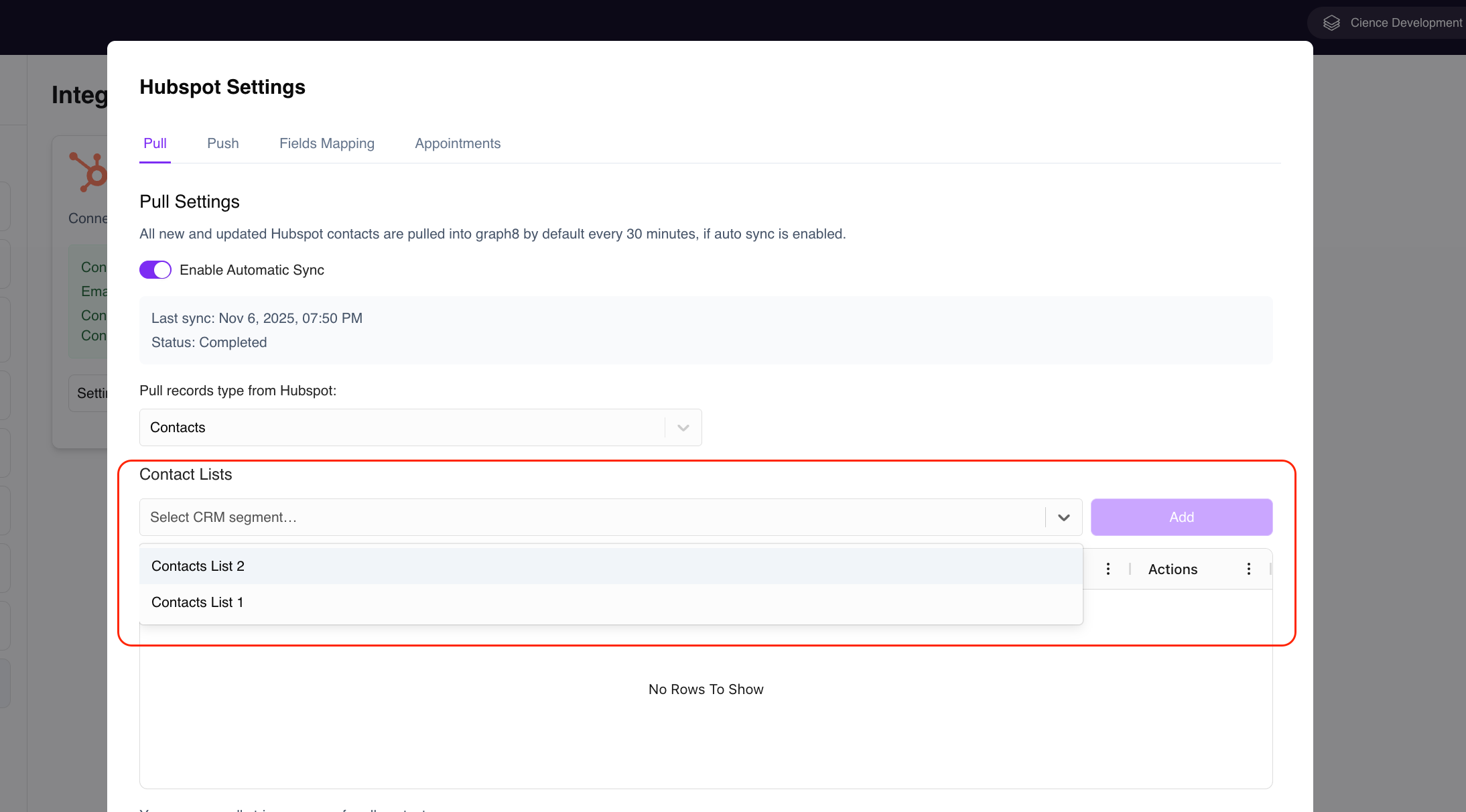
You can also target specific Contact Lists (Segments) from HubSpot to pull into graph8:
From the Select CRM segment dropdown, choose one of your existing HubSpot segments (as shown in Screenshot 3).
Click Add. The segment will be added to the table below.
Click the Pencil icon next to the graph8 List column for the newly added segment to choose its destination: Use existing list, Create new list, or No list (see Screenshot 4).
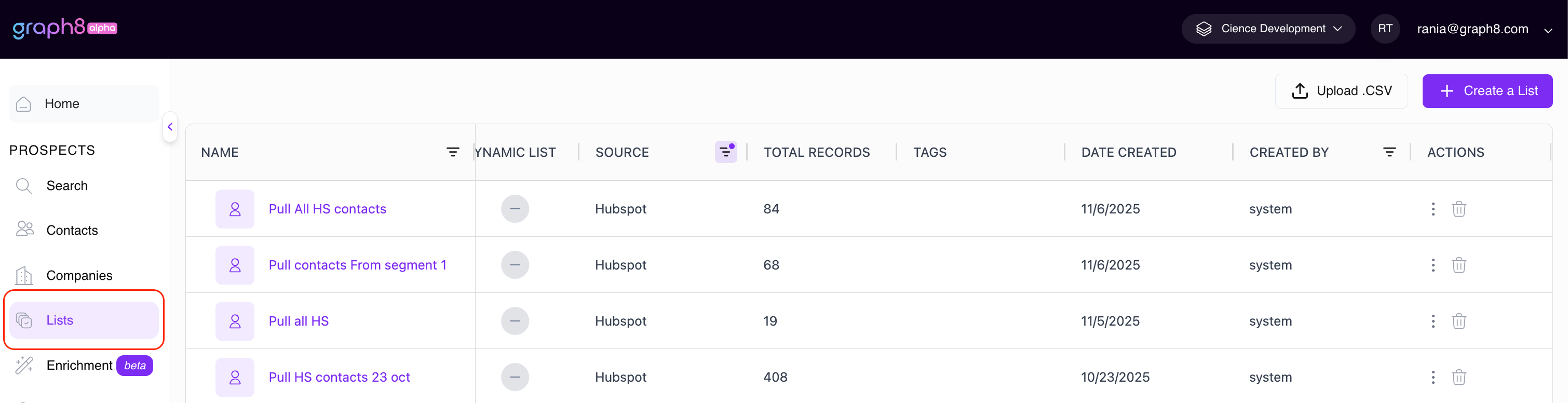
Once selected, click the Sync icon in the Actions column to manually start the sync for that segment. The Sync Status will update, and the new list will be visible under PROSPECTS > Lists in your graph8 side menu (see Screenshot 5).
Screenshot 3: HubSpot Segments in HubSpot
Screenshot 4: Selecting graph8 Destination List for Segment
Screenshot 5: Lists in graph8 with Pulled Records
2. Push Contacts Settings (graph8 → HubSpot)
The Push settings allow you to send contact records from graph8 back into HubSpot. This is ideal for synchronizing new leads or updated contacts generated within graph8.
Automatic and Manual Push
Enable Automatic Sync: Toggle this on to automatically push new and updated graph8 contact records to HubSpot every 30 minutes.
Push All Contacts: You can manually trigger a one-time push of all graph8 contacts to HubSpot by clicking Push all contacts.
Pushing graph8 Lists to HubSpot Segments
You can choose a specific graph8 List to push to HubSpot, and decide how it maps to HubSpot's segments:
From the Select list to sync.. dropdown, choose a graph8 List.
Click Add. The list will be added to the table.
Click the Pencil icon next to the CRM Segment column to choose the destination in HubSpot:
Existing Segment: Push contacts to an existing HubSpot segment.
New Segment: A new segment will be created in HubSpot.
No Segment: The contacts will be added directly to the main HubSpot contacts list.
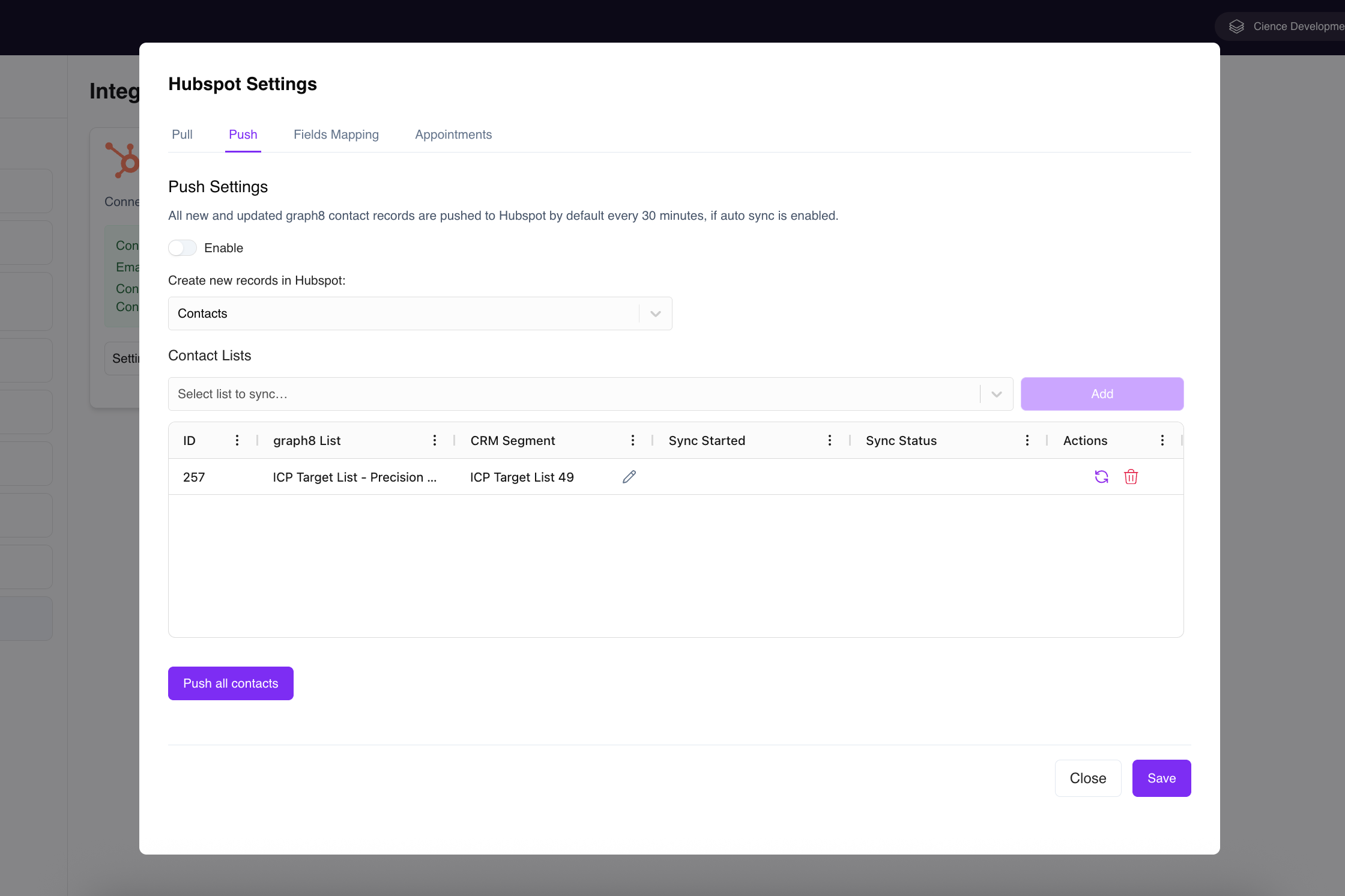
The final table shows which graph8 list is set to push to which CRM Segment (see Screenshot 6).
Once selected, Click the Sync icon in the Actions column to manually trigger the sync. Upon completion, the Sync Status will update, and your records will be added according to your setup: either placed into the designated Segment (if syncing a Segment) or added directly to the Contacts list in HubSpot (if No Segment was chosen
⏳ Note on Segment Updates: Please be aware that occasionally, there may be a short delay between a successful push sync and the contacts appearing in the designated HubSpot Segment. If you don't see the contacts immediately, check back in a few minutes.
Screenshot 6: Push Settings - List to Segment Mapping
3. Fields Mapping
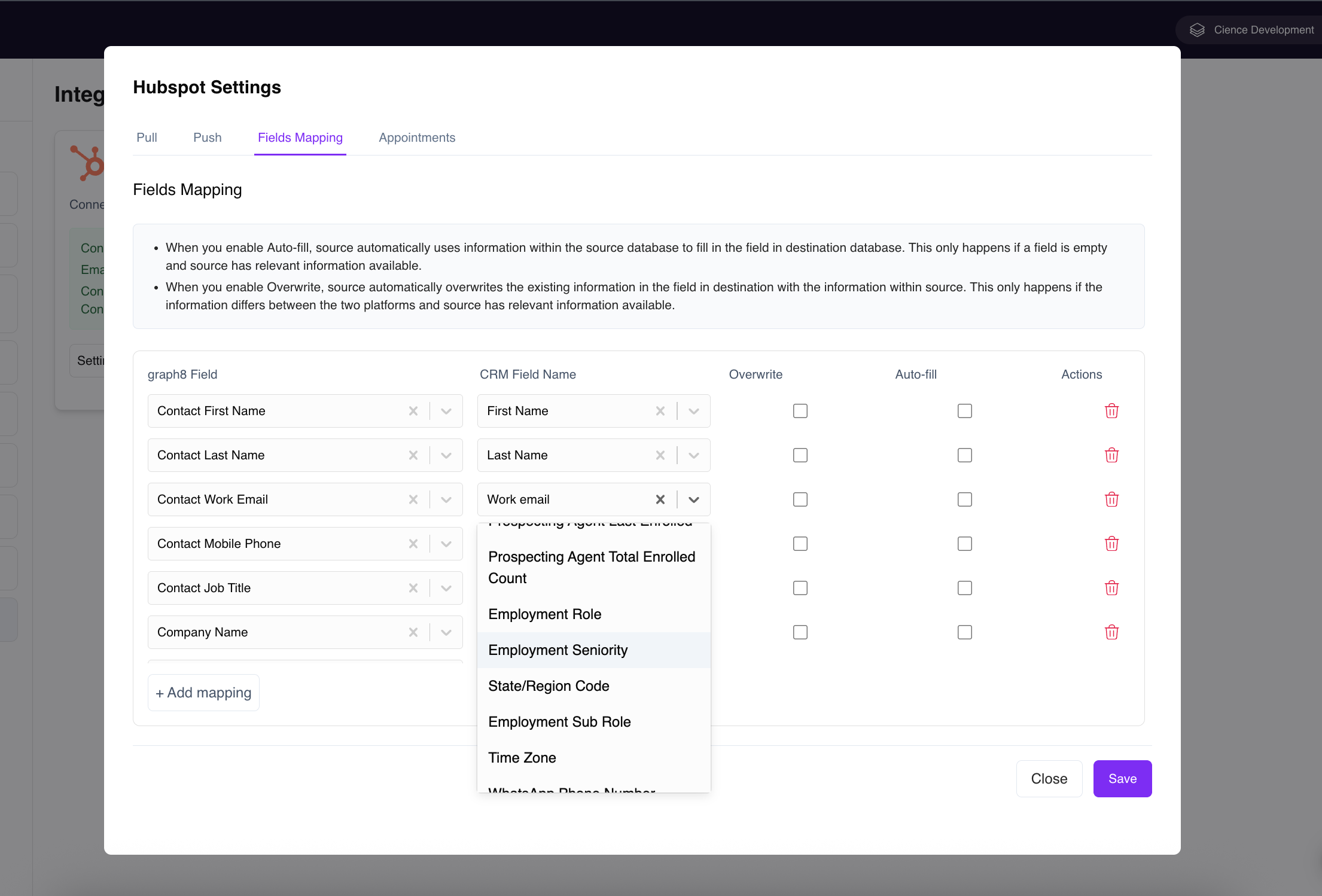
The Fields Mapping tab is crucial for ensuring data accuracy between the two platforms. Here, you map graph8 Fields (Destination) to CRM Field Names (Source) (see Screenshot 7).
graph8 Field: This is the field in your graph8 system.
CRM Field Name: This is the corresponding field in HubSpot.
You have two powerful options to manage how data is synced:
Auto-fill: When enabled, the source (HubSpot/graph8) will only use information to fill a field in the destination (graph8/HubSpot) if that field is currently empty.
Overwrite: When enabled, the source will always overwrite the existing information in the destination field, ensuring the source's data is always primary. This only happens if there is a difference in information.
Screenshot 7: Fields Mapping Settings
4. Appointments
The Appointments tab manages how meeting bookings made via graph8 are recorded in HubSpot (see Screenshot 8).
By default, an activity record for the meeting booking is created in HubSpot. You can configure the ownership of the new contact record:
Create a contact from appointment event : If a new contact is created in HubSpot as a result of the booking, the contact owner will be filled from the meeting Host (if blank in HubSpot).
Override contact owner with host: This setting ensures that the HubSpot contact owner is updated to match the graph8 meeting host, regardless of the existing owner in HubSpot.
Use default owner (if host not in HubSpot data): If the graph8 meeting host is not an existing user in your HubSpot system, you can select a Default Owner (e.g., a specific sales rep) to be assigned the new contact record.
Screenshot 8: Appointments Settings
Unlink Your HubSpot Account
To unlink your HubSpot account from graph8:
Launch graph8 and navigate to Settings > Integrations.
On the Integrations page, on the HubSpot card, click Disconnect.
You have now disconnected your HubSpot account from graph8.