Connecting Roam to graph8
Overview
Roam is a powerful virtual HQ and video conferencing tool. You can integrate Roam with your graph8 Appointments system to use static Roam links as the conferencing location for scheduled meetings.
Unlike Zoom or Google Meet, Roam does not automatically generate links for each appointment. Instead, you manually set a static link during the installation. This link will be used for all events unless updated manually.
Prerequisites
A graph8 account with Appointments enabled
An active Roam account
Admin access in both platforms (if you're managing for a team)
Step-by-Step Installation Guide
1. Access Appointments in graph8
Log into your graph8 account
Go to Appointments in the sidebar
Click Apps > App Store
2. Install Roam App
In the App Store, search for Roam or locate it under the Conferencing section
Click the Install button
Choose the event type(s) where you want Roam to be used or can Set up later
Click Save
📝 Note: Roam does not generate a link automatically. You must provide one manually during setup.
How to Add Your Roam Link
To use Roam for appointments, you must manually paste your Roam meeting link:
A. Get Your Roam Link
Open the Roam app
Click your profile picture in the top-left to open the menu
Go to Settings
Select Links from the left sidebar
Click Create Meeting Link
Fill out your meeting name and preferences (access level, floor, room, etc.)
Click Done
Copy the generated link
B. Add the Link to Appointments
In graph8, go to your user menu (top-right corner)
Click Settings > Appointments > Conferencing
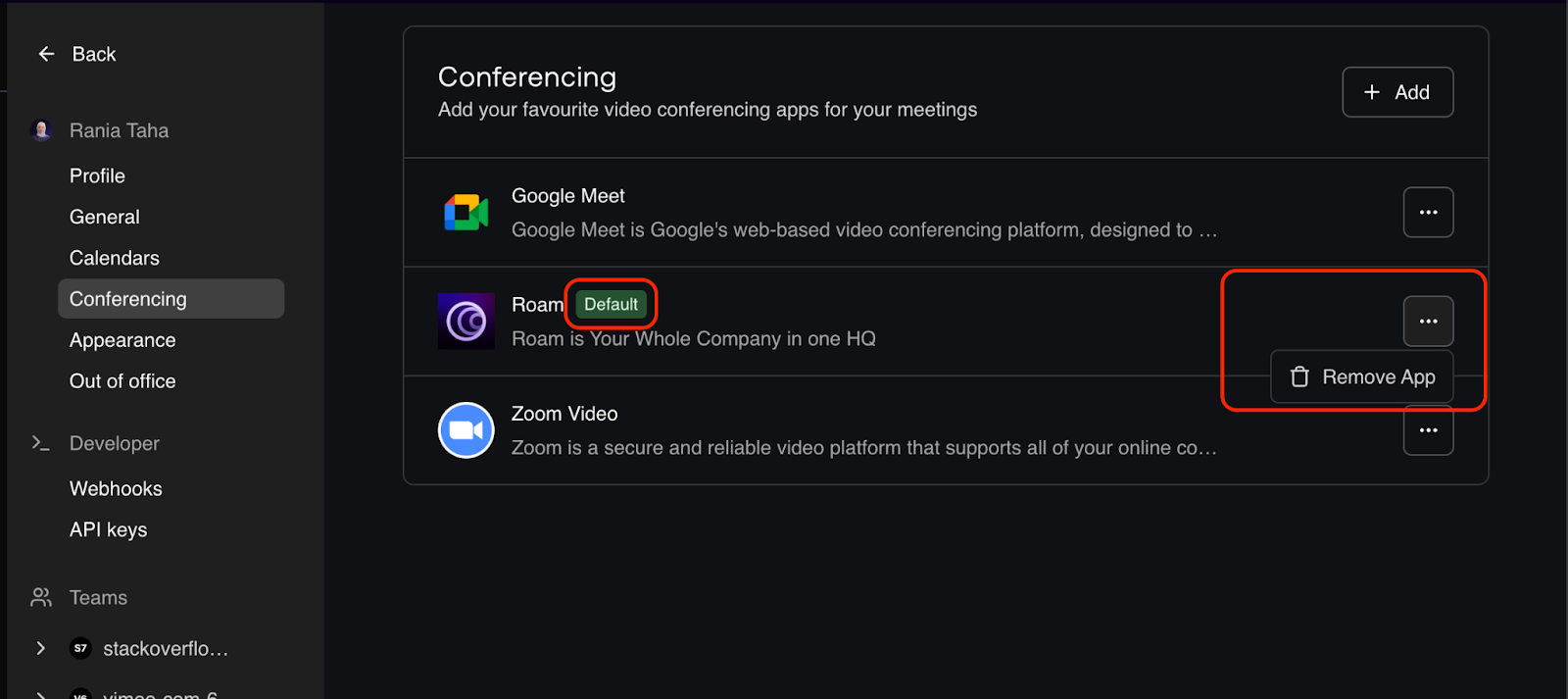
Find Roam and click the three-dot menu
Click on “Set as default”
Paste your Roam meeting link into the “Roam” field
Click Save
Your Roam link is now associated with the Appointments integration.
Important Notes
🟣 Static Link Behavior: The link you provide during setup will be reused for all appointments unless changed.
To update the link:
You must remove Roam and reinstall it with the new link. There is no inline editing for this link currently.💬 Can be set per Event Type: If not made default, you can assign Roam only to specific event types during setup.
Updating your Roam link or Removing Roam
If you want to update your Roam link or disconnect the integration:
Go to Appointments > Installed Apps
Find Roam under Conferencing
Click the three-dot menu
Choose Remove App
Reinstall to add a new link
Support
graph8 Support: Use in-app chat or email [email protected]
Roam Support: Visit Roam's Help Center for guidance on creating links and account issues