AI Agents
Overview
Graph8 combines hyper-personalized campaign content with state-of-the-art Voice AI agents, all connected to our AI memory for full context awareness. This integrated approach provides a comprehensive AI-powered sales and marketing solution that enhances customer engagement, streamlines workflows, and drives better results.
AI Agent Components
Campaign AI
Graph8's Campaign AI is designed to create effective multi-channel campaigns tailored to specific marketing and sales objectives. It leverages advanced algorithms and extensive training on successful campaigns to ensure targeted, engaging, and results-driven outreach efforts. The AI provides a variety of objective-driven templates and hyper-personalized content for each step of the campaign, utilizing data analysis and discovery of personalized data points across complete intent, B2B contact, and company datasets.
Voice AI
Graph8's Voice AI introduces the first artificial voice SDR for real prospecting conversations. It handles both outbound and inbound sales development, engaging prospects with natural, human-like conversations that pique interest, qualify leads, and handle initial inquiries. The AI automates the initial outreach process, making cold calls to prospects with a natural and engaging approach, and is equally effective in handling inbound sales inquiries. It ensures seamless and informative interactions, effectively qualifying leads through engaging and informative conversations, and manages incoming communications across various channels, providing personalized and context-aware responses.
Memory AI
Graph8's Memory AI revolutionizes customer interactions by storing, analyzing, and leveraging every touchpoint across all channels. It enhances team efficiency by providing instant access to previous chat conversations, summarizing key points for seamless continuity, analyzing and storing email interactions, and transcribing phone calls to extract essential insights and action items. Memory AI provides comprehensive interaction histories, recommends effective next steps based on context, and analyzes sentiment to tailor approaches for improved satisfaction. It leverages cutting-edge vector database technology for lightning-fast information retrieval and semantic search capabilities, ensuring that relevant information is accessed in milliseconds, regardless of the scale of data.
Configure Global Settings
Inbound Calls AI Phone Settings
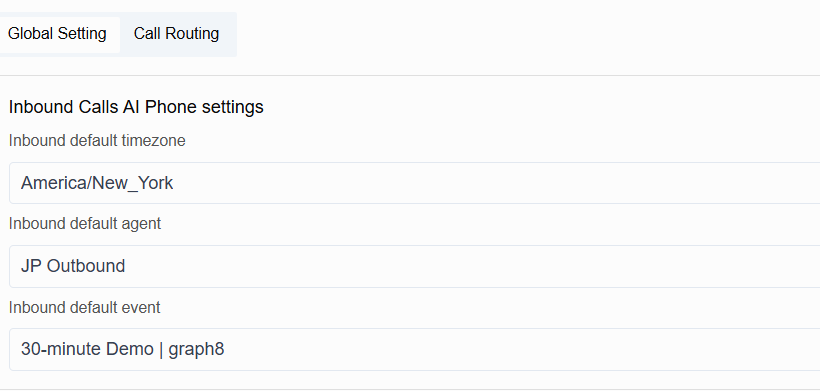
To configure your Inbound Calls AI Phone settings, navigate to the Global Settings page. Here you can set up how your AI agents handle incoming calls:
Inbound Default Timezone: Select your operating timezone (e.g., America/New_York) to ensure all call scheduling and reporting align with your business hours.
Inbound Default Agent: Choose which AI agent will handle your incoming calls. You can select from your existing agents (like default-agent) or create a new specialized agent for inbound communications.
Inbound Default Event: Specify the type of event that will be created when an inbound call is received (e.g., Discovery Call). This helps with tracking and analytics.
Set up Call Routing
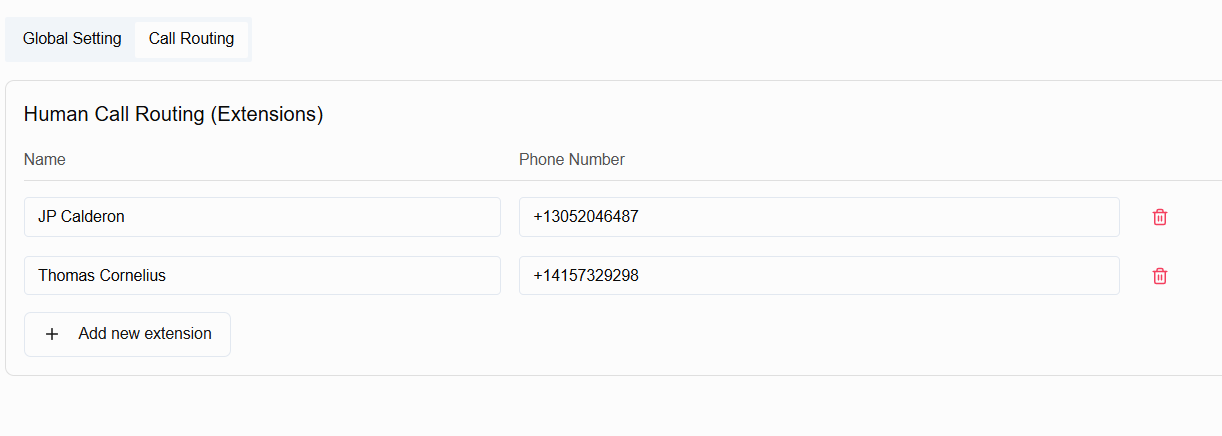
To route calls to humans, head over to the Call Routing tab on the Global Settings page, input the name and phone number of the person you would like the Inbound Agent to route the call to and hit Save.
These settings ensure all incoming calls are properly routed, handled by the appropriate AI agent, and documented correctly in your system. Configuring these parameters helps maintain consistent customer experiences while providing your team with accurate record-keeping of all inbound communications.Create a New Agent
Upload Files
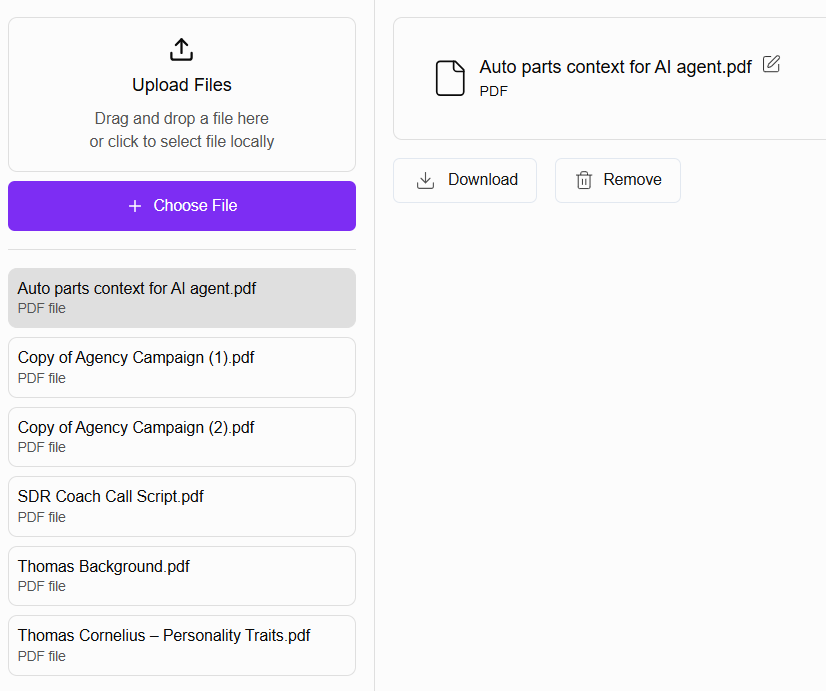
The Files section allows you to upload important documents that your AI agents can reference during conversations with prospects. To upload files:
Navigate to the Files section under Global Settings
You'll see the Upload Files interface with a drag-and-drop area
Either drag and drop a file into the designated area or click the "Choose File" button to select a file locally
You can upload PDF or TXT files to attach them to your assistant. These files provide additional context during conversations, allowing your AI agents to reference specific information about your products, services, or company policies when interacting with prospects.
Uploading relevant documentation helps your AI agents deliver more accurate and helpful responses, enhancing the overall quality of prospect interactions and ensuring consistent messaging across all communications.
Upload Voices
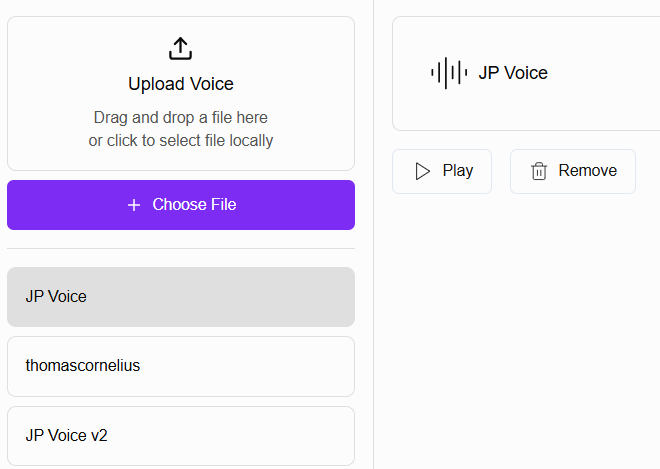
The Voices section allows you to personalize your AI agents with a human-like voice for more engaging conversations with your prospects. To upload a voice:
Navigate to the Voices section under Global Settings
You'll see the Upload Voice interface with a drag-and-drop area
Either drag and drop an MP3 file into the designated area or click the "Choose File" button to select a file locally
You can upload an MP3 file and assign it to your assistant. This voice will be used during both inbound and outbound calling conversations. Remember to keep your voice recording to a maximum duration of 10 seconds for optimal results.
Best Practices for Voice Cloning
To get the best results when creating your voice recording, we recommend following these tips:
Choose an appropriate script: Your recording should match the tone and energy you want your AI to use. Avoid monotone readings unless that's the style you're aiming for. Create a script that fits your use case and reflects the energy level you want your AI to convey.
Focus on clarity: Record in a quiet environment and use a good quality microphone if possible. Minimize background noise to ensure your voice comes through clearly.
Keep it flowing: Try to speak naturally without long pauses. Too many pauses can cause the cloned voice to sound less consistent.
Use your target language: Record in the language you want your AI to speak. For best results, your voice sample should be in the same language your AI will use in conversations.
Stick to the time limit: Keep your recording to 10 seconds or less. This is the optimal length for creating a high-quality voice clone - longer recordings won't improve the results.
By following these guidelines, you'll create a voice clone that sounds natural and represents your brand effectively when interacting with prospects.
Create a New Agent
Setting up additional AI agents allows you to create specialized assistants for different types of interactions or campaigns. To create a new agent:
Look for the purple "Create new agent" button in the left sidebar navigation
Click this button to open the creation dialog
When prompted to "Enter an agent name," type the name you want your AI to use when introducing itself to prospects and customers
Click the "Create" button to generate your new agent
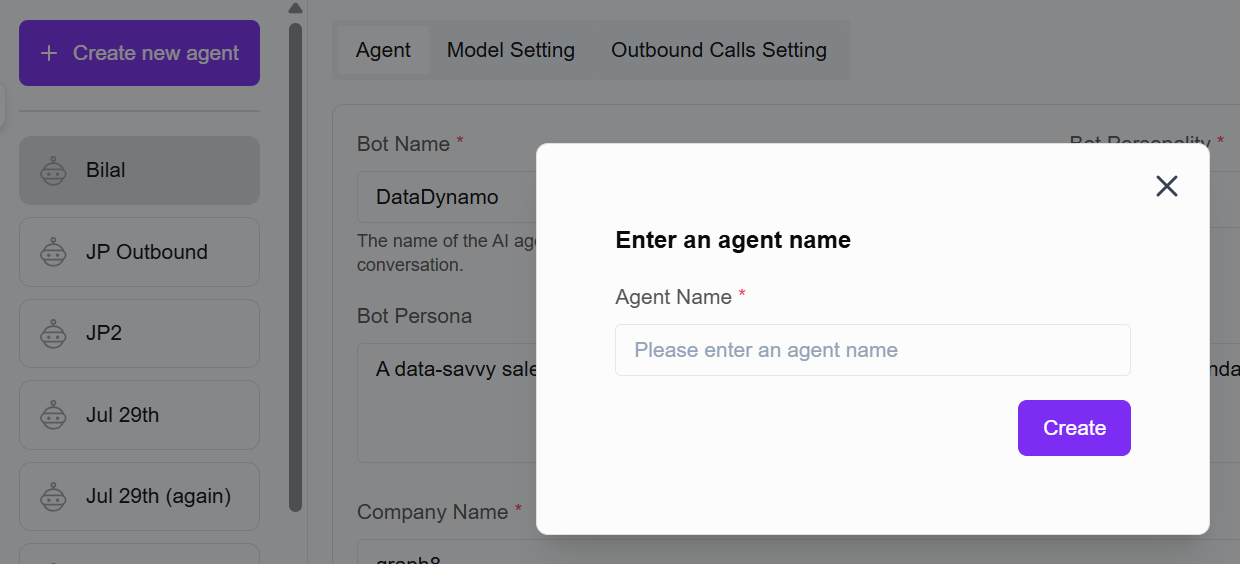
The agent name you choose is important as this is how your AI will identify itself during conversations with prospects. Many users simply name the agent after themselves, especially when using their own cloned voice, to create a seamless experience for callers. Alternatively, you can choose a name that aligns with your brand or represents a fictional persona.
After creating your agent, you'll be able to configure its specific settings, personality, and knowledge base to handle particular types of prospect interactions. Each agent can be customized with different voices, knowledge files, and conversational approaches to meet various business needs.
Creating multiple specialized agents is useful when you want different AI personalities for various customer segments or sales scenarios.
Agent Configuration
After creating your AI agent, you'll need to configure it through three main sections: Agent, Model Setting, and Outbound Calls Setting. Each section controls different aspects of how your AI agent will interact with prospects.
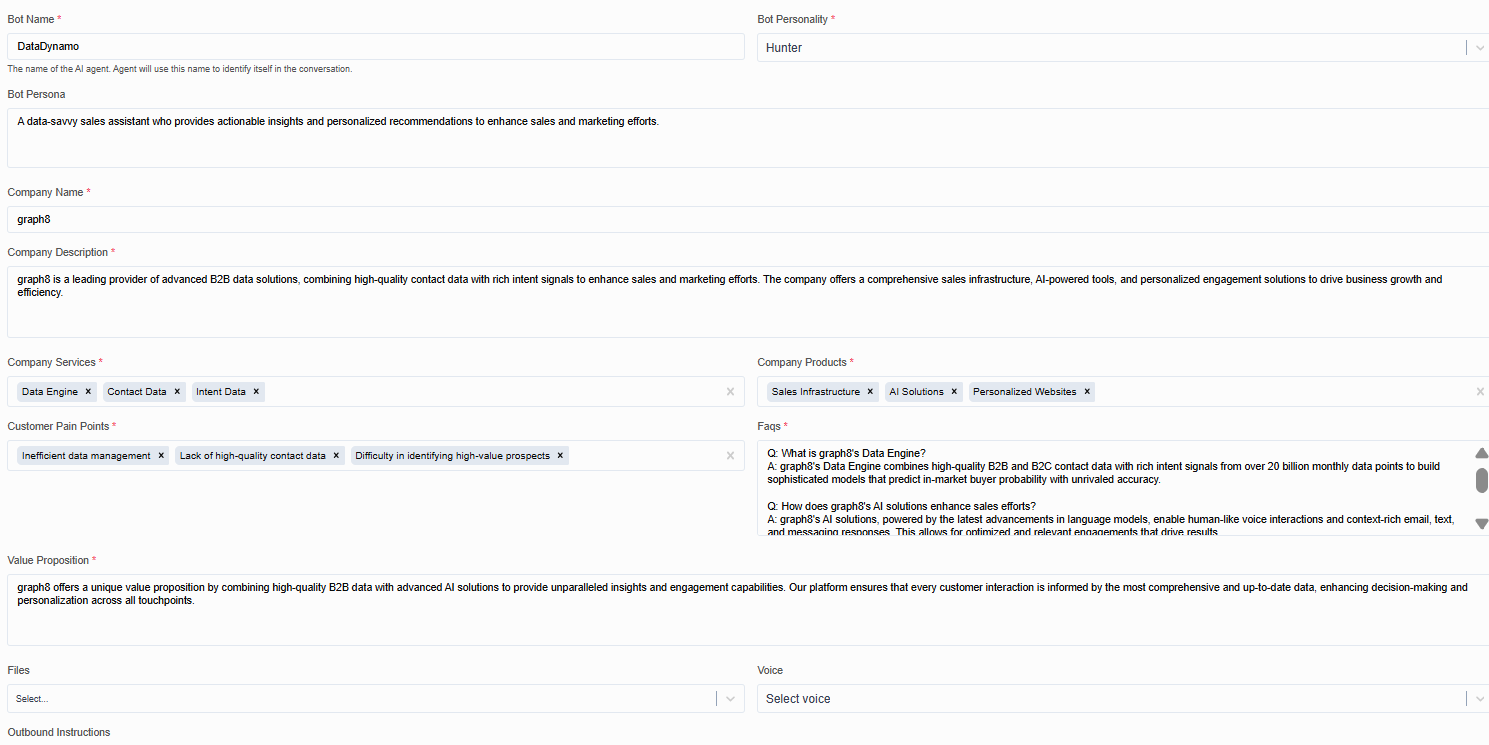
In the Agent tab, you'll set up the basic information about your AI assistant:
Bot Name: This is the name your AI will use when introducing itself to prospects. Choose something that represents either yourself (if using your cloned voice) or aligns with your brand.
Bot Personality: Select a personality type that best fits your sales approach. Each personality offers different conversation styles:
Hunter: Aggressive and persistent, thrives on cold calling and high outbound activity.
Educator: Knowledgeable and consultative, focuses on educating prospects about the product.
Charmer: Personable and engaging, builds rapport effortlessly for social selling.
Analytical SDR: Data-driven and detail-oriented, personalizes outreach using insights.
Hustler: Energetic and motivated, excels in high-volume outreach and fast-paced environments.
Listener: Empathetic and observant, skilled at qualifying leads and uncovering needs.
Innovator: Creative and tech-savvy, experiments with new outreach strategies and automation.
Networker: Well-connected and social, leverages referrals and relationships for sales.
Closer in Training: Ambitious and sales-driven, focuses on advancing deals and pushing meetings.
Process-Oriented SDR: Structured and disciplined, excels in following sales scripts and methodologies.
Company Information: Fill in your company details including:
Company Name
Company Description
Company Services (tag-based)
Company Products (tag-based)
Customer Pain Points: Add the common challenges your prospects face that your solution addresses.
Value Proposition: Craft a compelling statement about how your solution helps customers.
FAQs: Create question-and-answer pairs that your AI can use when speaking with prospects.
Files: Upload reference documents your AI can use during conversations.
Voice: Select or upload a voice for your AI agent to use.
Model Setting
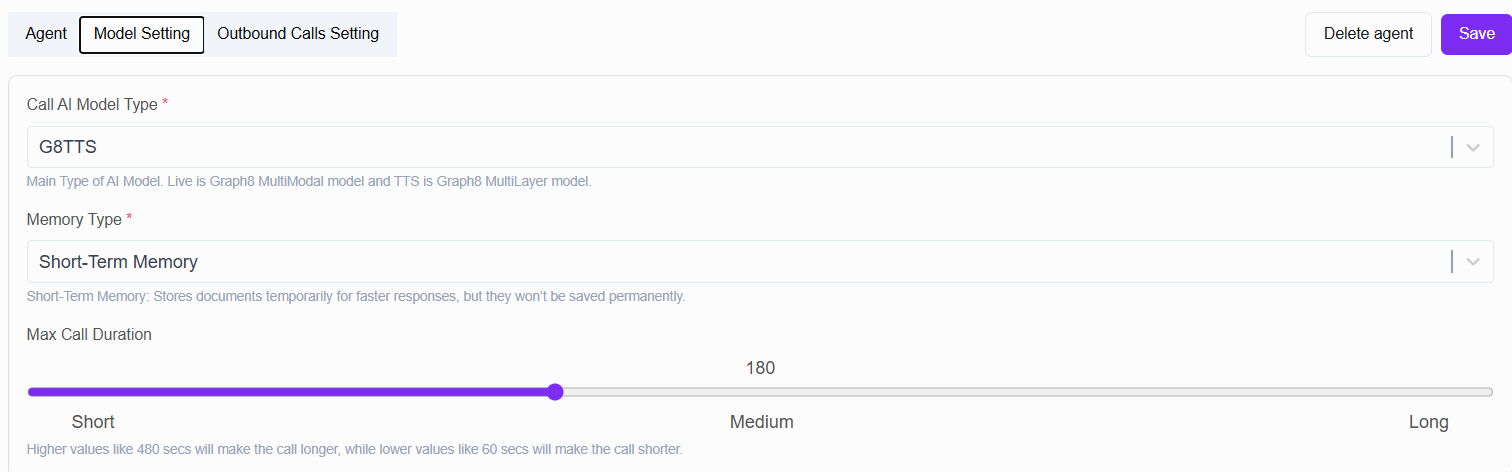
The Model Setting tab lets you configure the technical aspects of your AI's performance:
Call AI Model Type: Choose between two options:
G8TTS: Graph8 MultiLayer model - A text-to-speech based AI system
G8Live: Graph8 MultiModal model - A more advanced conversational AI system
Memory Type: Select how your AI will retain information:
Long-Term Memory: Stores documents permanently for better recall, but uses more storage space
Short-Term Memory: Uses less storage but with more limited recall capabilities
Max Call Duration: Set the maximum length of calls your AI will conduct:
Slide between Short (60 seconds) and Long (up to 480 seconds)
The default medium setting is around 300 seconds (5 minutes)
Higher values make calls longer, while lower values create shorter interactions
Outbound Calls Setting
Configure how your AI handles outbound calling scenarios:
Outbound Voicemail Prompt: Create the message your AI will leave when reaching voicemail. This should include:
A brief introduction of your company
A value proposition
A clear call to action
Example: "Hi, this is [Company Name]. We believe the future of sales is human-centered yet powered by cutting-edge AI. We'd love to discuss how our solutions can help you stay ahead of the competition. Please give us a call back at your earliest convenience."
By thoroughly configuring all three sections, you'll create an AI agent that accurately represents your brand, effectively communicates with prospects, and operates according to your specific business needs. Take time to review and test your settings to ensure optimal performance.
