AI Inbox
Overview
AI Inbox is graph8’s universal inbox that brings your Email, Phone, and Chat conversations into one place.
It helps your team stay organized, respond faster, and track conversations coming from both manual emails and Sequencer campaigns.
In this article, we’ll focus on the Email channel: how to set it up and how to use it daily.
What you can do with AI Inbox (Email)
With AI Inbox, you can:
Receive and manage emails from connected mailboxes
Reply faster with AI (auto-send replies or create drafts for review)
Track Sequencer emails (sent emails, replies, bounces)
Organize with Workspaces (shared inboxes for teams)
Assign conversations to team members
Filter and search by mailbox, sequence, tags, and date range
Tag emails automatically (Product Inquiry, Billing, Warmup, etc.)
Where to start
Prerequisites
You must have at least one mailbox connected to your graph8 account.
To add or manage mailboxes, go to Settings → Mailboxes.
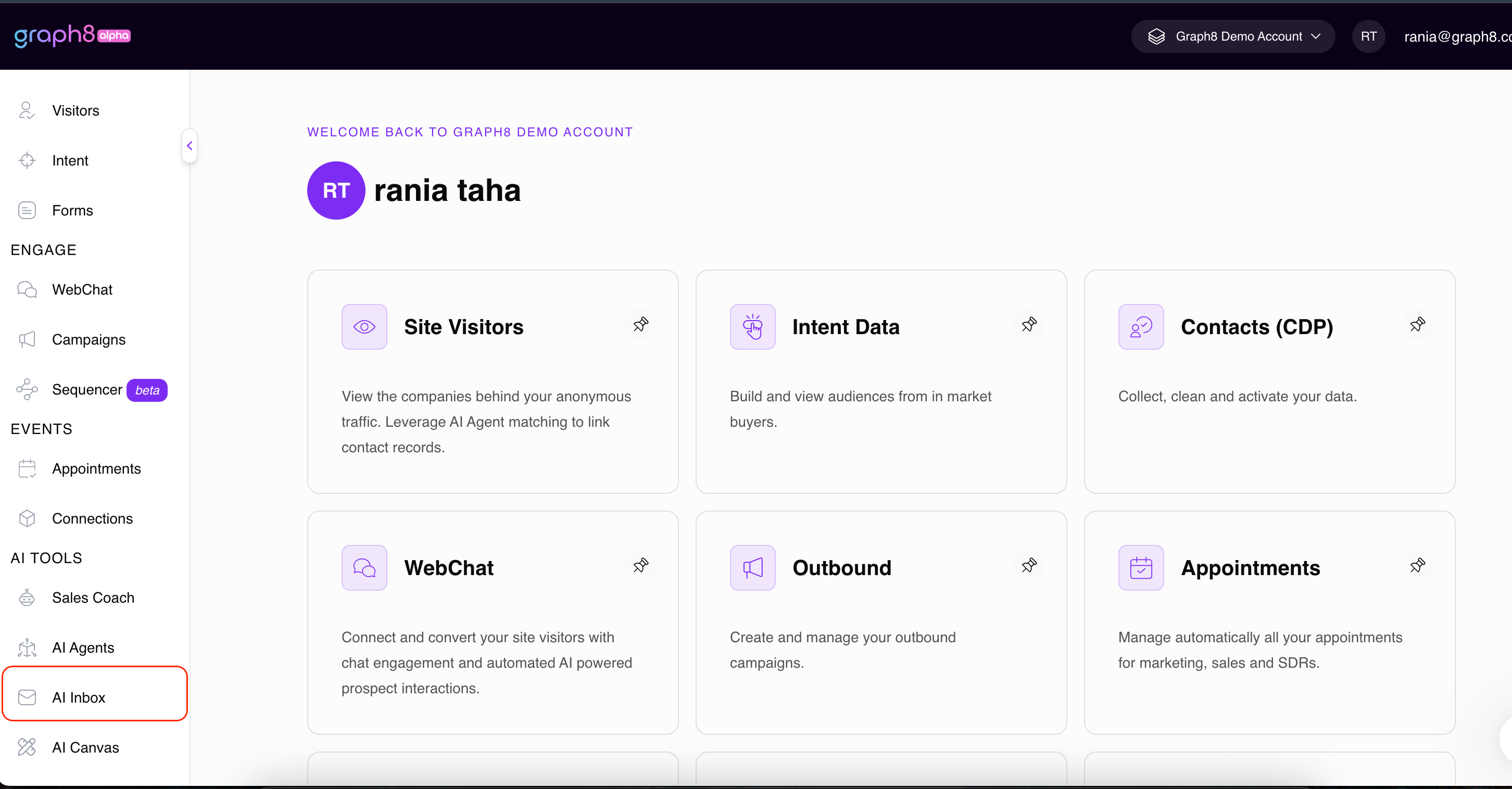
Open AI Inbox
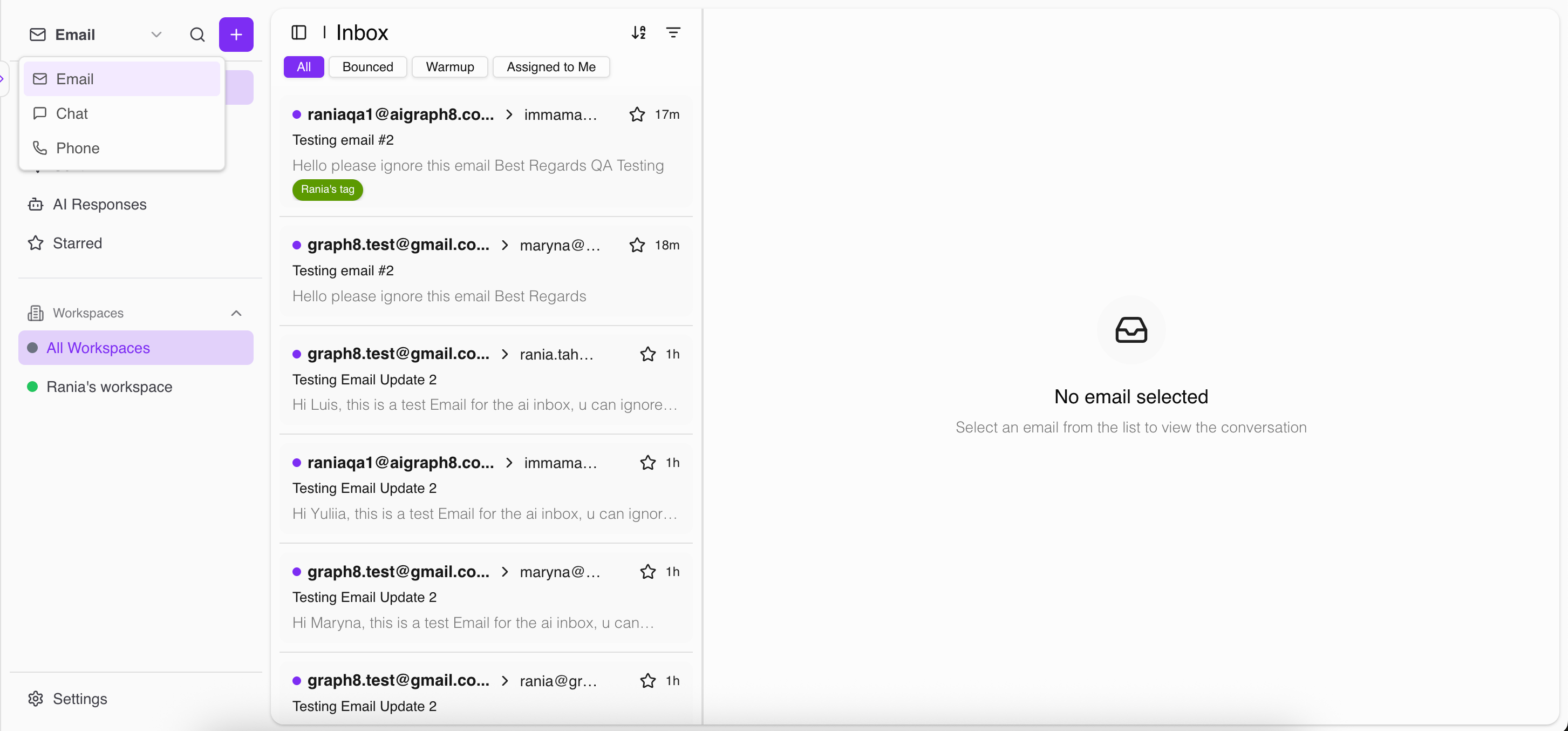
From the main menu in graph8, go to: AI Inbox → Email
Once you create a Workspace, it will also appear in the main inbox menu so you can switch between inboxes quickly.
Step 1: Configure AI Inbox Settings
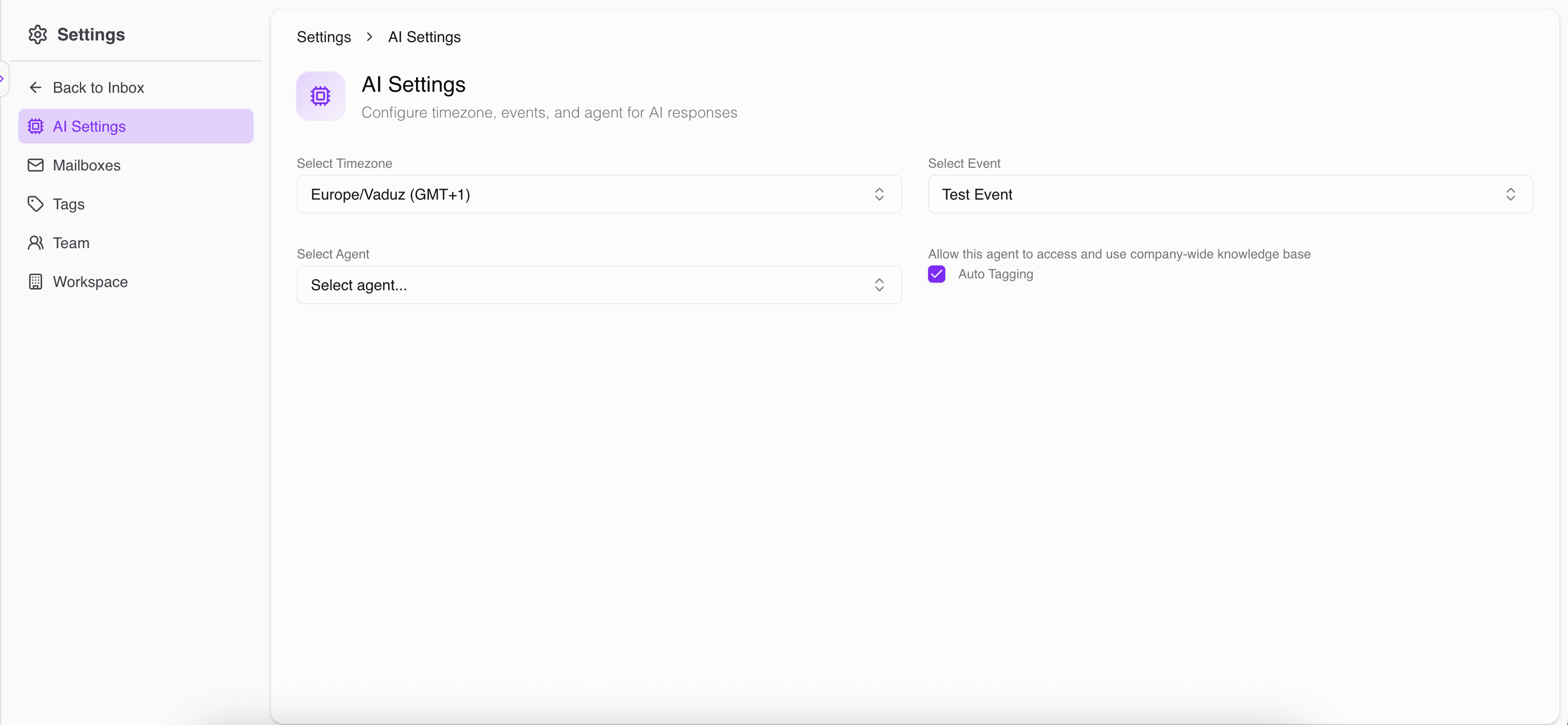
Go to: Settings → AI Settings
1) Timezone
Set your timezone so scheduling and meeting times are accurate.
2) Appointment Event
Select an event from the Appointments app.
This will be used when you want to book a meeting from email replies (for example, offering time slots).
3) Agent
Select an agent from AI Agents.
This agent will be used to generate AI replies and support workspace handling.
Step 2: Connect & Activate Mailboxes
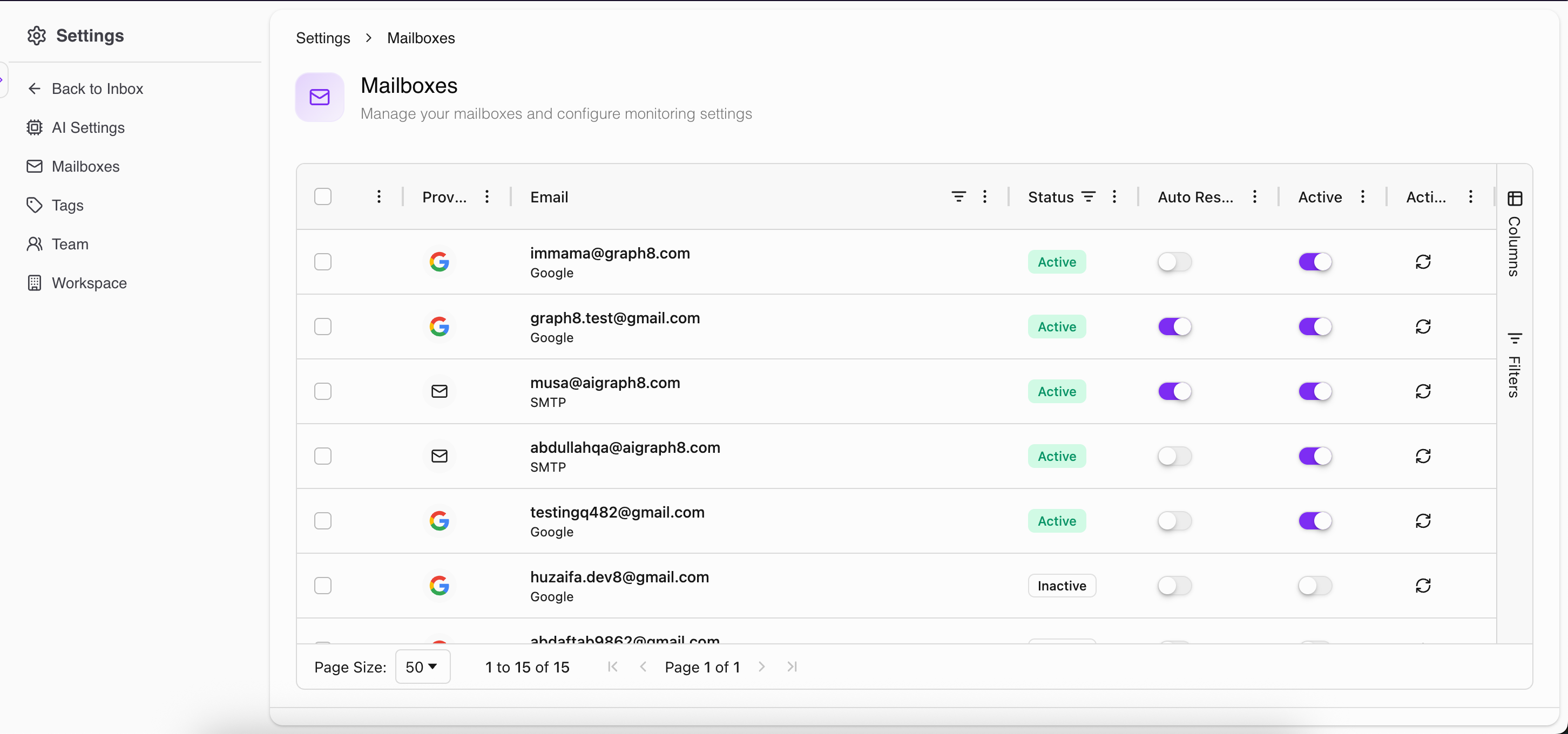
Go to: Settings → Mailboxes
You will see the mailboxes available in your account.
Activate / Deactivate
Active ON → the mailbox will receive emails in AI Inbox
Active OFF → the mailbox won’t be used in AI Inbox
Auto Respond
Auto Respond controls what happens when an email is received:
Auto Respond ON
graph8 will generate an AI reply and send it automatically
the sent AI reply will also appear in AI Responses
Auto Respond OFF
graph8 will generate a reply as a Draft
The draft will appear in Drafts Folder so you can review/edit before sending
Step 3: Set Up Tags (Optional but recommended)
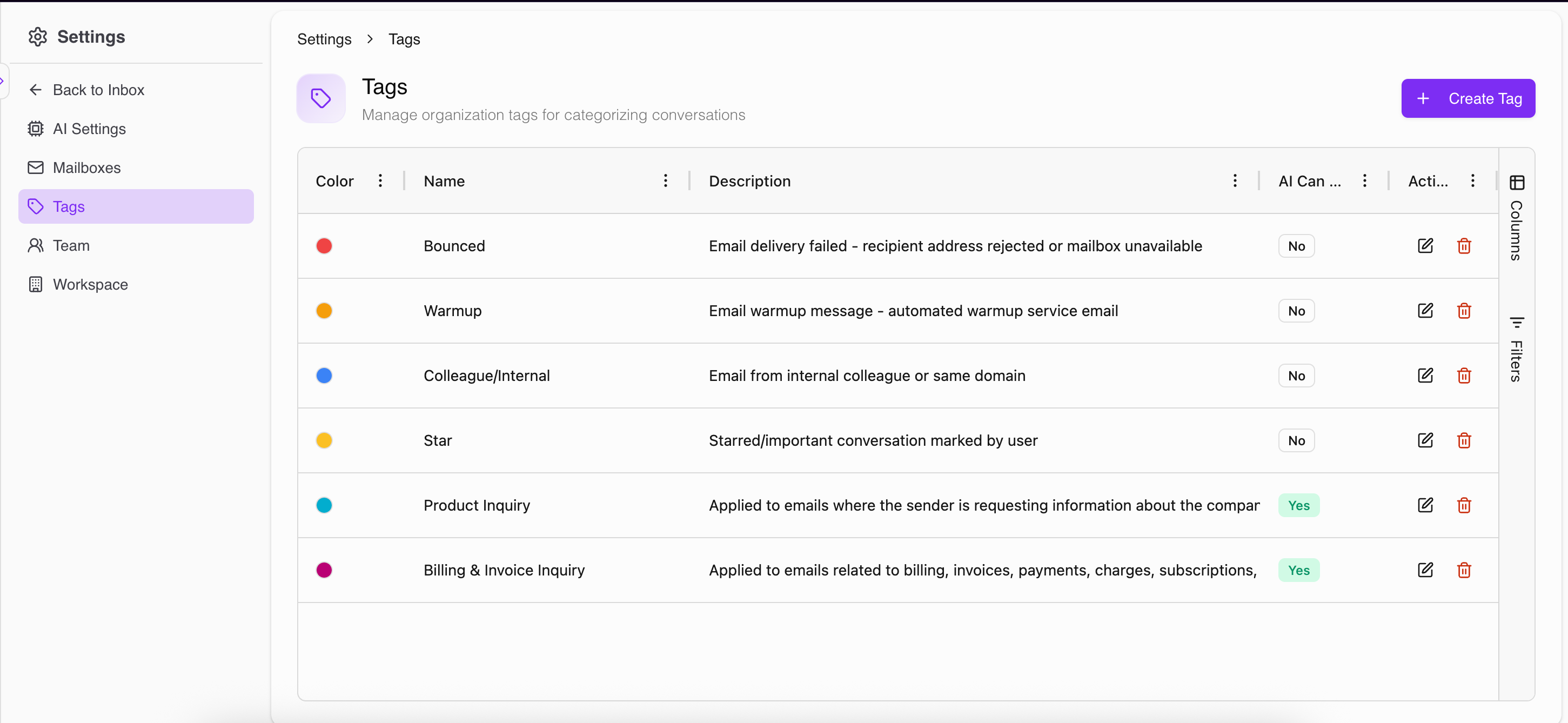
Go to: Settings → Tags
Tags help you categorize emails and filter them easily.
Manual Tags
Create a tag you can apply manually anytime.
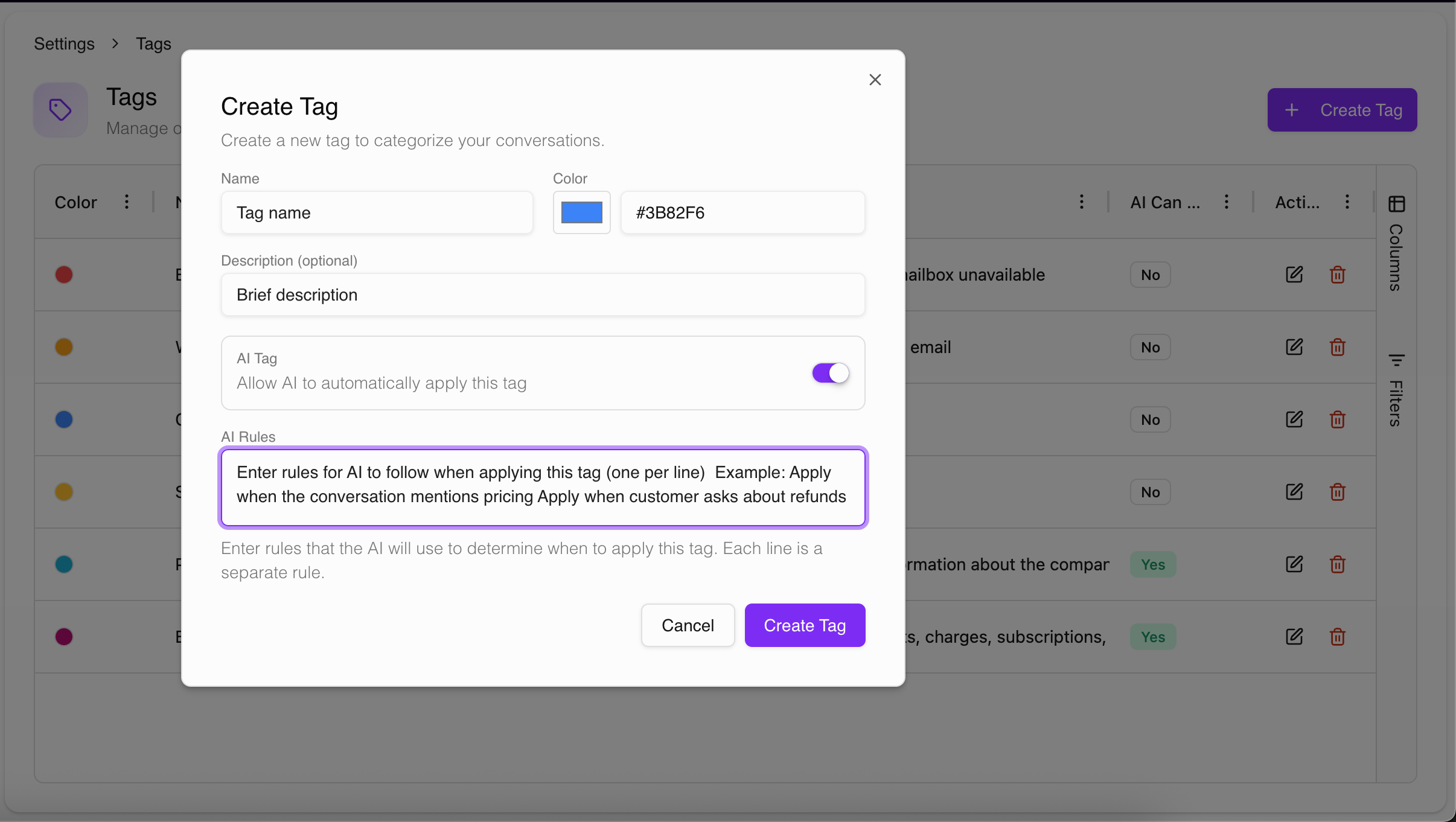
AI Tags (Dynamic Tagging)
If you want tags applied automatically:
Click Create Tag
Enable AI Tag
Add AI Rules (one per line) to define when to apply the tag
Example tags:
Product Inquiry
Billing & Invoice Inquiry
Warmup
Internal/Colleague
Step 4: Create a Workspace (Optional for teams)
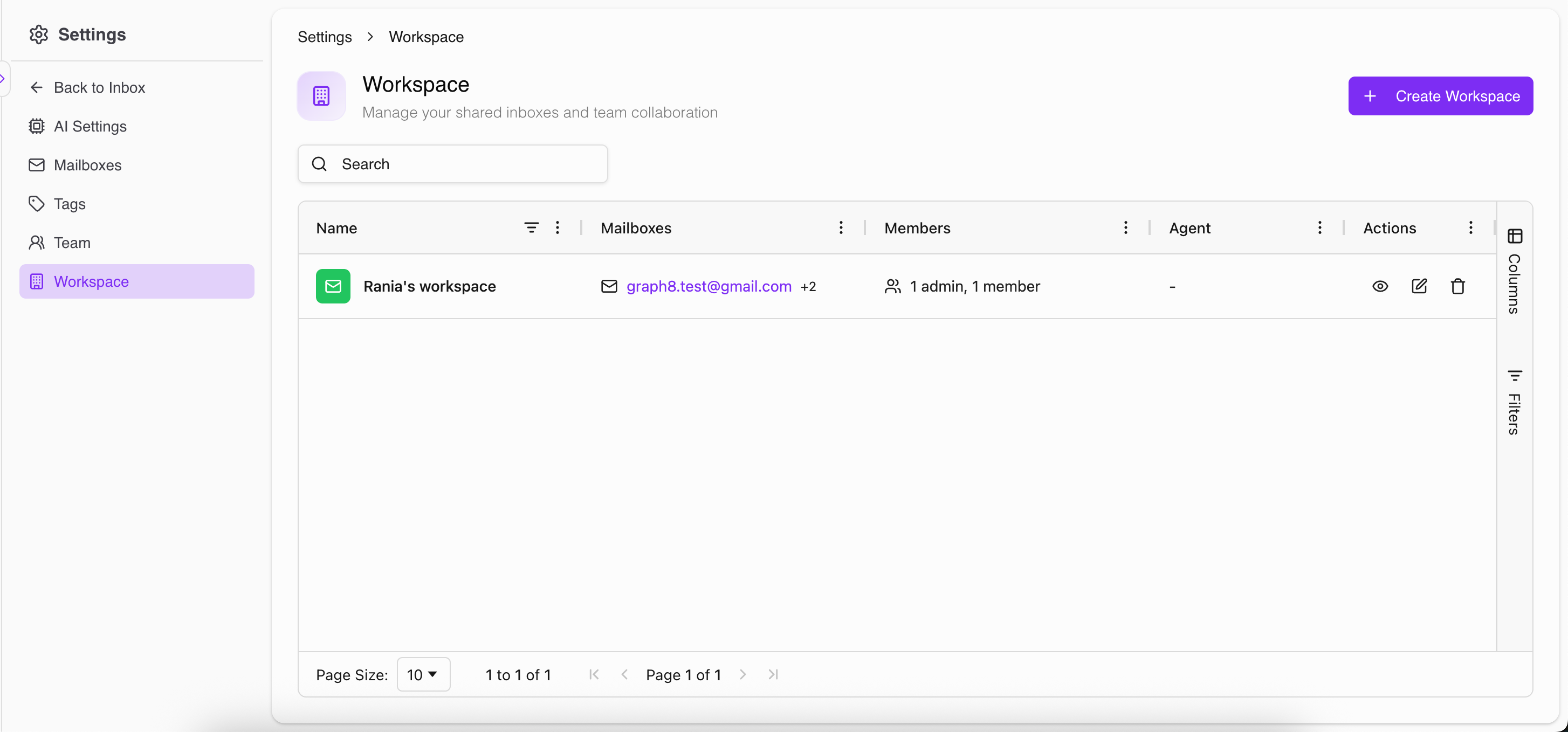
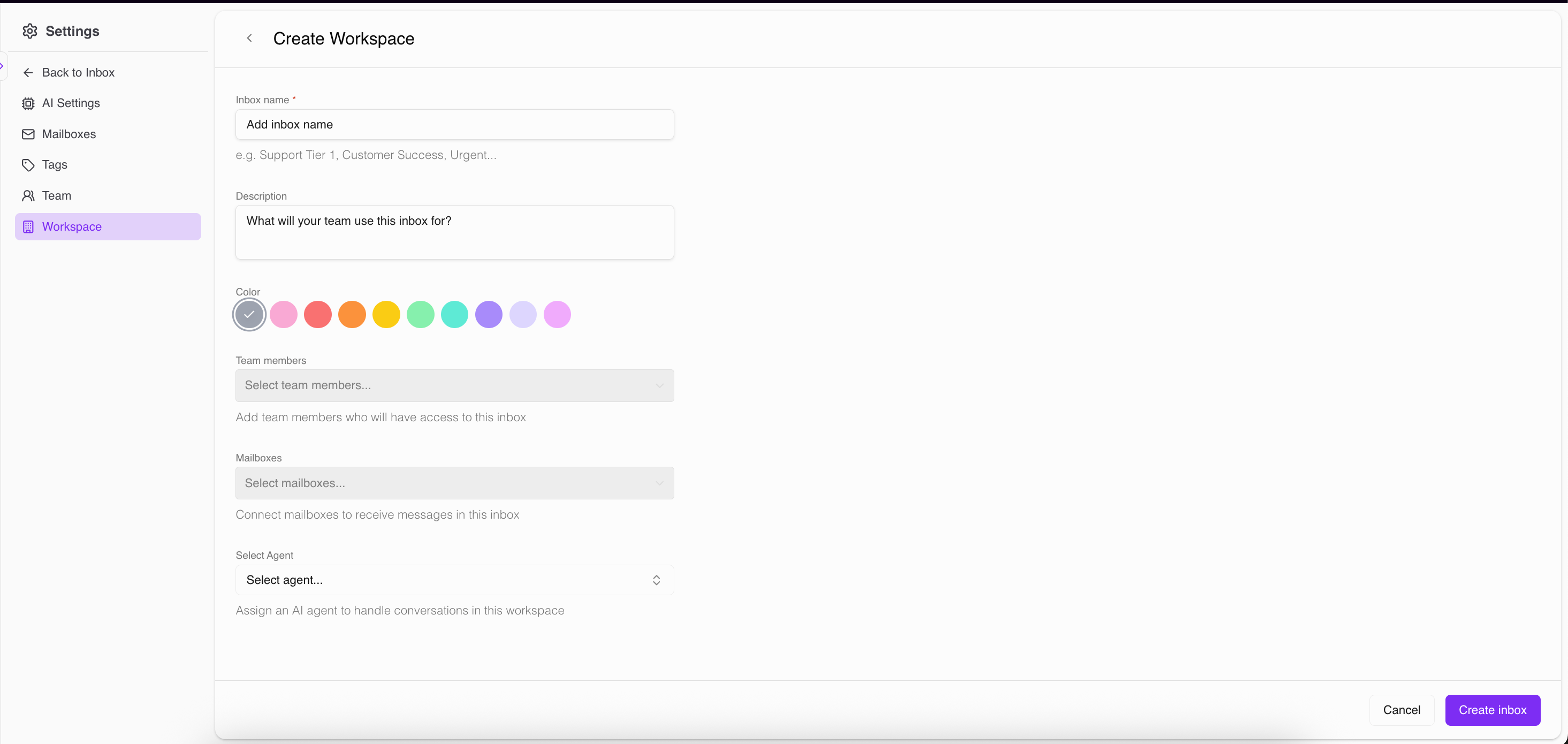
Go to: Settings → Workspace → Create Workspace
Workspaces help you organize shared inboxes for teams.
When creating a workspace, you can set:
Inbox name
Description
Color
Team members (who can access it)
Mailboxes included in the workspace
Agent (optional)
After creating it, the workspace will be available in the main inbox menu.
Using AI Inbox (Email)
Inbox sections [Folders]
Inbox
Shows incoming emails and replies you receive.
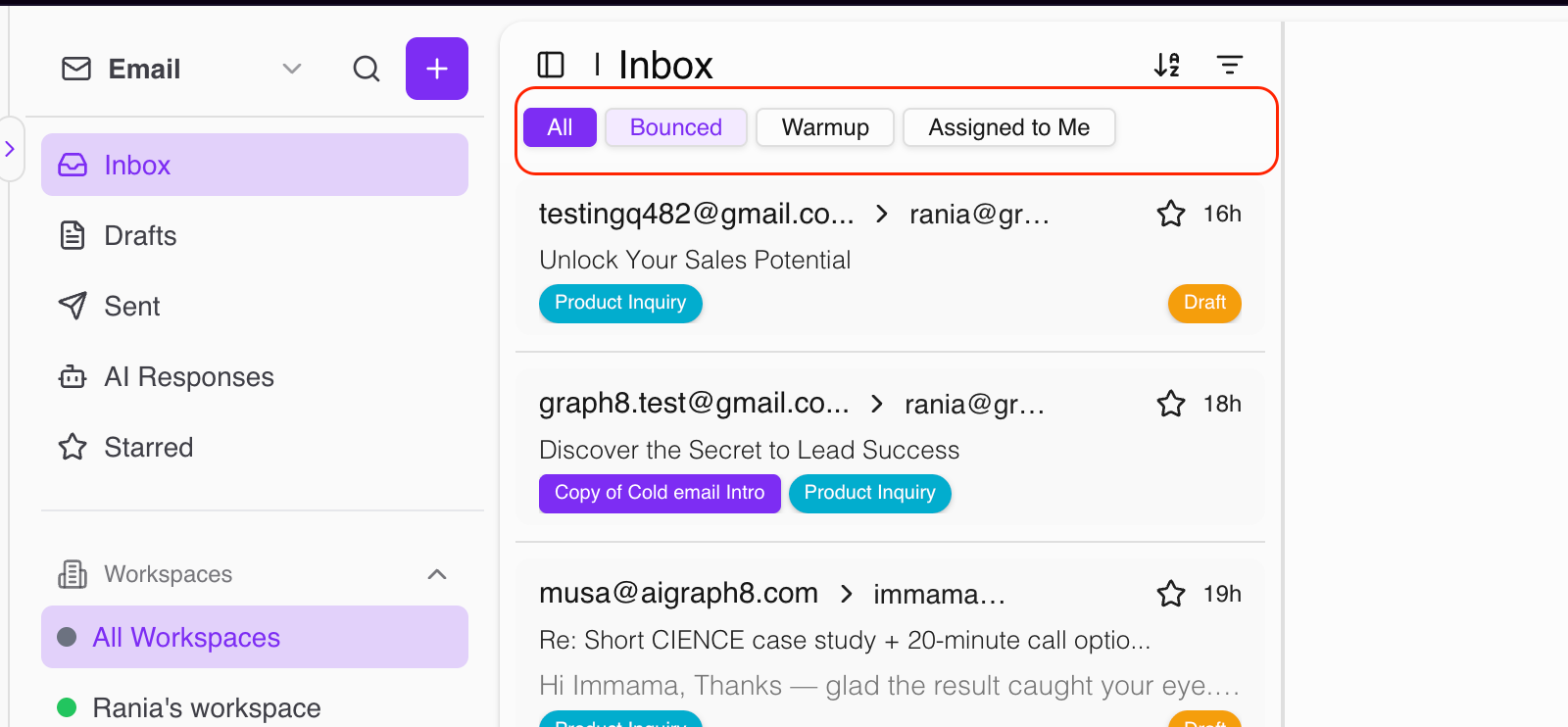
In the Inbox view, you’ll see the following tabs to quickly filter your conversations, At the top you can quickly switch between:
All:
Shows all incoming emails and replies you receive in the inbox.
You can respond using:
AI reply
Draft reply (review/edit then send)
Bounced:
Shows emails that bounced (including bounces from Sequencer sending).
Warmup:
Shows warmup emails received.
Assigned to Me:
Shows only the emails/conversations that were assigned to you by a team member.
Drafts
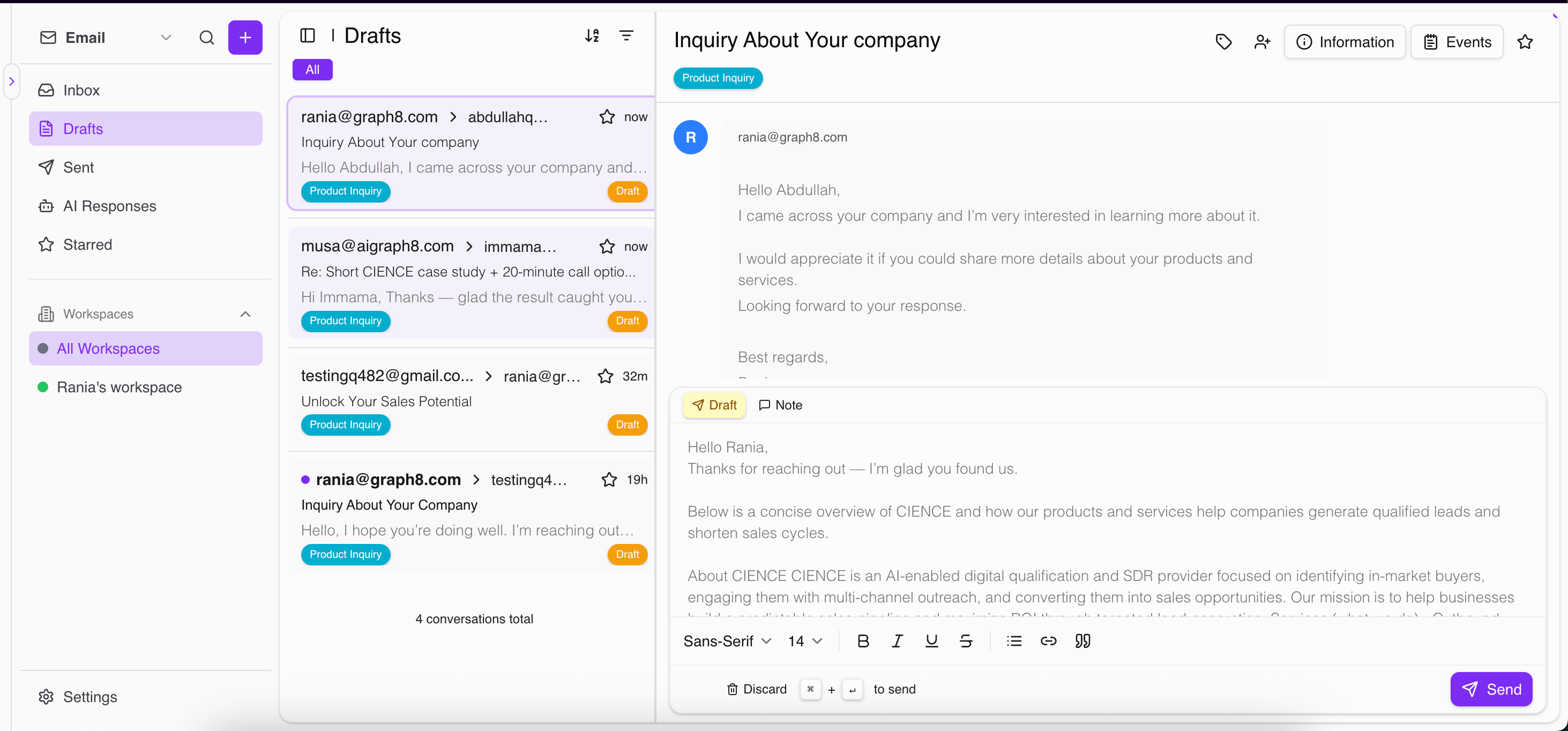
Shows:
Draft replies created when Auto Respond is OFF
Any email you started writing using compose email option but didn’t send yet
Example of a draft email
Sent
Shows all emails sent from graph8.
Important: AI Inbox is connected to the Sequencer
So when a sequence starts sending:
emails appear in Sent
replies appear in Inbox
you can reply from AI Inbox using AI reply or a draft
Starred
Shows emails you starred so you can return to them easily later.
Assign emails to team members
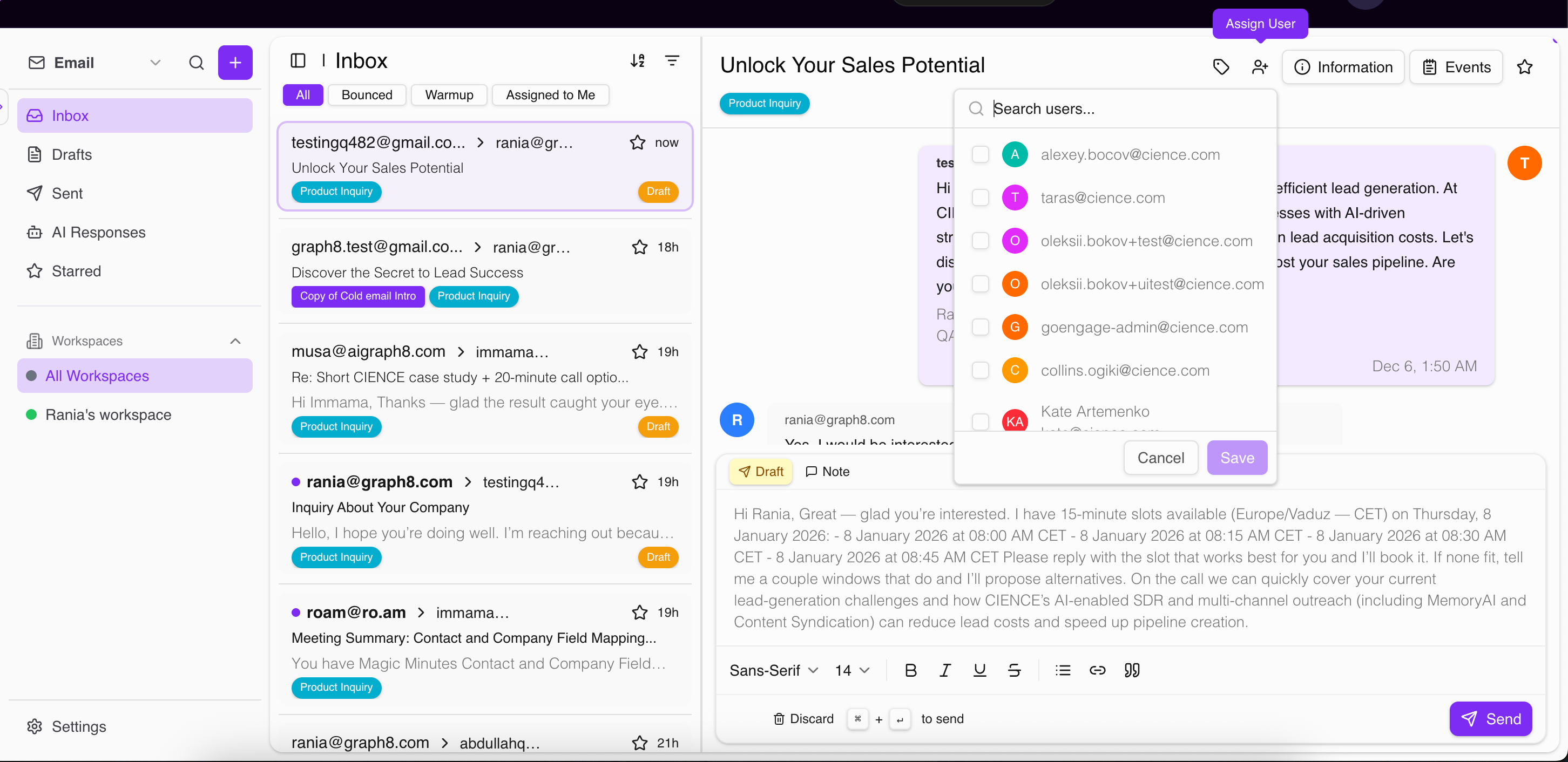
To assign a conversation:
Open the email
Click Assign User
Select the team member
Save
The assigned user can view it under Assigned to Me.
Filter & Search emails
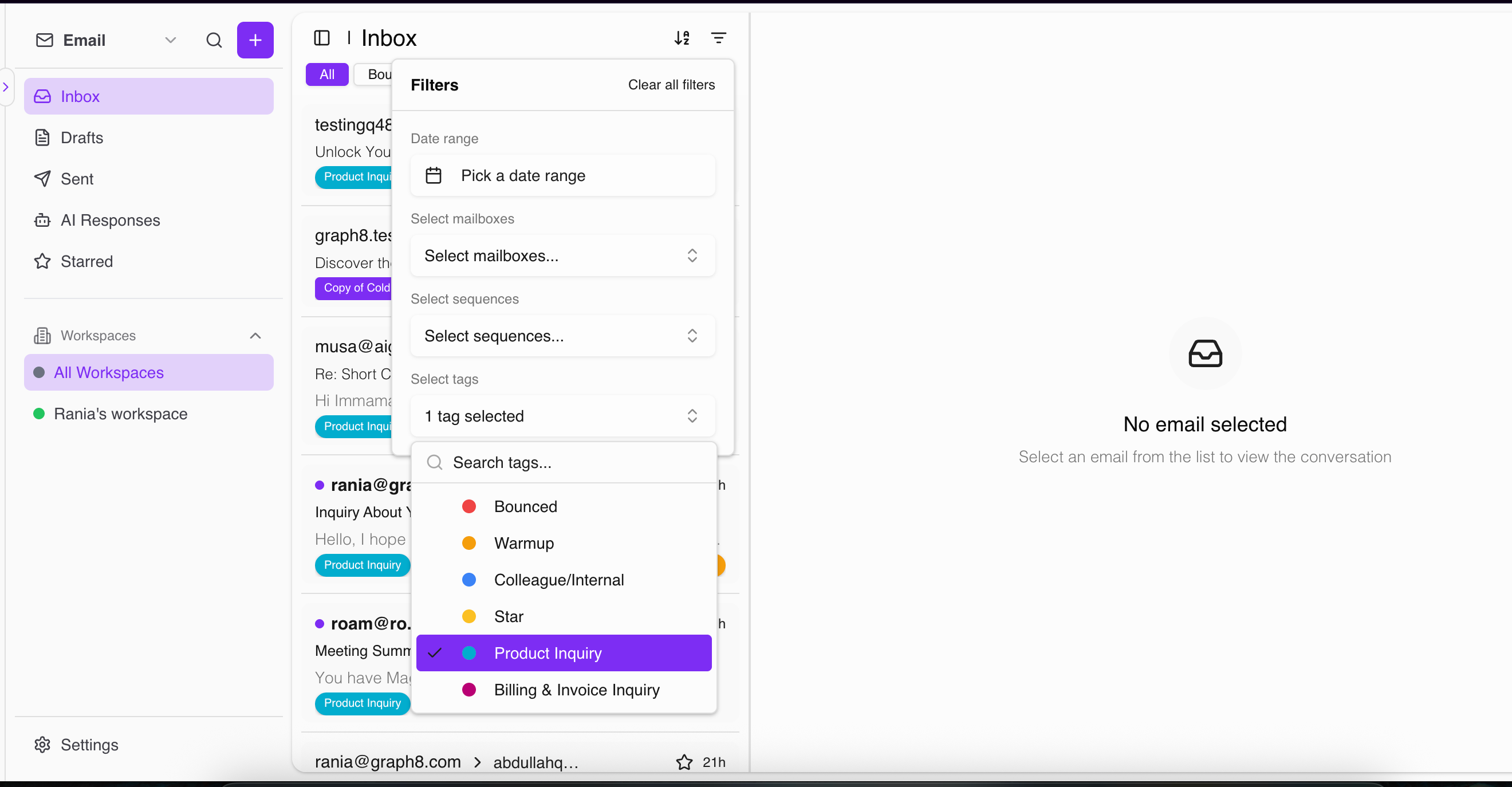
You can filter emails by:
Date range
Mailboxes
Sequences
Tags
This is very useful when you want to review:
Emails sent from a specific sequence
Replies received from a sequence
All emails tagged as “Product Inquiry” or “Billing”
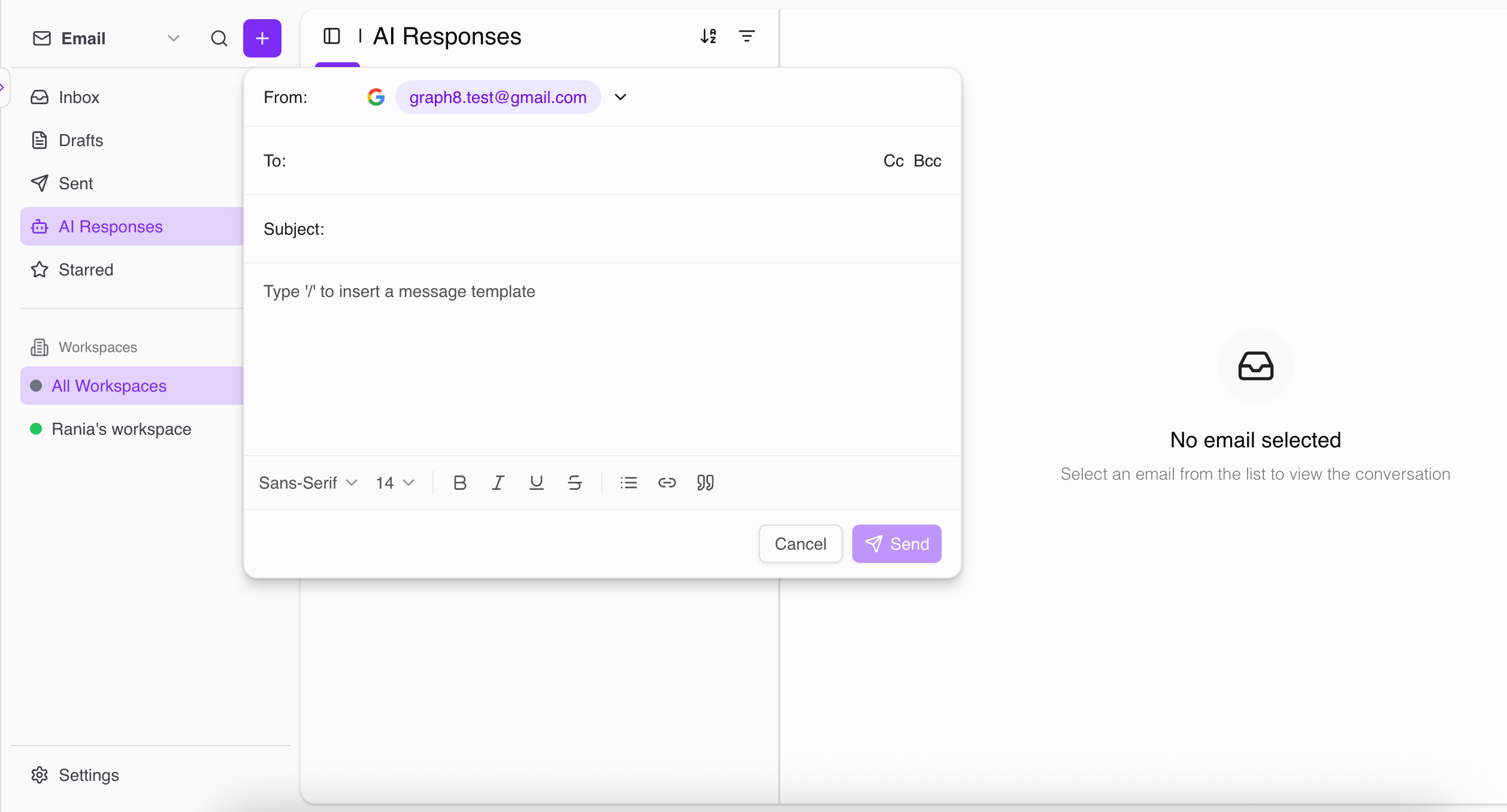
Send a new email from AI Inbox
To compose a new email:
Click the + button
Select the mailbox you want to send from
Add recipient, subject, and body (optional: CC/BCC)
Click Send
The email will appear in Sent.
If you write subject/body but don’t send, it will be saved in Drafts.
Summary
AI Inbox (Email) helps you manage all communication in one place by combining:
Mailbox receiving
Sequencer tracking (sent/replies/bounces)
AI replies (auto-send or draft-first)
Workspaces for teams
Assignment and tagging
Powerful filtering and search