Sales Coach
Overview
Sales Coach is graph8's AI-powered role-play feature that enables your sales team to practice and perfect their pitches through realistic simulations. Using actual company and contact data, Sales Coach creates scenarios where reps can engage with AI personas exhibiting various moods and behaviors commonly encountered in real sales calls.
Benefits
Practice with realistic AI simulations before engaging real prospects.
Build confidence through repeated exposure to challenging scenarios.
Develop effective responses to common objections.
Track improvement through competitive leaderboards.
Personalize training with specific contact profiles and company data.
How to Use Sales Coach
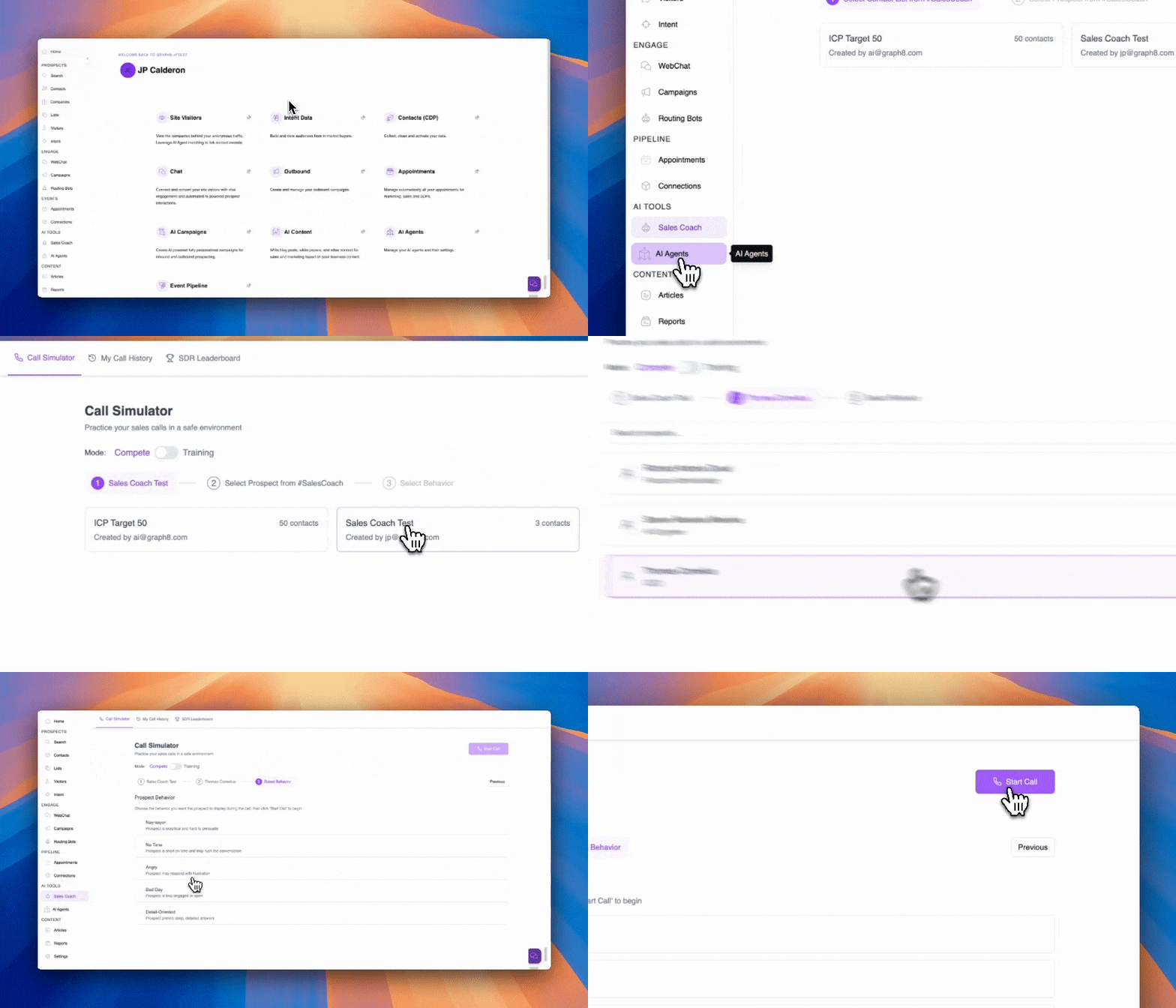
Step 1: Access Sales Coach
Log in to your graph8 account.
Navigate to the left sidebar menu.
Under the "AI TOOLS" section, click on "Sales Coach".
Step 2: Choose a Call Simulator Mode
Once in Sales Coach, you'll see the "Call Simulator" tab selected by default
Choose your simulation mode by toggling between:
Compete Mode: Real-world scenario with no hints; results count toward the SDR Leaderboard.
Training Mode: Practice environment with helpful tips and guidance.
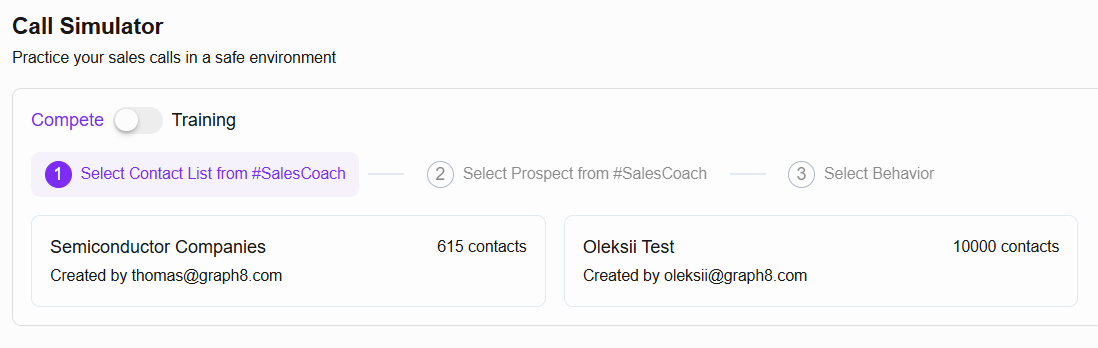
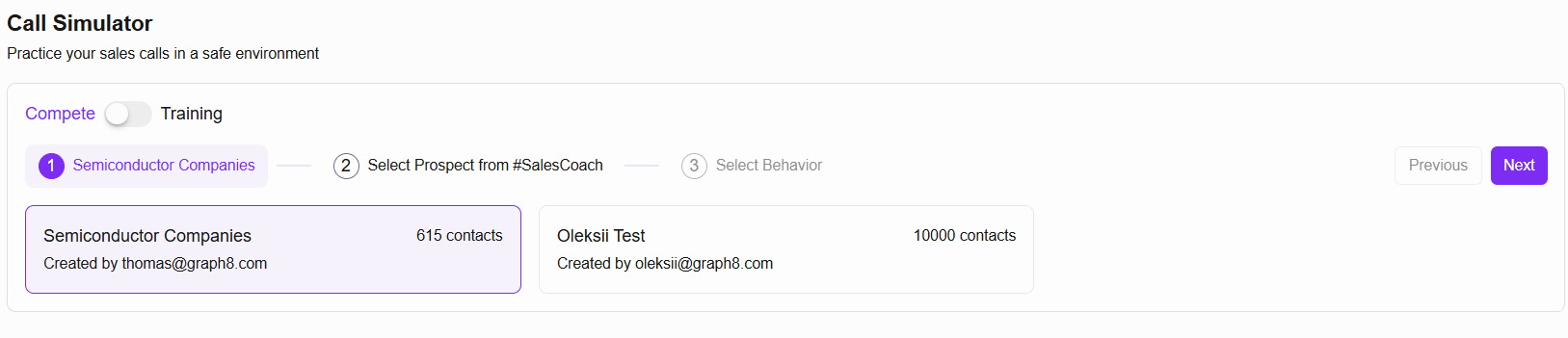
Step 3: Select a Contact List (Compete Mode)
If using Compete Mode, you must select a contact list that has been tagged with #SalesCoach.
Note: For information on how to add tags to lists, please refer to the Adding Tags to Lists article.
Available #SalesCoach tagged lists will display with the number of contacts they contain.
Click on your desired list.
Click "Next" to proceed.
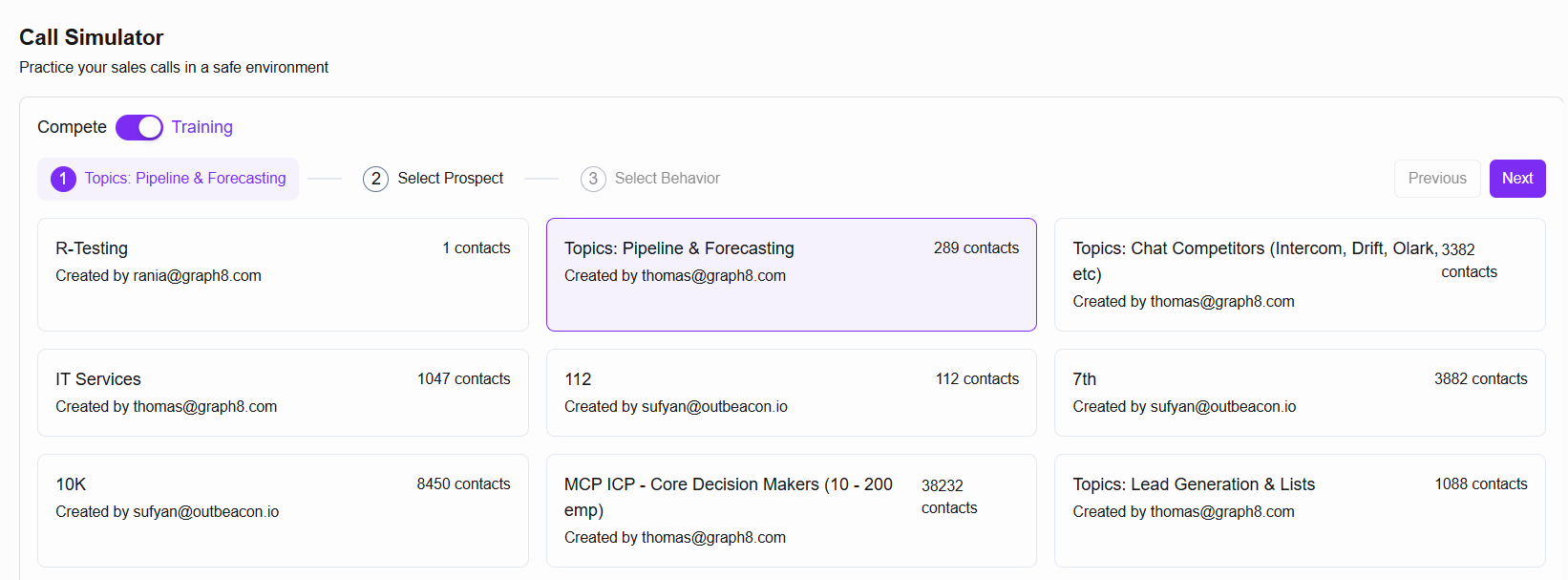
Step 3: Select a Contact List (Training Mode)
If using Training Mode, you'll have access to all contact lists without requiring special tags.
Browse through the available lists, which show:
List name.
Number of contacts.
Created by information.
Click on your desired list.
Click "Next" to proceed.
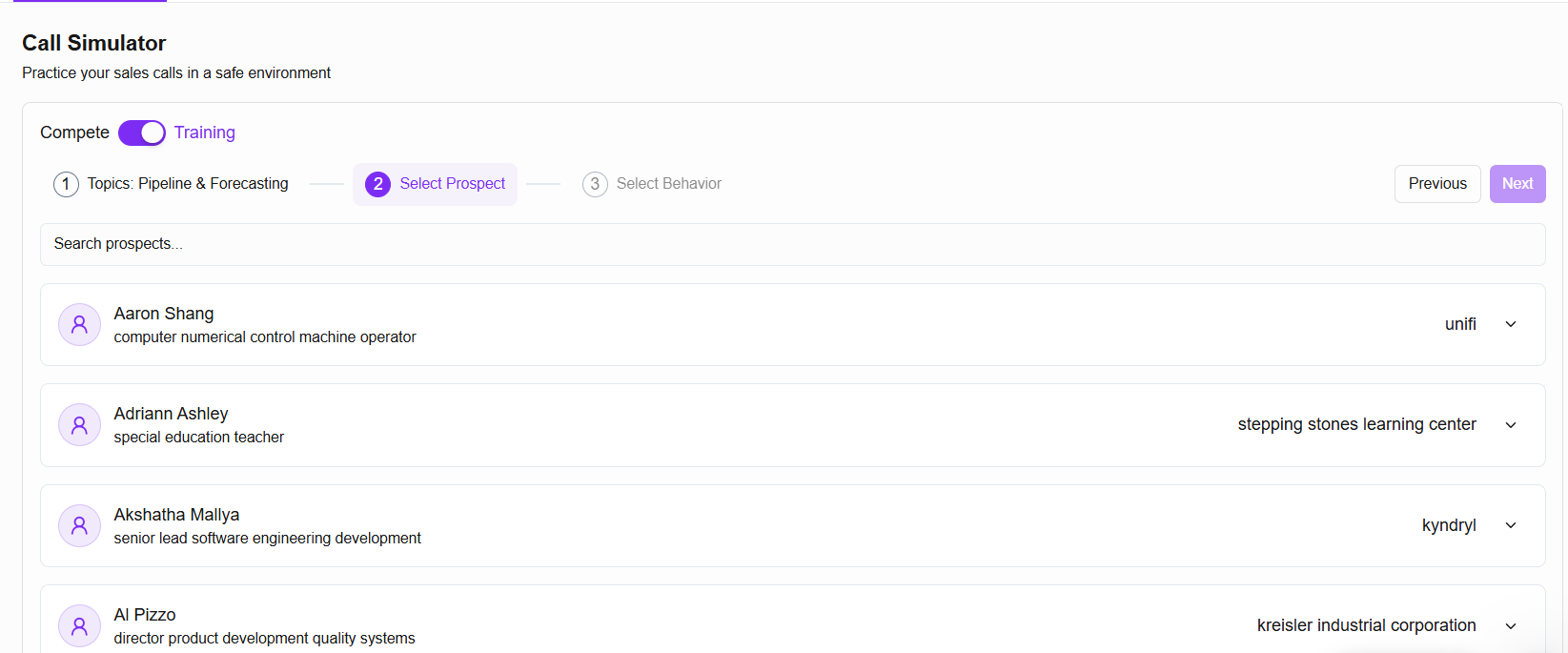
Step 4: Select a Prospect
Use the search bar to find specific prospects or browse through the available contacts
Each prospect entry shows:
Prospect name.
Job title.
Company name.
Click on a prospect to select them.
Click "Next" to proceed.
Step 5: Select Prospect Behavior
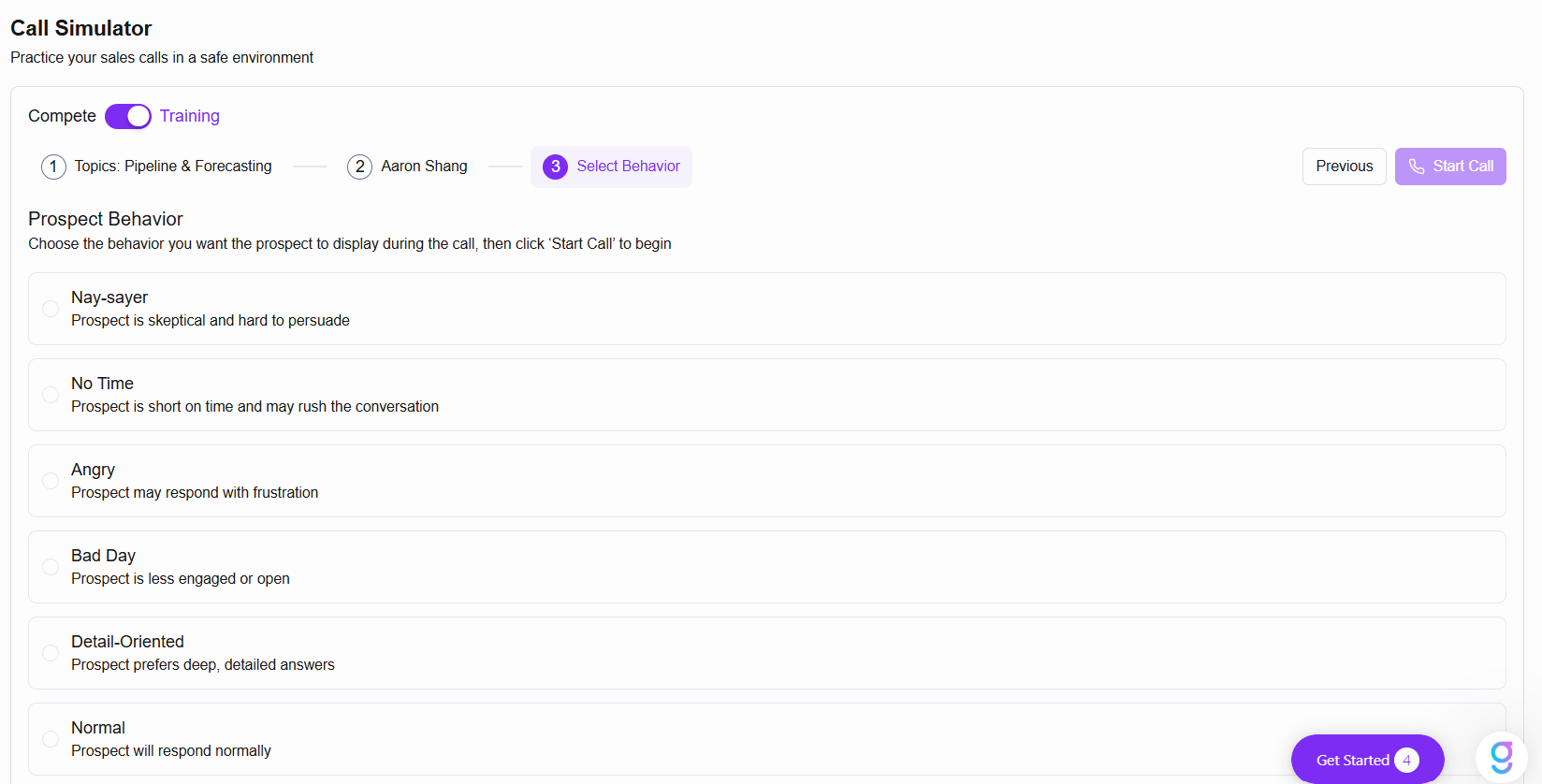
Choose the behavior/mood you want the AI prospect to exhibit:
Nay-sayer: Prospect is skeptical and hard to persuade.
No Time: Prospect is short on time and may rush the conversation.
Angry: Prospect may respond with frustration.
Bad Day: Prospect is less engaged or open.
Detail-Oriented: Prospect prefers deep, detailed answers.
Click "Start Call" to begin the simulation
Step 6: Engage in the Simulation
The AI will initiate the conversation based on the selected parameters
In Training Mode, you'll receive helpful tips and hints during the call
Respond naturally as you would in a real sales call
Use the "Hang Up" button when you're ready to end the call
Step 7: Review Call Performance
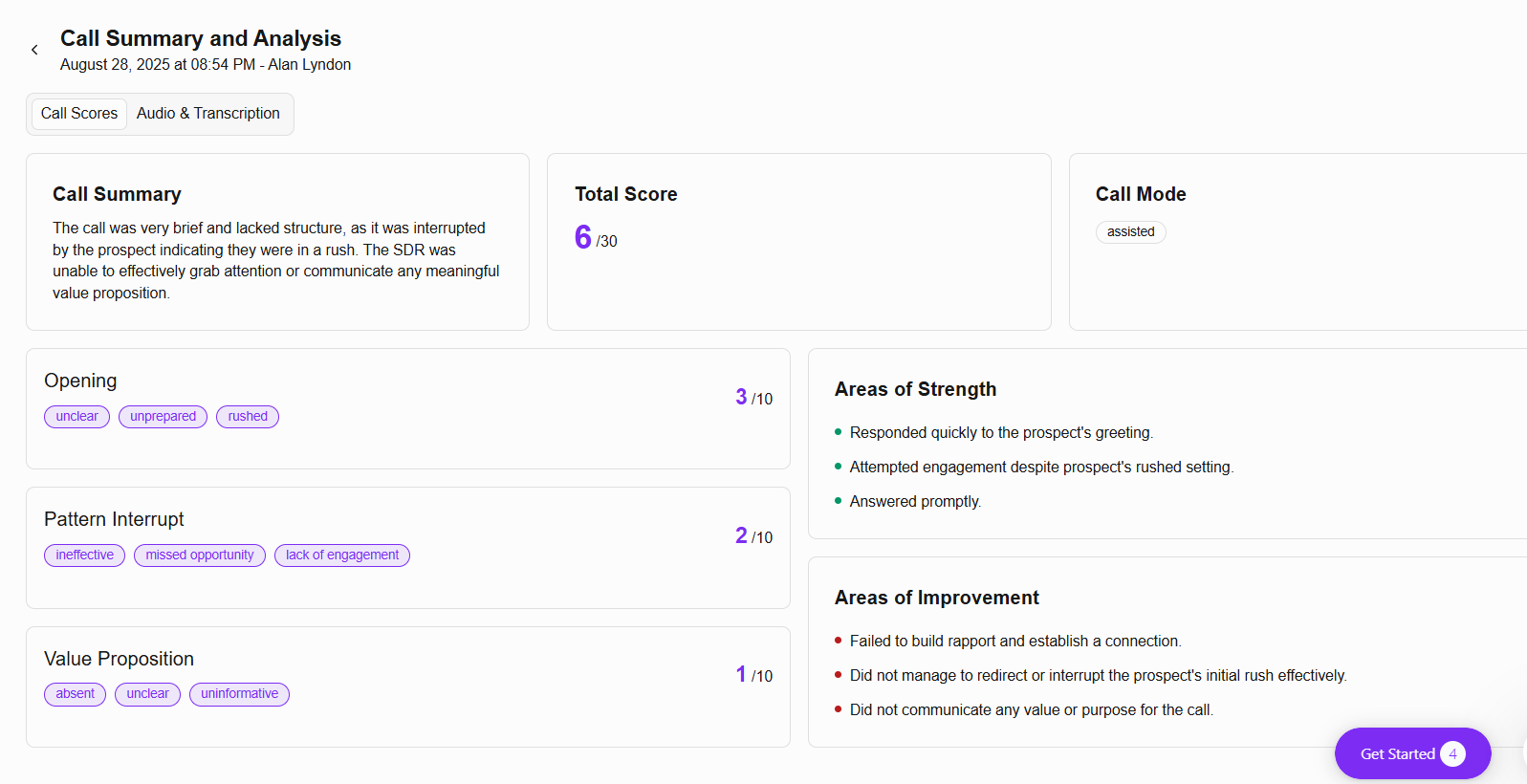
After completing the call, you'll be able to view a detailed analysis of your performance
The system will provide:
Total score (out of 30).
Call summary with specific feedback.
Detailed scoring for different aspects (Opening, Pattern Interrupt, Value Proposition).
Areas of strength.
Areas for improvement.
Step 8: Review Audio and Transcription
Navigate to the "Audio & Transcription" tab in the call summary.
Listen to the audio recording of your call.
View the complete call transcript.
Review key highlights that point out specific moments in the call with feedback.
Additional Features
My Call History
Click on the "My Call History" tab at the top of the Sales Coach interface.
View your performance metrics:
Total Calls.
Average Score.
Your Rank.
See a detailed list of all your past calls with:
Date & Time.
Prospect.
Mode (compete or assisted).
Score.
Status.
Duration.
View option for accessing detailed call information.
SDR Leaderboard
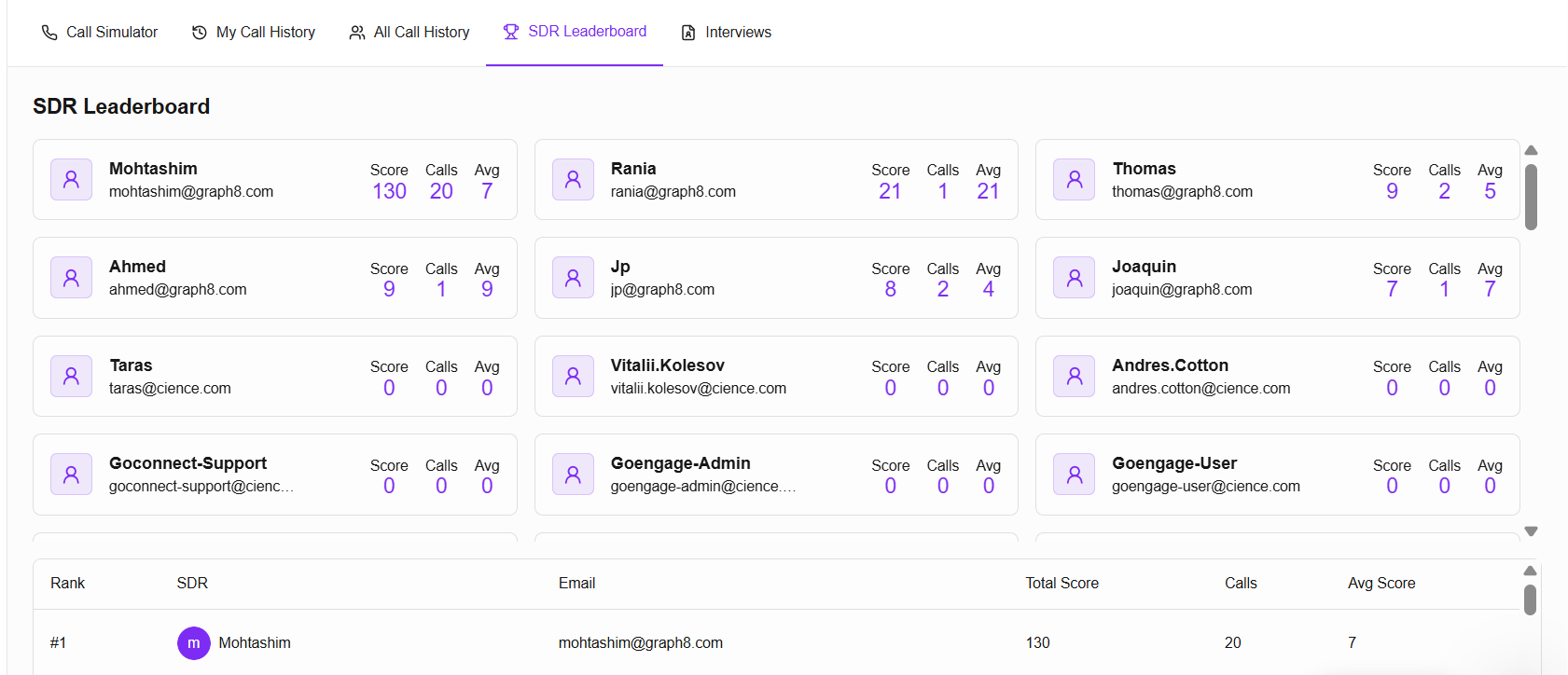
Click on the "SDR Leaderboard" tab at the top of the Sales Coach interface.
View how you rank compared to your teammates.
Leaderboard displays:
Rank position.
SDR name.
Email.
Total Score.
Number of Calls.
Average Score.
Tips for Success
Start with Training Mode to familiarize yourself with the system.
Practice with different prospect behaviors to prepare for various scenarios.
Review call analyses carefully to identify patterns in your performance.
Focus on improving one aspect at a time (opening, value proposition, etc.).
Use the leaderboard as motivation to improve your skills.
Regularly check your call history to track progress over time.
Support
For additional assistance with Sales Coach:
Contact the graph8 support team via the in-app chat or [email protected]
Refer to other related articles in the Graph8 Knowledge Base