Lists
Overview
Lists help you organize your prospects by grouping related people and companies in one central location. This powerful organizational tool enhances your prospecting workflow in multiple ways:
Streamline your searches by including or excluding specific lists from results.
Accelerate your outreach by adding entire lists to sequences.
Import external data by uploading CSV files to create new lists.
Export your data by downloading lists as CSV files for external use.
Personalize at scale with list-specific AI Columns for targeted messaging.
The following sections provide detailed guidance on maximizing Graph8's list functionality for your prospecting needs.
Creating a list
For detailed instructions on creating lists, please see our Search article in the Knowledge Base.
Accessing your Lists
Viewing Your Lists Directly
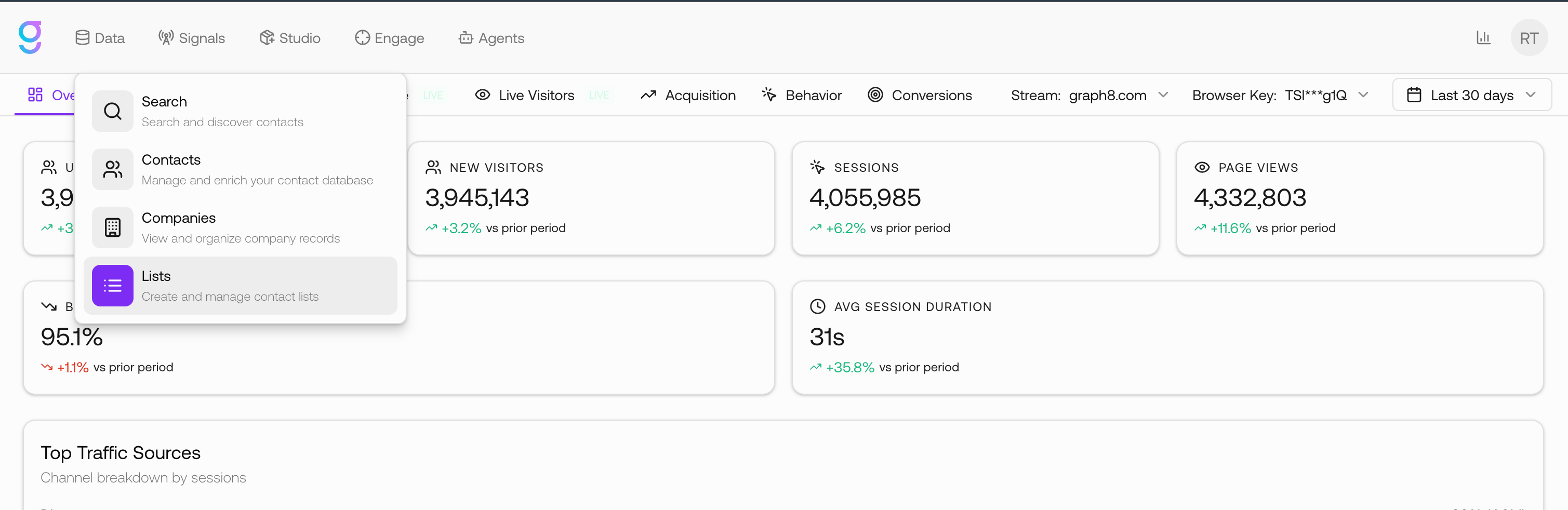
Navigate to Data: From the top navigation bar, click Data.
Open Lists: Select Lists from the dropdown menu.
View All Lists: Your screen will display all your saved lists, showing both contact and company lists.
Check List Details: The list view shows important information including:
List name
Type (Contacts or Companies)
Status
Type of List (Dynamic or Static)
Total number of records
Date created
Access List Contents: Click directly on any list name to view all records within that list.
Using Lists in Search
Open Search: From the top navigation bar select Search from the Data dropdown menu.
Select Target Type: Choose either "People" or "Companies" depending on your needs.
Open Lists Filter: Scroll down the filters panel and click on the Lists dropdown.
Choose Your List: Under "List Name," select one or more lists you want to include in your search results.
Run Search: Click the purple Run Search button to display all records from your selected list(s).
Optional - Exclude Lists: Under "List Name Exclude," select any lists you want to remove from your search results.
List Actions
Graph8 provides three powerful actions you can perform with your lists to enhance your workflow:
List-Level Actions (From Lists Grid)
Each list entry includes an Actions menu allowing you to perform operations without opening the list.
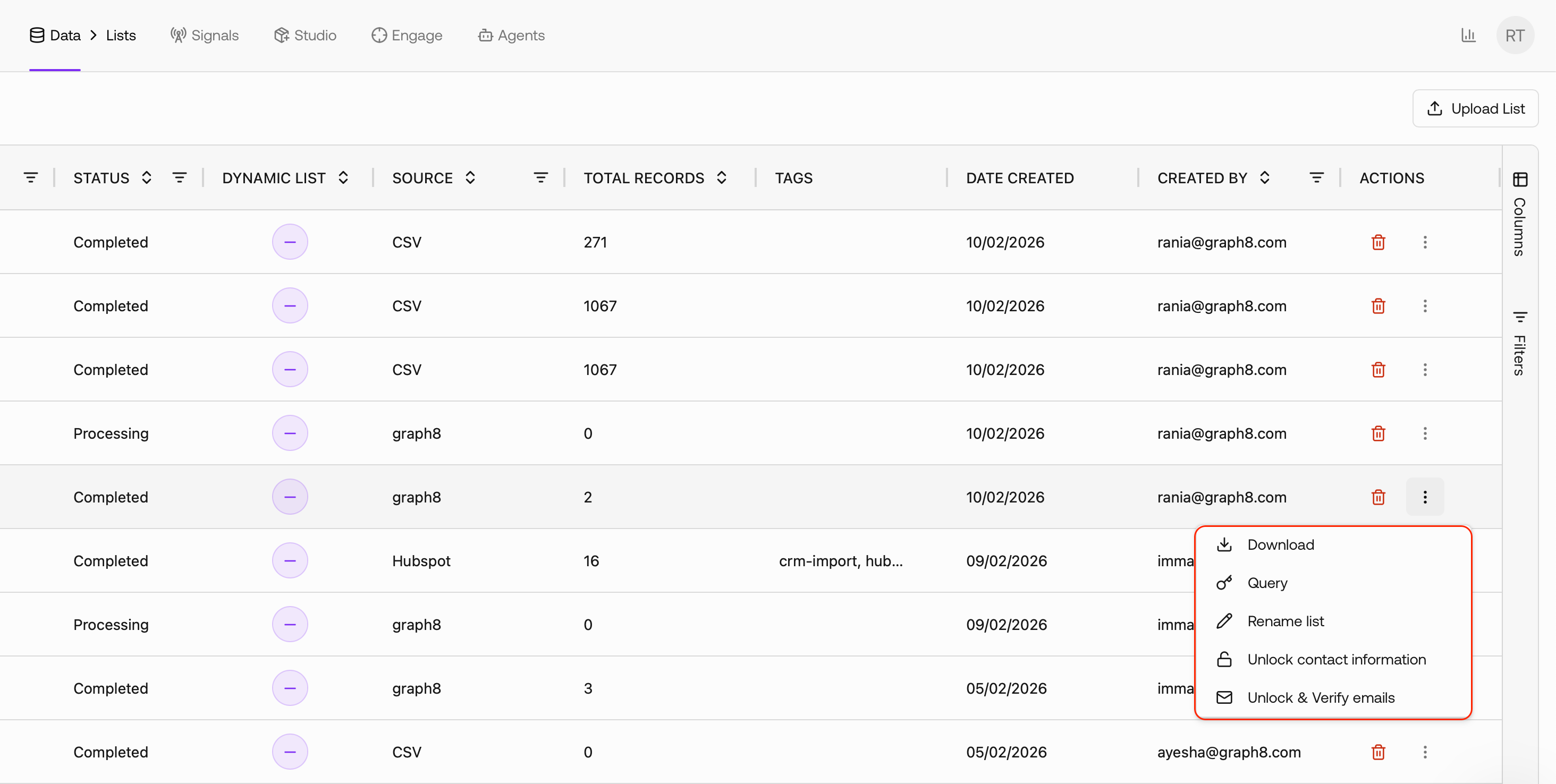
Available actions may include:
1. Download
Exports the entire list dataset.
Useful for:
Offline analysis
External processing
Backup workflows
2. Query
Displays the underlying query logic for dynamic or system-generated lists.
This is primarily informational and helps users understand list composition.
3. Rename List
Allows you to modify the list name.
Renaming does not affect records or enrichment columns.
4. Unlock Contact Information
Unlocks masked contact data contained in the list.
By default, sensitive contact fields may appear masked, including:
Work Email
Phone Number
LinkedIn URL
Other personal identifiers
Masking ensures controlled access to personal data.
After unlocking:
Contact details become fully visible
Contacts become usable across the organization
Records can be used in Dialer, Sequencer, and Enrichment workflows
Note: Unlocking consumes credits.
5. Unlock & Verify Emails
Combines two operations:
Unlock masked contact fields
Verify work email validity
This is commonly used when preparing lists for outbound workflows.
6. Delete
Deletes the current list.
Deletion removes:
List structure
Associated dynamic columns
List membership
This action does not delete underlying Contacts or Companies from the master dataset.
7. Adding Tags to Lists
Categorize lists with tags for easier organization and feature compatibility:
Double-click the cell in the TAGS column next to your desired list.
Select a tag from the dropdown.
The tag will appear in the TAGS column.
To remove a tag, double-click the cell and click the "X" next to the tag.
Useful Tip: For Sales Coach Compete Mode, lists must have the #SalesCoach tag.
These actions make your lists more versatile and help you move smoothly between prospecting, analysis, and outreach stages.
Actions Inside a List
Opening a list provides additional operational controls.
To open a list:
Click the list name from the Lists page
Inside the list workspace, you gain access to filtering, enrichment, and record-level operations.
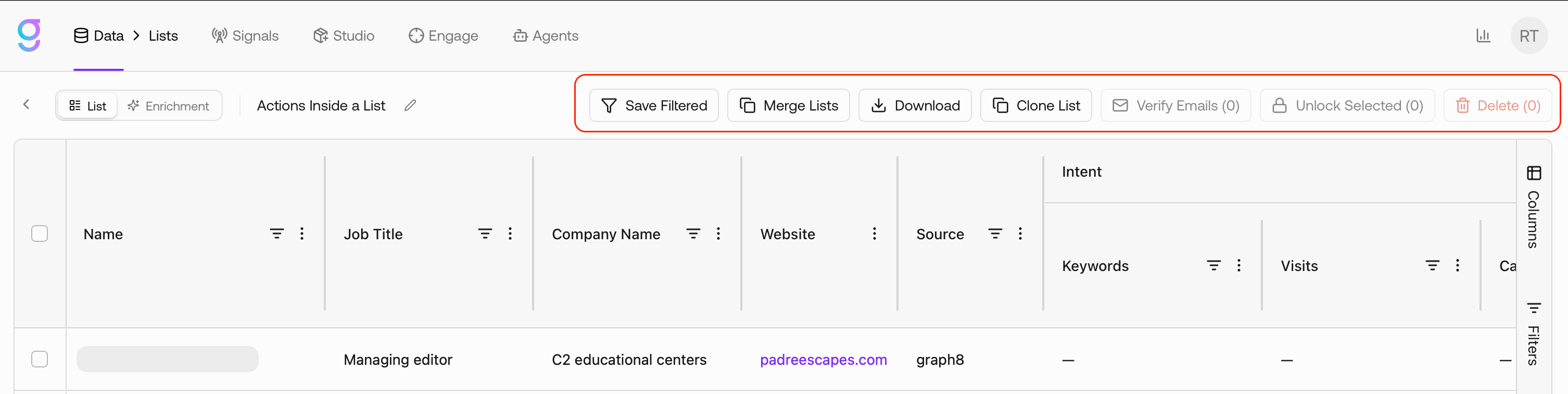
1. Save Filtered
Save Filtered stores only the records matching active filters into a list.
Common use cases:
Creating a list of valid emails only
Isolating specific job roles
Segmenting enrichment-ready contacts
When triggered:
You may save into an existing list
Or create a brand new list
2. Merge Lists
Merge Lists combines multiple lists into a single destination list.
You can:
Merge into an existing list
Or create a new list
Useful for consolidating datasets from multiple sources.
3. Download
Exports the entire list dataset.
Useful for:
Offline analysis
External processing
Backup workflows
4. Clone List
Clone List creates a duplicate of the current list.
Important behavior:
Cloning always creates a new list
Records and columns are copied
Source list remains unchanged
5. Verify Emails
Verify Emails validates the work email addresses associated with list contacts “For the selected contacts from the list”.
Each email receives a verification status, typically including:
Valid
Not Valid
Risky
Catch All
Unverifiable
Verification improves deliverability and campaign quality.
This action consumes credits based on processed records.
6. Unlock Info “Unlock Selected”
Unlock Info reveals masked personal identifiers for the selected contacts stored in the list.
graph8 masks sensitive fields for newly saved contacts to ensure data governance and credit control.
Typical masked fields:
Work Email
Phone Number
LinkedIn URL
Why unlocking matters:
Until unlocked, contacts may not be usable in downstream workflows such as:
Dialer
Sequencer
AI Enrichment
Organization-wide actions
Unlocking consumes credits and permanently reveals the data.
7. Delete
Deletes the selected contacts
Credits & Data Control
Certain list actions consume credits:
Unlock Info
Verify Emails
Unlock & Verify
Credit usage depends on:
Number of records
Validation logic
graph8 validates credit availability before execution.
CSV Uploads
graph8 allows you to import data in bulk using CSV-based files. The upload flow is accessible from the Lists page and supports three different list types:
Contacts
Companies
Suppressions
To begin:
Navigate to Data → Lists
Click Upload List
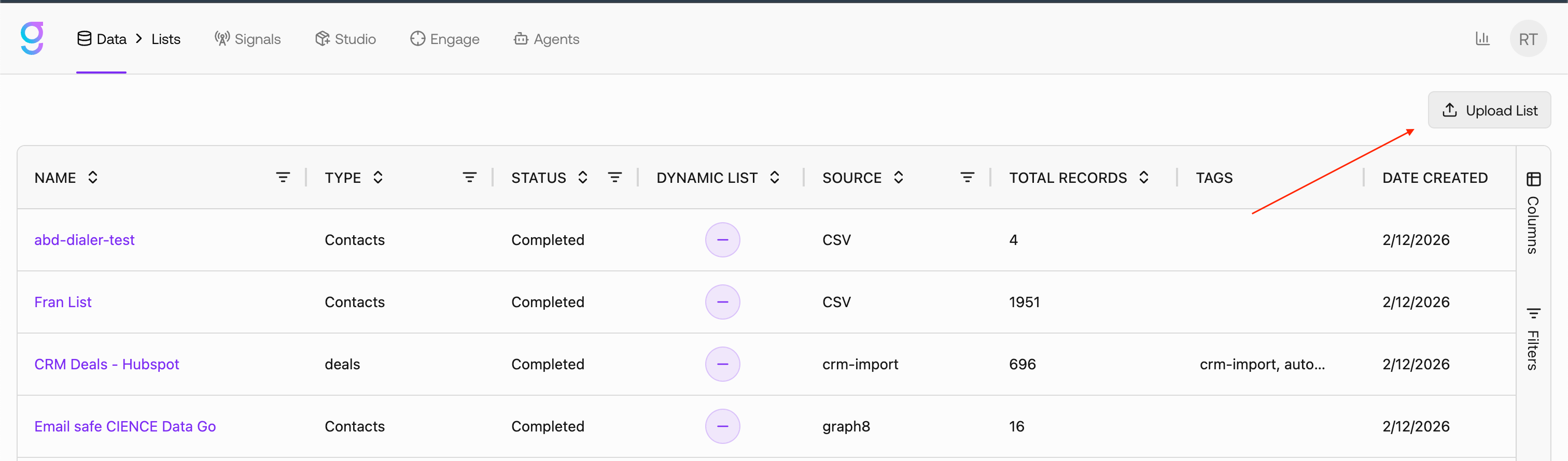
You will be prompted to select the list type.
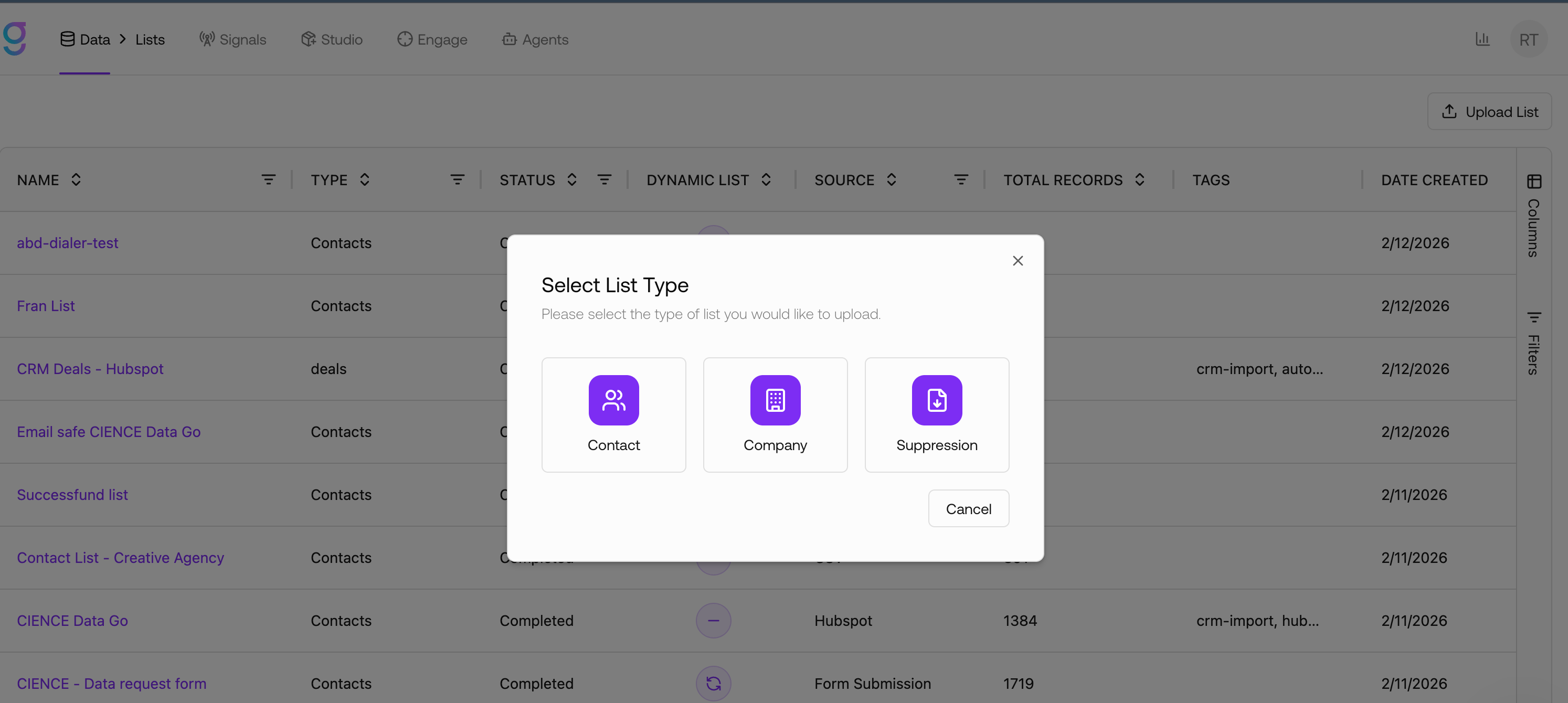
Uploading a Contacts List
The Contacts CSV Upload flow enables users to import contact records from external files into graph8.
A Contacts upload is considered valid only when at least one unique identifier is mapped:
Contact Work Email OR
Contact LinkedIn URL
Upload Flow Overview (Contacts)
Step 1 — List Creation
Click Upload List
Select Contacts
Enter a List Name (required)
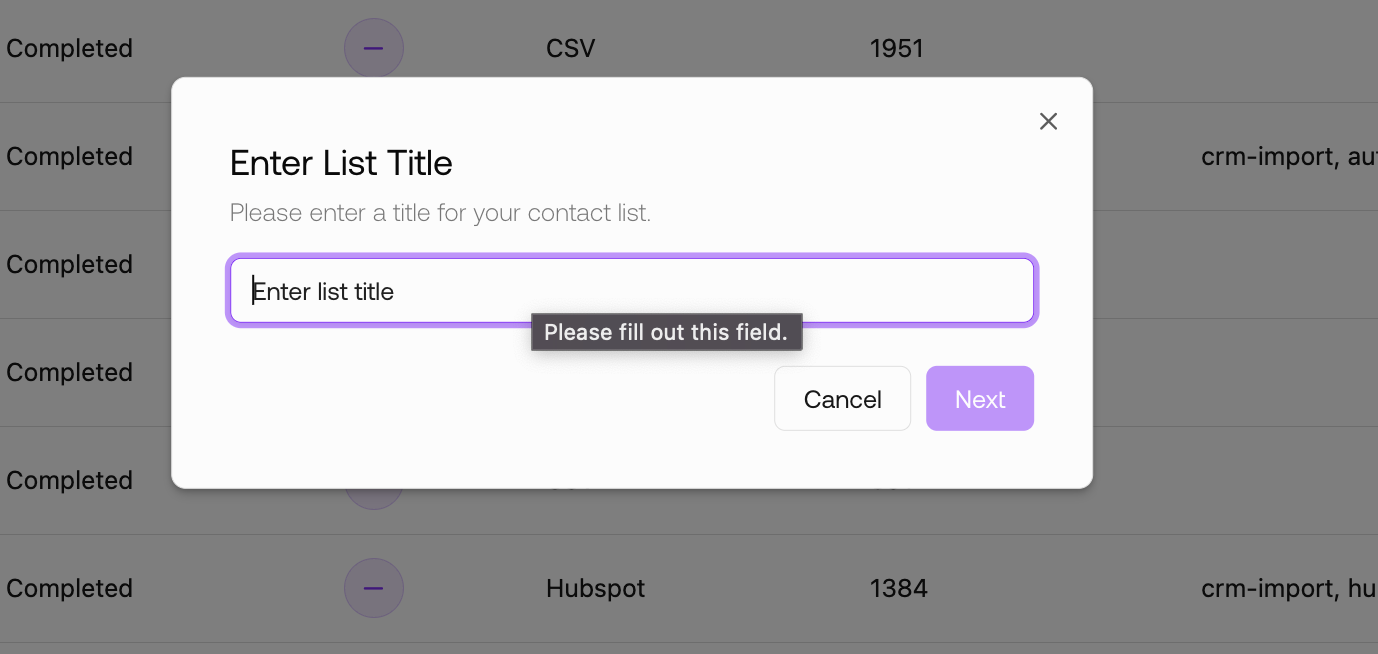
Step 2 — Upload File
Supported file formats: .csv, .xlsx, .xlsm
Invalid file types are rejected with a validation error.
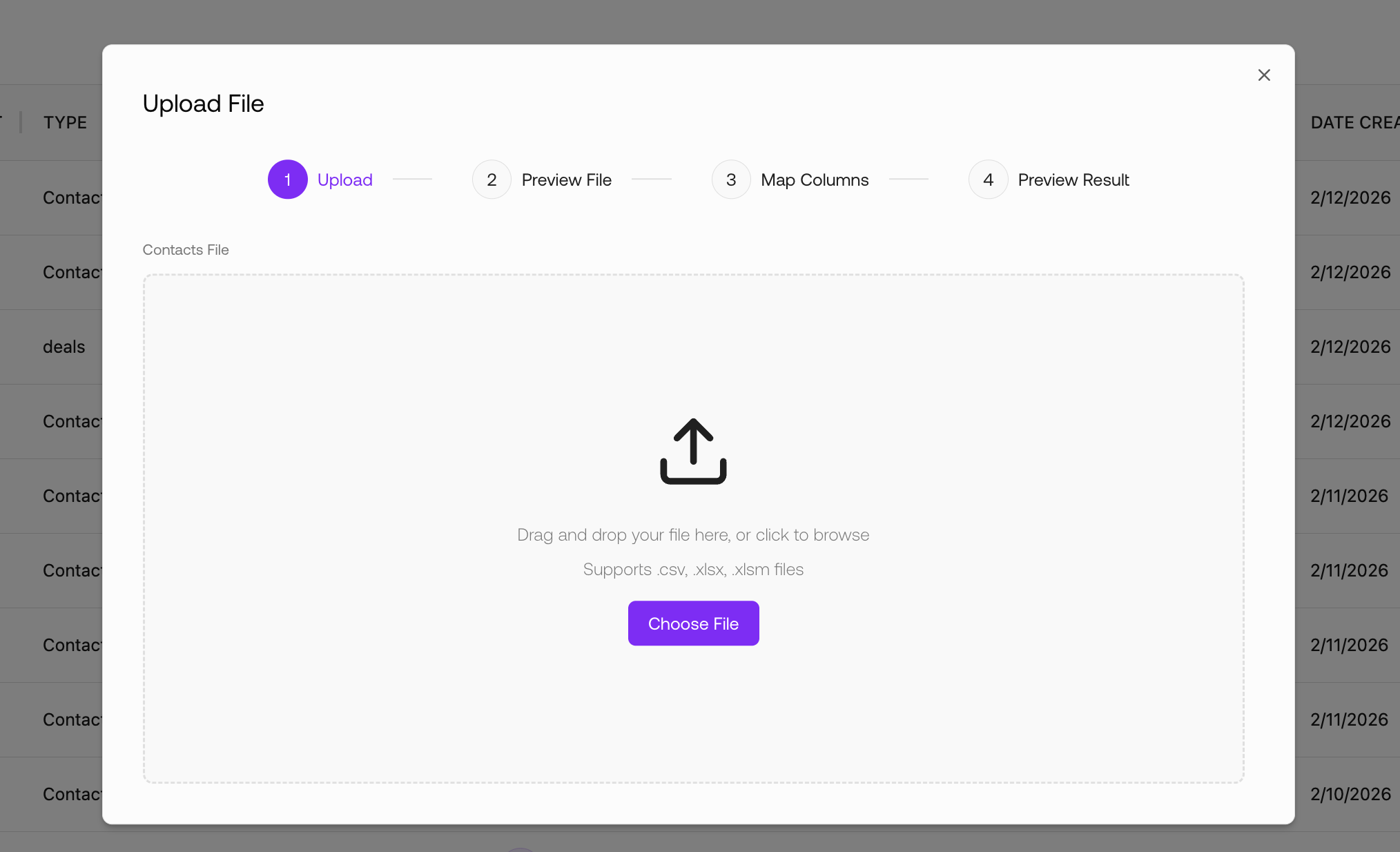
Step 3 — Preview File
Displays a read-only preview of the raw file data
No transformations or mappings applied yet
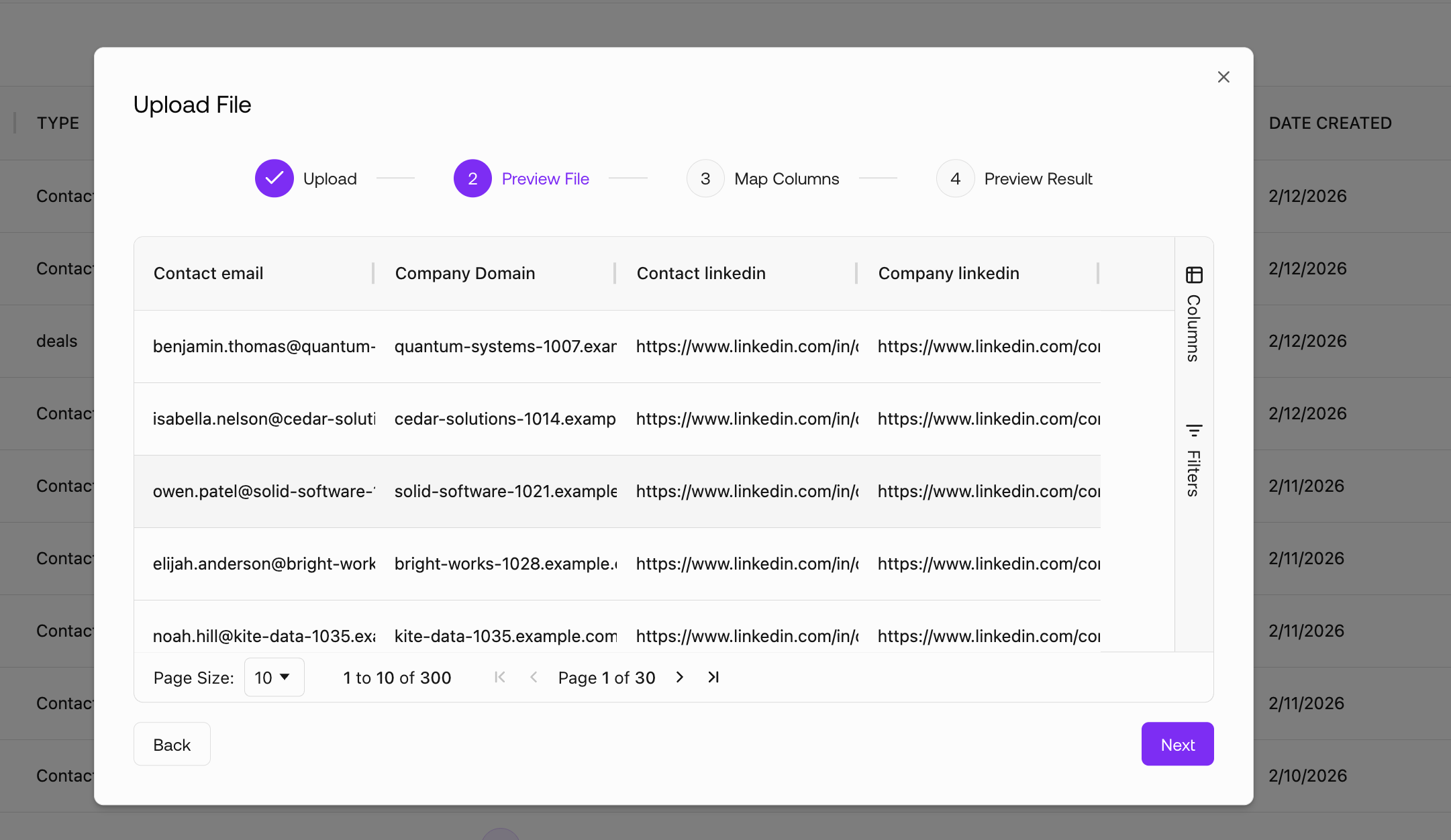
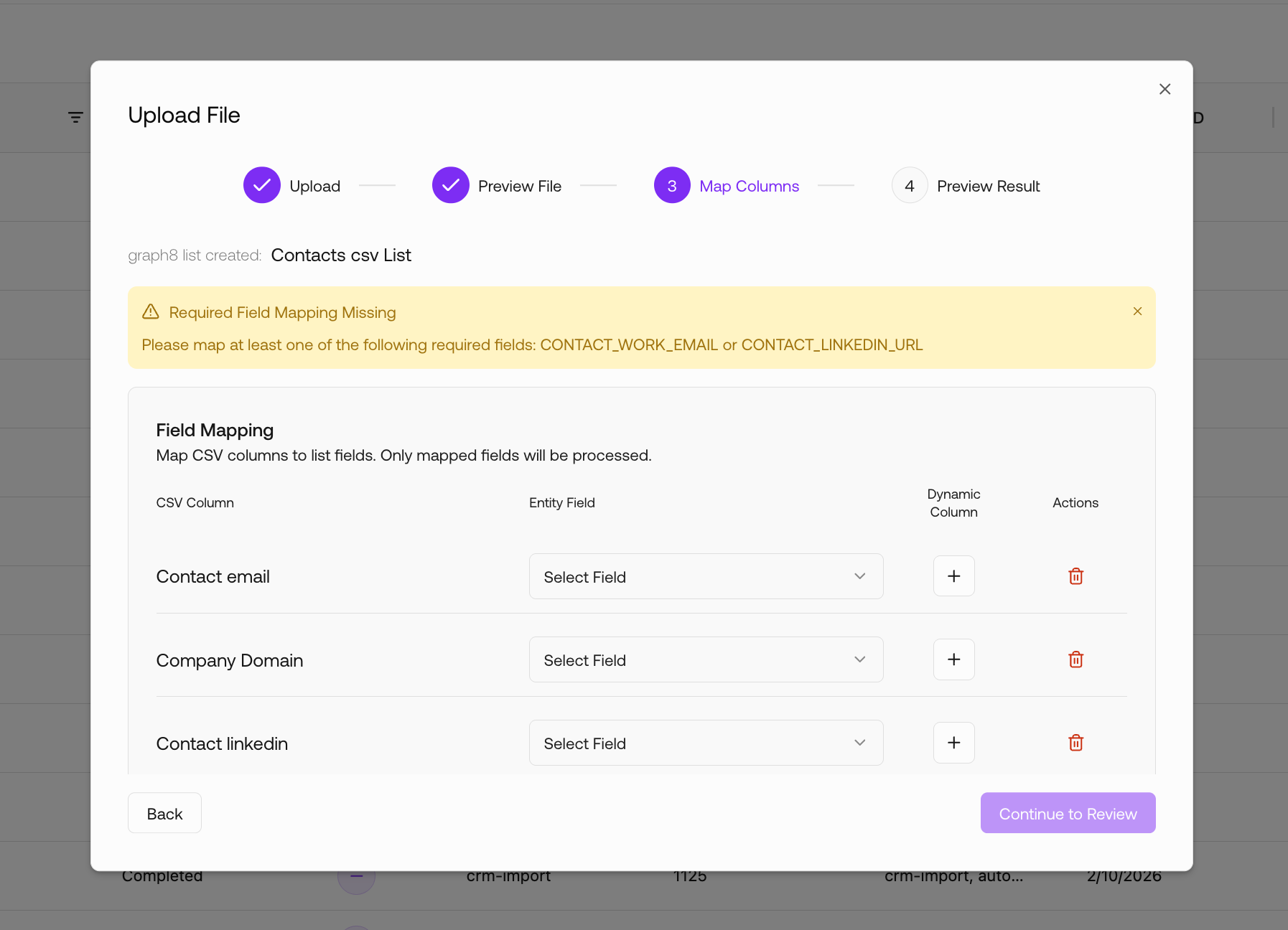
Step 4 — Map Columns (Critical Step)
Users map file columns to:
Existing Contact Entity Fields
Newly created Dynamic Columns
Required Mapping Rule
You must map at least one of:
Work Email
LinkedIn URL
A validation banner remains visible until this condition is satisfied.
Mapping Capabilities
Users can:
Map individual fields manually
Add new mapping rows
Map all columns automatically
Create Dynamic Columns
Delete mapped fields
Step 5 — Preview Result
Displays:
Final mapped structure
Actual values after mapping
Pagination & column visibility controls
Step 6 — Finish
After a successful upload:
A confirmation message appears
The page reloads
The list appears in Lists
Mapped fields and Dynamic Columns will contain imported data.
Uploading a Companies List
The Companies CSV Upload flow functions similarly to Contacts but includes import behavior options.
Unique Identifier Requirement
A Companies upload is valid when at least one identifier is mapped:
Company Domain OR
Company LinkedIn URL
Additional Import Options
Before uploading, users choose how graph8 should handle records:
Create and Update Companies
Create New Companies Only
Update Existing Companies Only
Optional:
Overwrite Policy — updates existing properties with new values
Upload Steps
The remaining flow mirrors the Contacts upload:
Upload File
Preview File
Map Columns
Preview Result
Finish
Uploading to the Suppression List
Suppressions behave differently from Contacts and Companies.
graph8 maintains a single global Suppression list, rather than creating multiple lists, Suppression list allows you to exclude specific contacts and companies from ICP searches.
Key Behavior
No list name is required
Uploaded records are appended to the existing Suppression list
Identifier Rules
A suppression record is valid when any ONE of the supported identifiers is provided:
Contact Work Email
Contact LinkedIn URL
Company Domain
Company LinkedIn URL
Only one populated column is sufficient for suppression.
Upload Flow
Click Upload List
Select Suppression
Upload your file
Map available columns (optional but recommended)
After completion:
Records are merged into the Suppression list
Enrichment
The Enrichment allows you to enhance your existing list data by generating new information, validating records, or calculating values using AI, external providers, or formulas.
Enrichment works at the list level, meaning you first choose a list and then configure the columns you want to enrich.
To access enrichment:
Navigate to Data → Lists
Select the list you want to enrich
Open the Enrichment tab
Enrichment Methods
Enrichment in graph8 is column-driven.
You first create a column, then define how values should be generated.
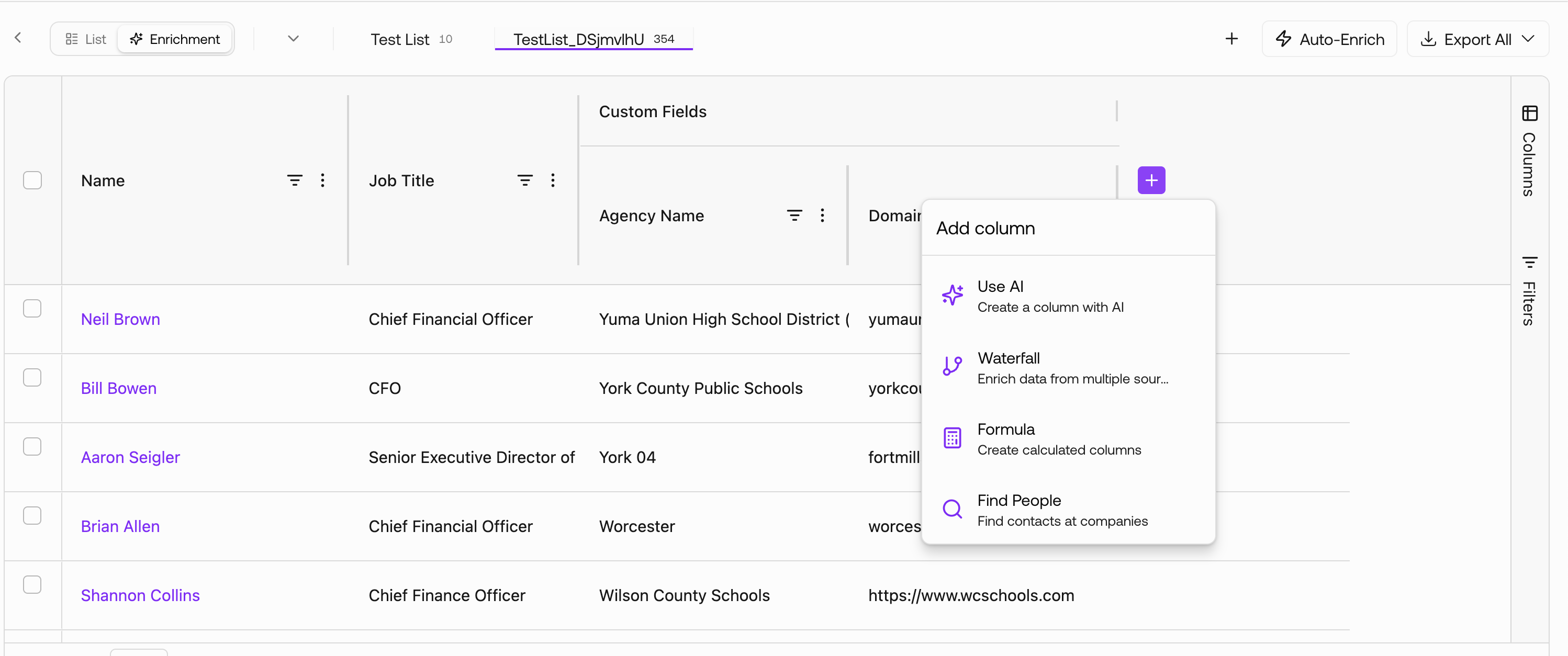
When clicking ➕ Add Column inside the Enrichment tab, you can choose between three enrichment mechanisms:
AI Columns
Waterfall Enrichment
Formula Columns
Each mechanism serves a different type of data generation logic.
Understanding the Enrichment Workspace
Inside the Enrichment tab, your list appears as a grid of records and columns.
At the far right of the grid, you will find the ➕ (Add Column) button.
This is the entry point for all enrichment actions.
Enrichment in graph8 is column-driven — you create a column first, then define how its values should be generated.
1️⃣ AI Columns
AI Columns allow you to generate intelligent data using natural language prompts.
Typical use cases:
Classification (e.g., decision maker detection)
Research & summarization
Data extraction & normalization
Scoring & validation logic
How it works
Describe what you want to generate
Reference existing fields using {{column_name}}
AI Columns operate per record, meaning each row is processed independently using the available context.
AI Columns are ideal when logic requires reasoning rather than simple lookups.
How AI Columns Work
When creating an AI Column, you define:
1️⃣ Prompt Logic
You describe what the AI should generate.
Example tasks:
Determine if a contact is a decision maker
Extract company positioning
Classify lead quality
Summarize company activity
Normalize messy text fields
AI Columns accept natural language instructions rather than rigid syntax.
2️⃣ Column References (Critical Concept)
AI Columns can use existing list data as structured input.
You reference fields using: {{COLUMN_NAME}}
xamples:
{{CONTACT_JOB_TITLE}}
{{COMPANY_DOMAIN}}
{{COMPANY_EMPLOYEE_COUNT}}
During execution, graph8 replaces placeholders with actual row values.
This allows AI logic to adapt dynamically per record.
3️⃣ Output Behavior
The AI generates one value per row and writes it into the column.
Outputs can be:
Text
Labels / categories
Scores
Structured responses
Binary decisions (Yes / No / Maybe)
The column behaves like a native field after enrichment.
When to Use AI Columns
AI Columns are best suited for:
✅ Classification problems
✅ Ambiguous decision logic
✅ Text-heavy analysis
✅ Data interpretation tasks
✅ Multi-field reasoning
They are not ideal for simple lookups like email discovery — use Waterfall for that.
Credits & Models
AI Columns consume credits based on:
Selected model
Records processed
Complexity of generation
Different models may have different credit costs per record.
Before execution, graph8 validates credit availability.
2️⃣ Waterfall Enrichment
Waterfall enrichment retrieves data from external providers using a defined fallback sequence.
Instead of relying on a single source, providers are tried in order until one succeeds.
Typical use cases:
Email discovery
Phone enrichment
Company data retrieval
Verification workflows
How Waterfall Columns Work
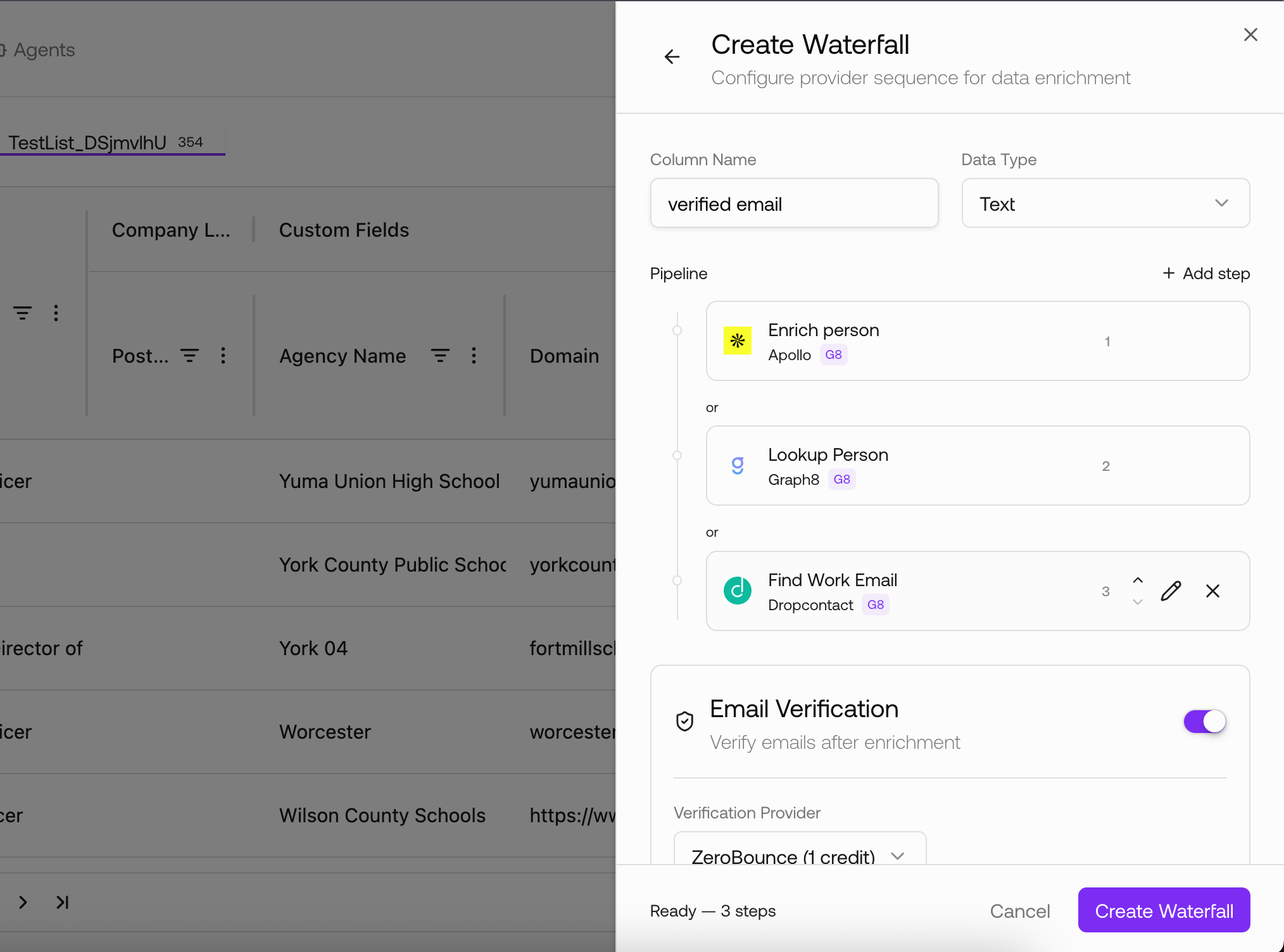
When configuring a Waterfall column, you define:
1️⃣ Column Definition
Column name
Data type (Text, Number, etc.)
This defines where results will be stored.
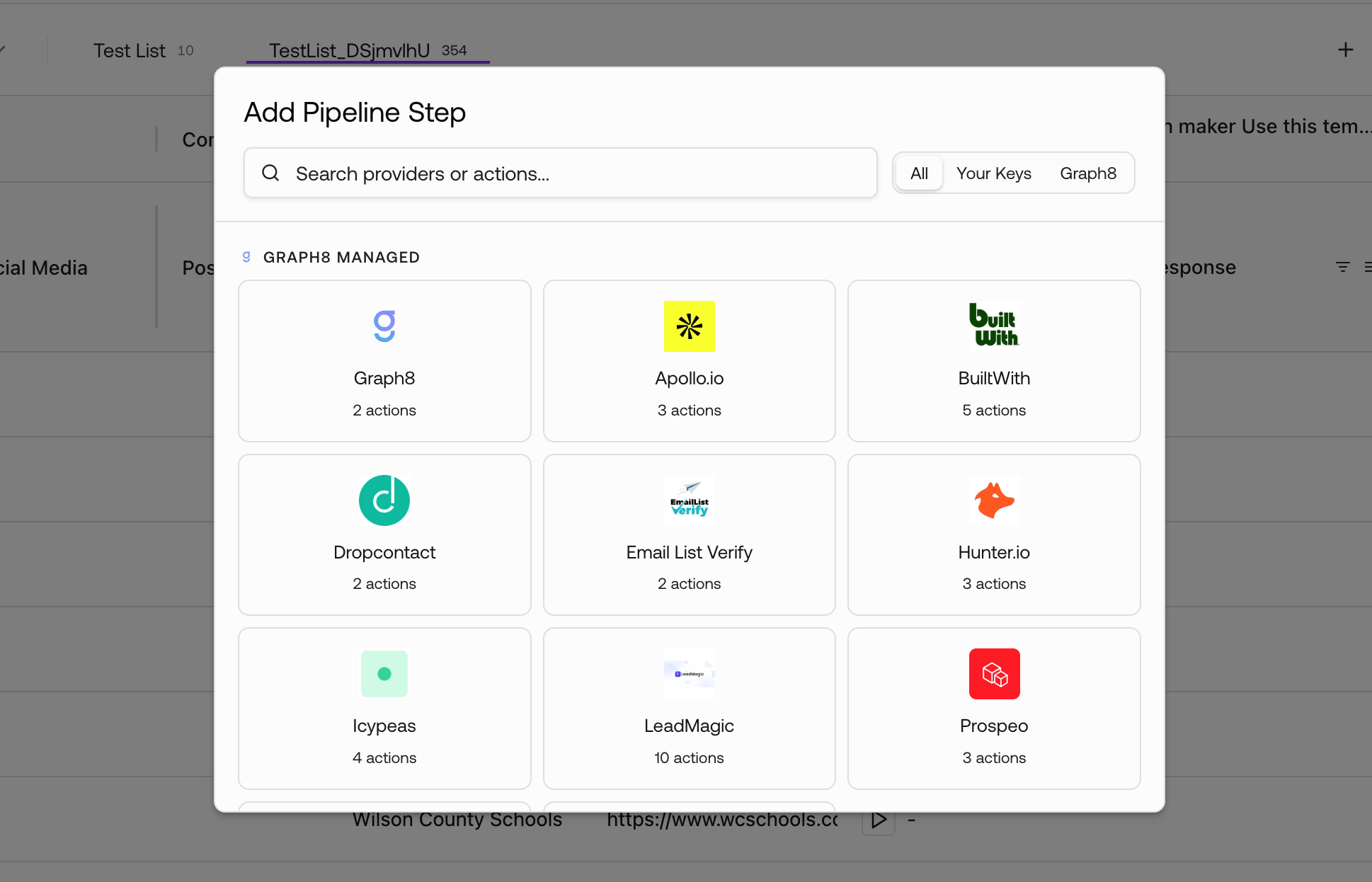
2️⃣ Provider Pipeline
You add one or more providers.
Each provider represents a specific enrichment action, such as:
Email discovery
Phone enrichment
Company attributes
Verification
Data validation
Providers differ in:
Coverage
Accuracy
Credit cost
Returned fields
3️⃣ Provider Order (Important)
Provider order controls fallback behavior.
Typical strategies:
Cheapest → Expensive
Fastest → Slowest
Highest coverage → Specialized
Ordering directly affects credit consumption efficiency.
4️⃣ Enrichment Execution
For each row:
Provider sequence runs
Stops once data is found
Writes result into column
When to Use Waterfall
Waterfall enrichment is ideal for:
✅ Email / phone discovery
✅ Provider-backed data
✅ Verification workflows
✅ Deterministic factual retrieval
✅ Multi-source fallback logic
3️⃣ Formula Columns
Formula Columns generate values using deterministic logic instead of AI or providers.
Typical use cases:
Text transformations
Conditional logic
Derived values
Field normalization
How it works
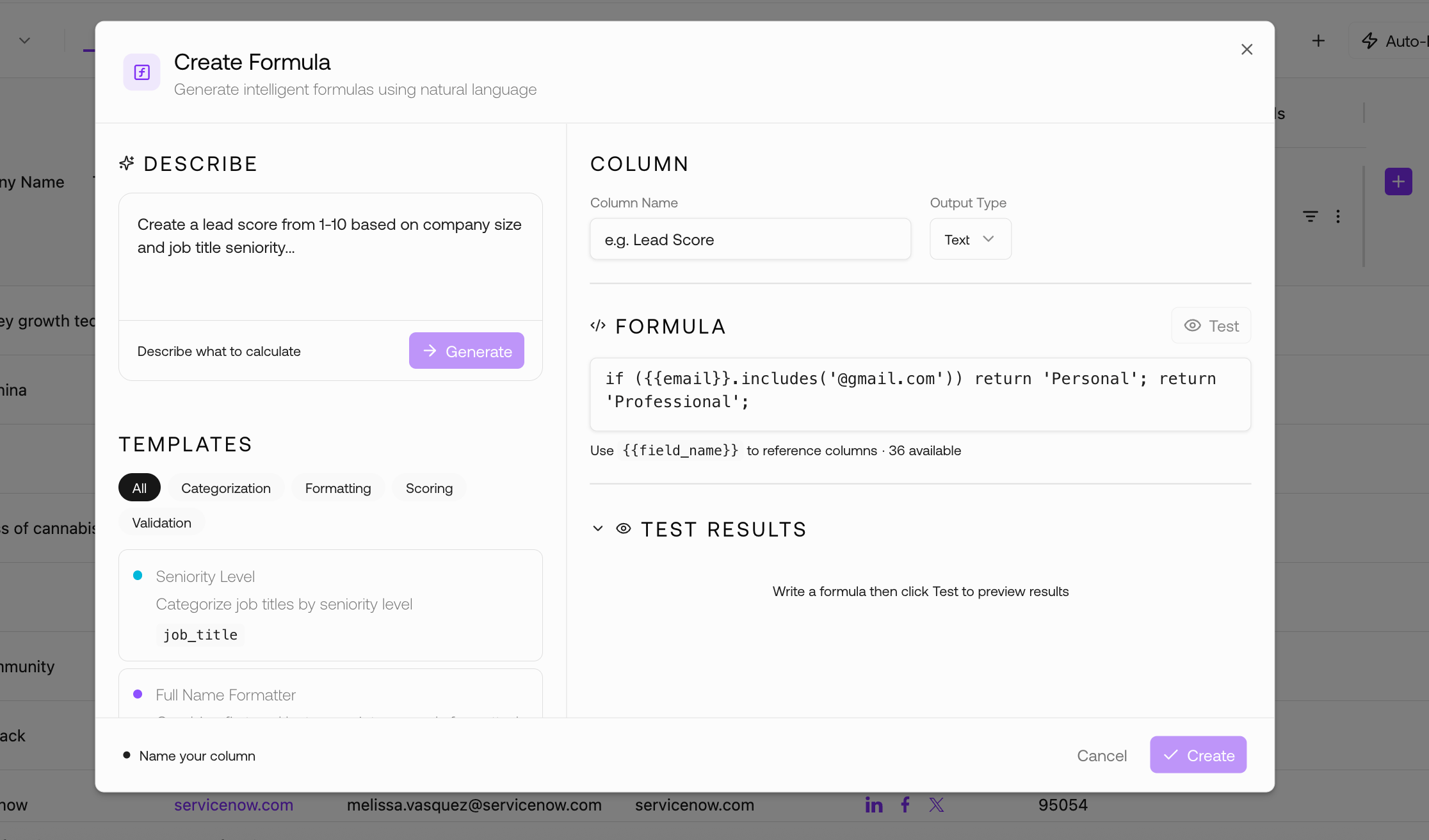
1️⃣ Define a formula : enter a formula or select one of the available templates
2️⃣ Add Column Name and select output type
3️⃣ Deterministic Logic
Formulas typically include:
Conditions
Text checks
Transformations
Comparisons
Calculations
Example:
if ({{CONTACT_WORK_EMAIL}}.includes('gmail.com'))return 'Personal';
else
return 'Professional';
3️⃣ Test results before saving
4️⃣ Immediate Evaluation
Formula outputs are computed directly from available data.
No enrichment runs required.
No provider calls.
No AI inference.
When to Use Formula Columns
Formula Columns are best for:
✅ Text formatting
✅ Normalization rules
✅ Derived values
✅ Conditional labels
✅ Lightweight scoring
They should be used whenever logic can be defined explicitly.
Credits Consumption
Formula Columns do not consume credits.
They are computational, not enrichment-based.
Running Enrichment
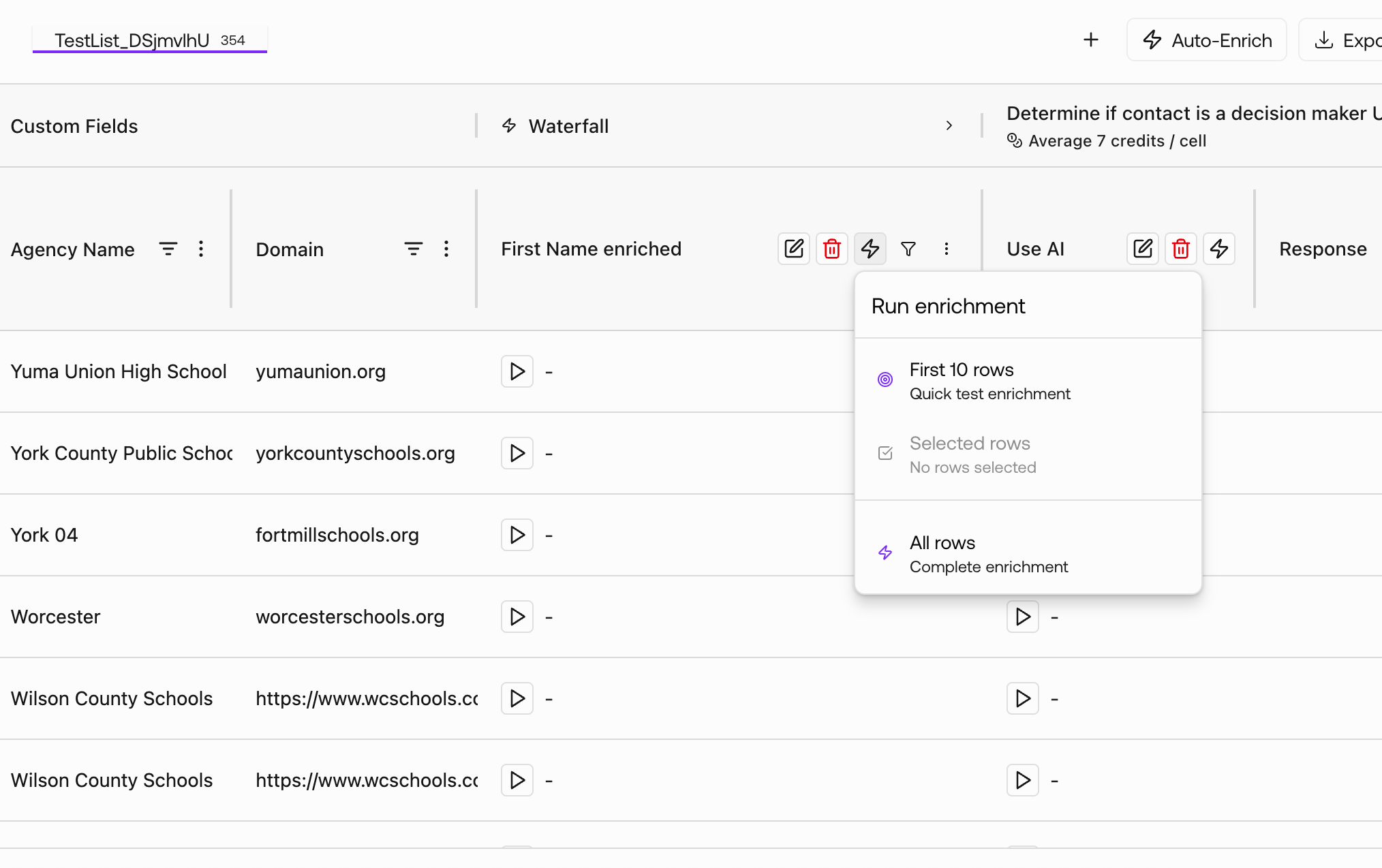
After creating an enrichment column, you can execute enrichment directly from the column controls.
Available run options typically include:
First N rows — Quick testing / validation
Selected rows — Targeted enrichment
All rows — Full dataset processing
This allows controlled execution and credit management.
Credits Consumption
Enrichment operations consume credits.
Credit usage depends on:
Enrichment type (AI / provider / formula)
Selected model or provider
Number of processed records
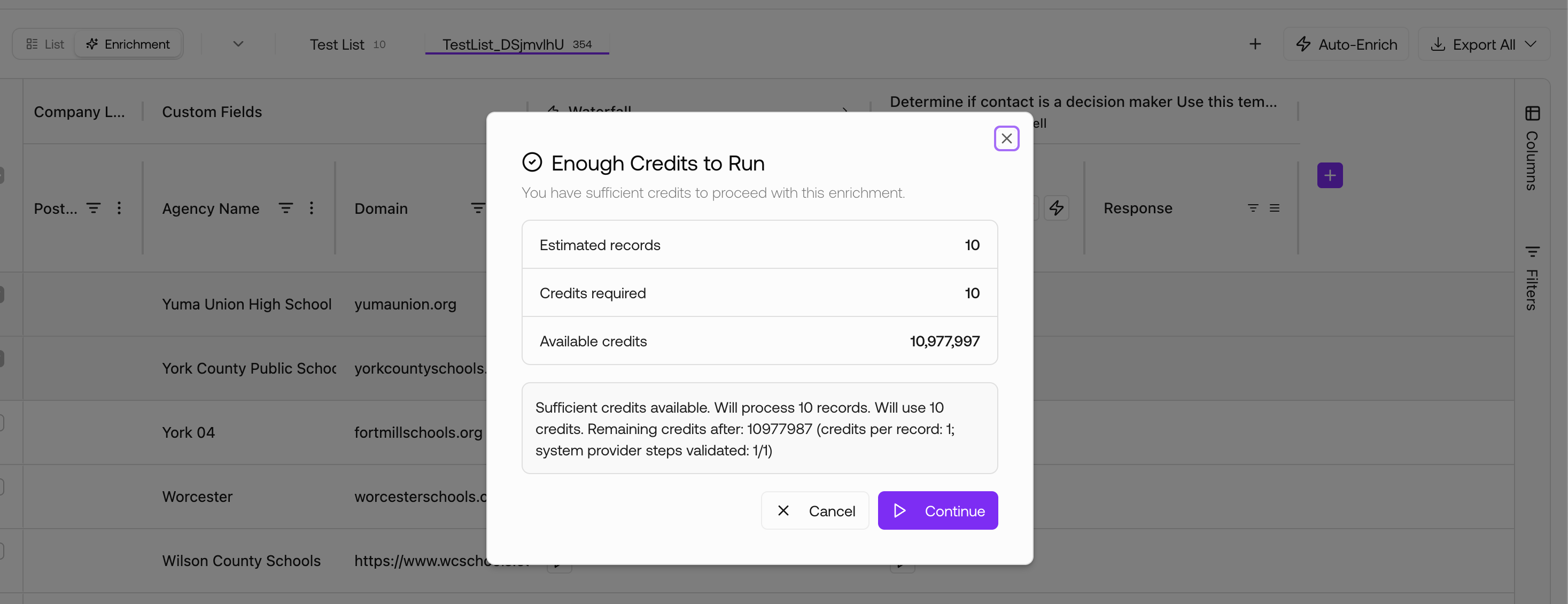
Before execution, graph8 displays a credit validation dialog showing:
Estimated records
Credits required
Available credits
Credits per record
Enrichment runs only when sufficient credits are available.
Enrichment Results
Once enrichment completes:
Column values populate automatically
Data persists at the record level
Columns behave like native list fields
Results can be filtered, exported, or reused
Enriched columns can be used inside Sequences
Dynamic Columns created via enrichment remain attached to the list.
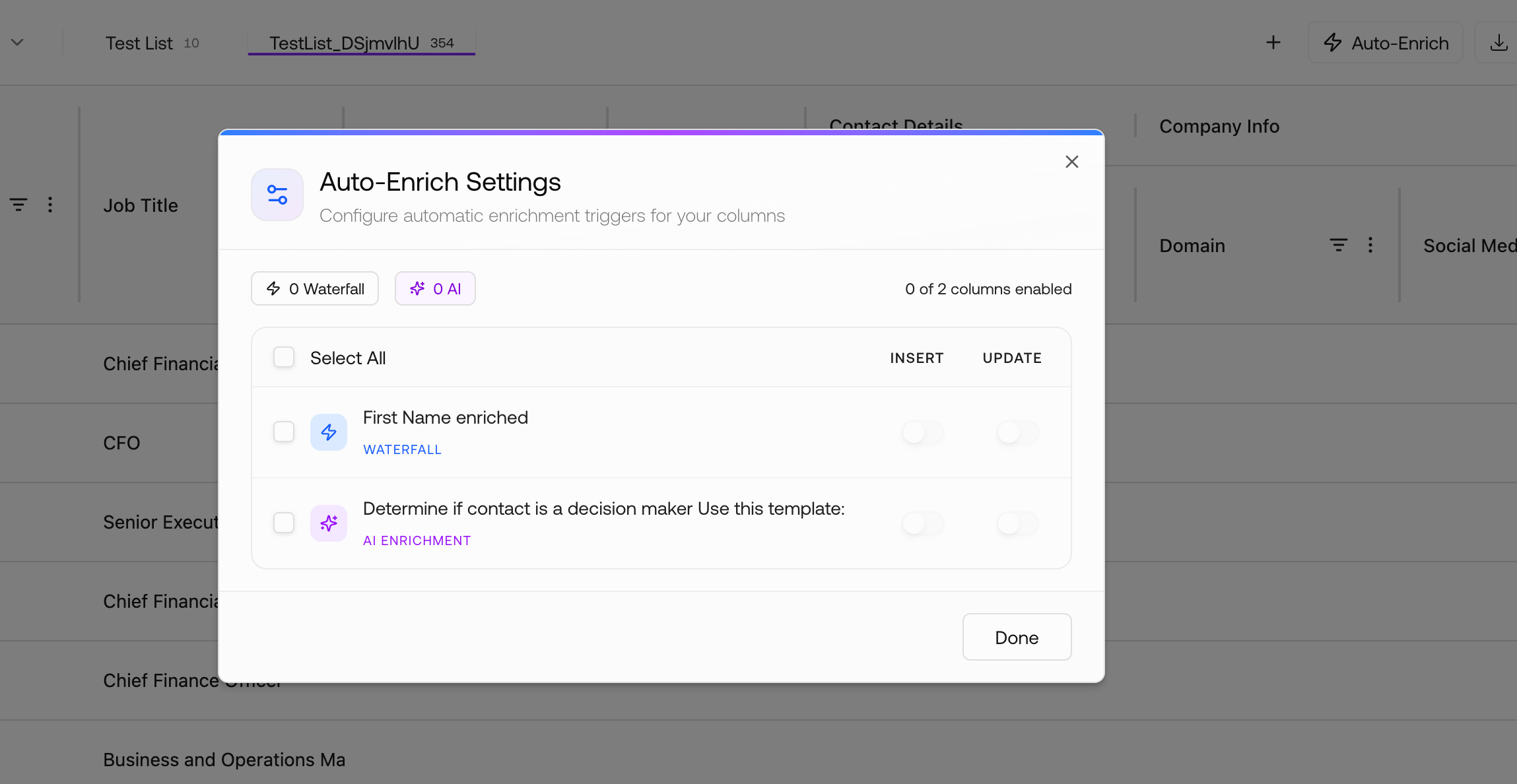
Auto-Enrich
graph8 supports automatic enrichment triggers.
Auto-Enrich allows selected columns to run whenever new records are added to the list.
Typical scenarios:
Auto-classify incoming leads
Auto-validate emails
Auto-enrich contact attributes
Continuous data enhancement
How it works
Click Auto-Enrich
Select eligible columns
Enable triggers for:
Insert — Run when new records appear
Update — Run when records change
Once enabled, enrichment runs automatically without manual execution.