Search
How to Use the Search Feature in graph8
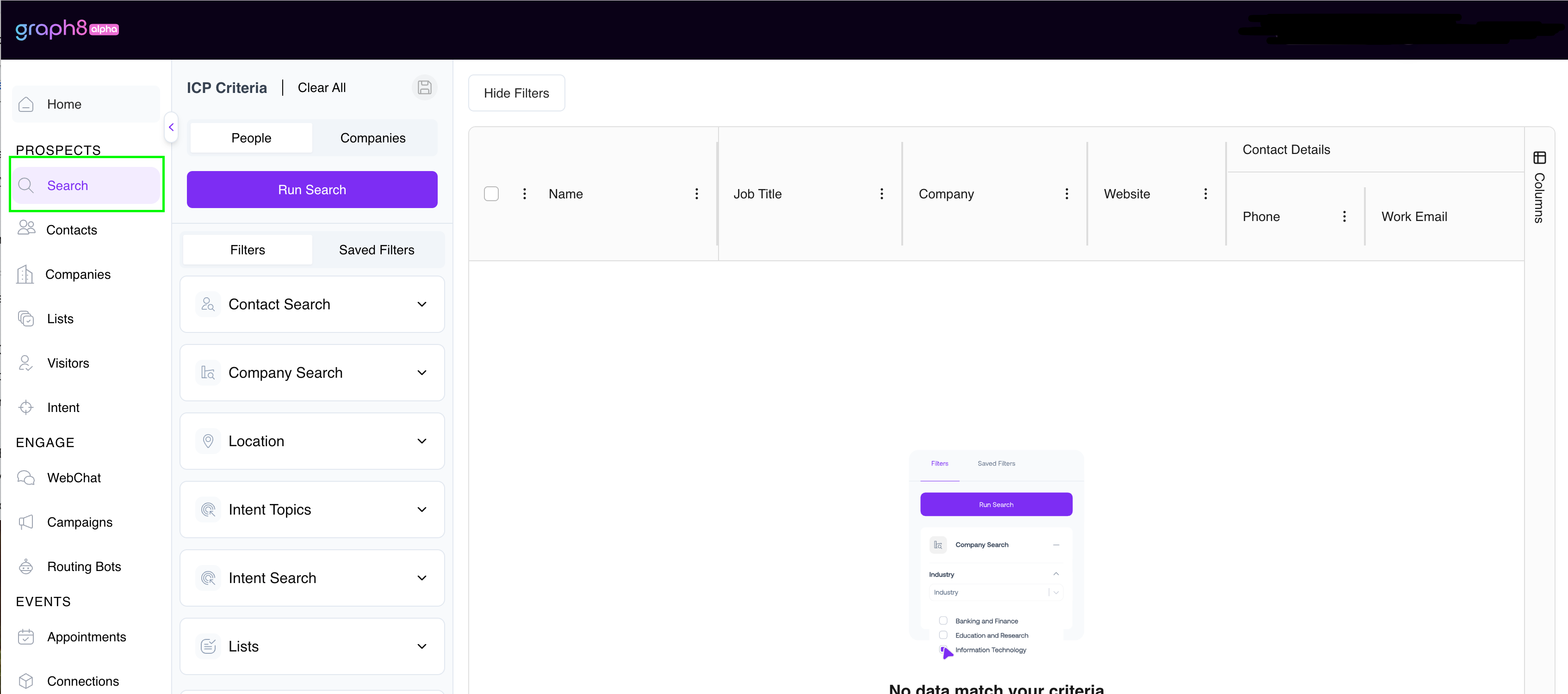
Graph8's Search feature helps you pinpoint ideal target audiences—both companies and individuals—for your products or services. Access this powerful tool from the left navigation panel under Search.
Step-by-Step Guide
Open the Search Panel
Navigate to the left side menu.
Click on Search to open the feature.
Select What You Want to Find
Choose either Companies or People based on your prospecting goals.
Set Your Filters
For Companies, use filters such as:
HQ Location
Company Industry
Company Revenue
Number of employees
Intent Topics
For People, apply filters including:
Job Title
Seniority Level
Person’s Location
Email Confidence Score: Measures the reliability of an email address, categorizing it as Medium, High, or High+. These categories are determined by comparing the email domain against company-related domains. Higher reliability levels indicate stronger alignment, such as exact matches with the company's website or closely similar domains.
Contact Confidence Score: Measures the reliability and freshness of contact information, categorizing it as Medium, High, or High+. Categorization is based on how recently the data was updated, critical fields like email and LinkedIn, and supporting fields such as phone number and job title. This ensures the contact information is accurate and actionable.
Contact Type: B2C (Business-to-Consumer) refers to personal contacts, including personal email addresses and social media profiles. B2B (Business-to-Business) targets professional contacts, specifically work emails and LinkedIn profiles. B2B2C (Business-to-Business-to-Consumer) combines both personal and professional contacts, featuring work emails, LinkedIn profiles, and personal contact details, offering versatility for multiple use cases.
Adjust these filters based on your business requirements to pinpoint your ideal audience.
You can also use Exclusion Filters that allows you to remove unwanted results from your search. When you apply an exclusion filter, graph8 omits results matching the selected criteria.
Review Search Results
Once filters are set, Graph8 will display a tailored list of companies or individuals that match your criteria.
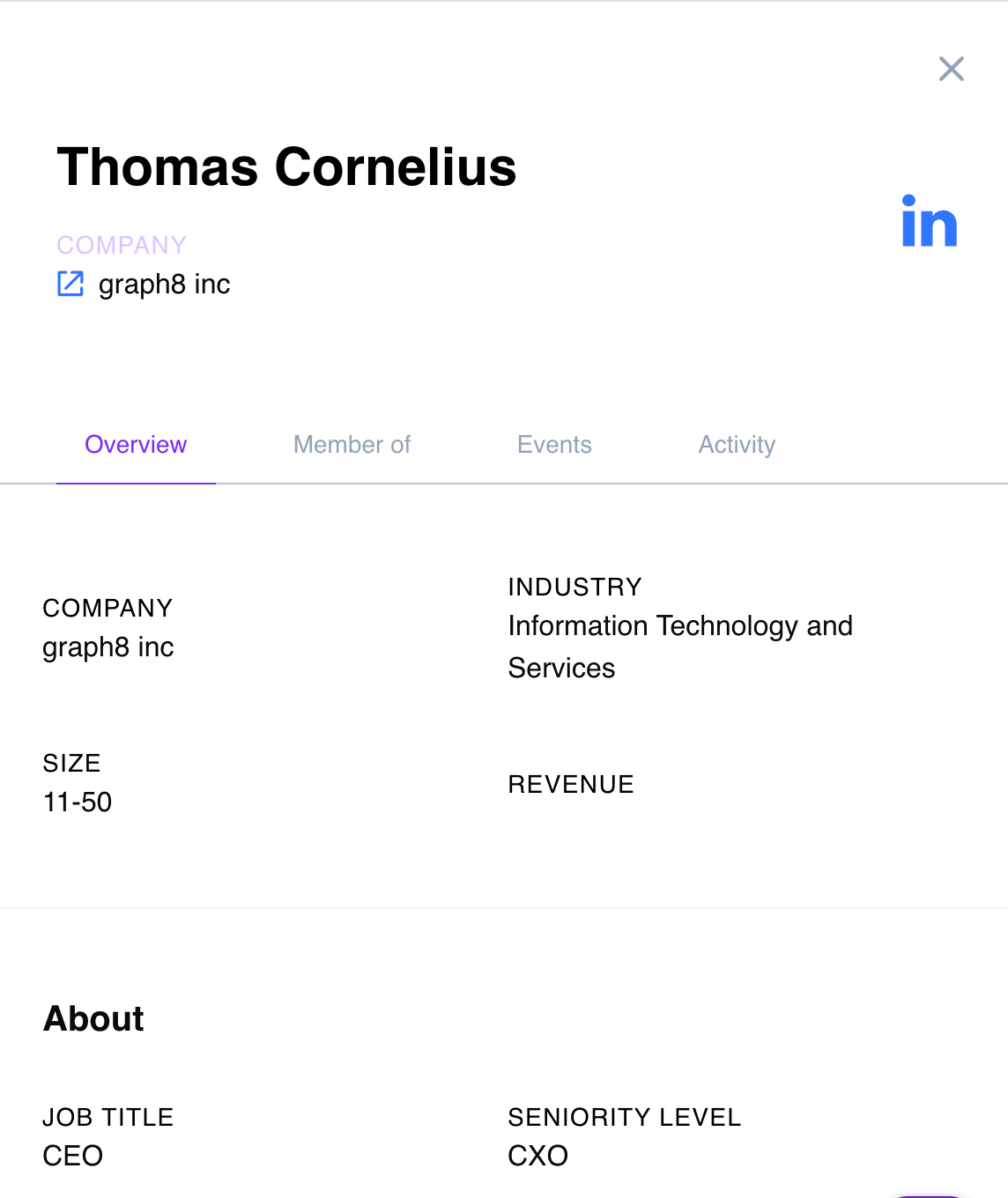
Select entries from the list to view detailed profiles and insights.
Save Contacts/Companies into a list
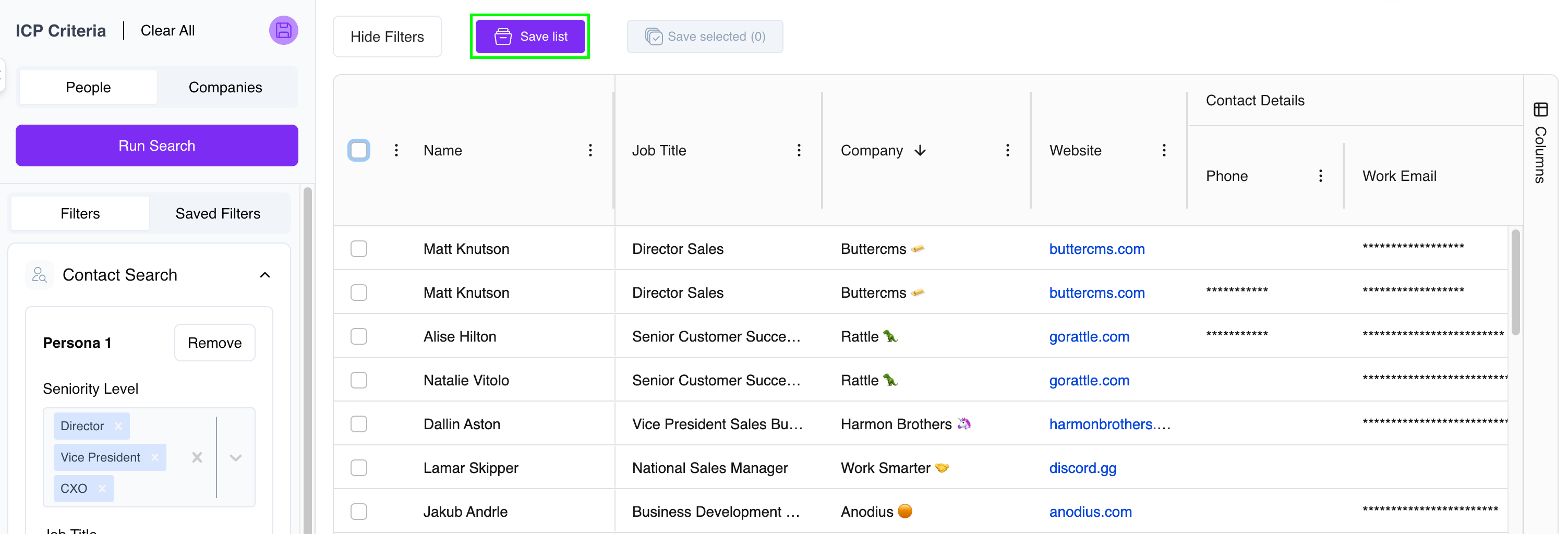
Save entire search (up to 50,000 records): Click "Save list"
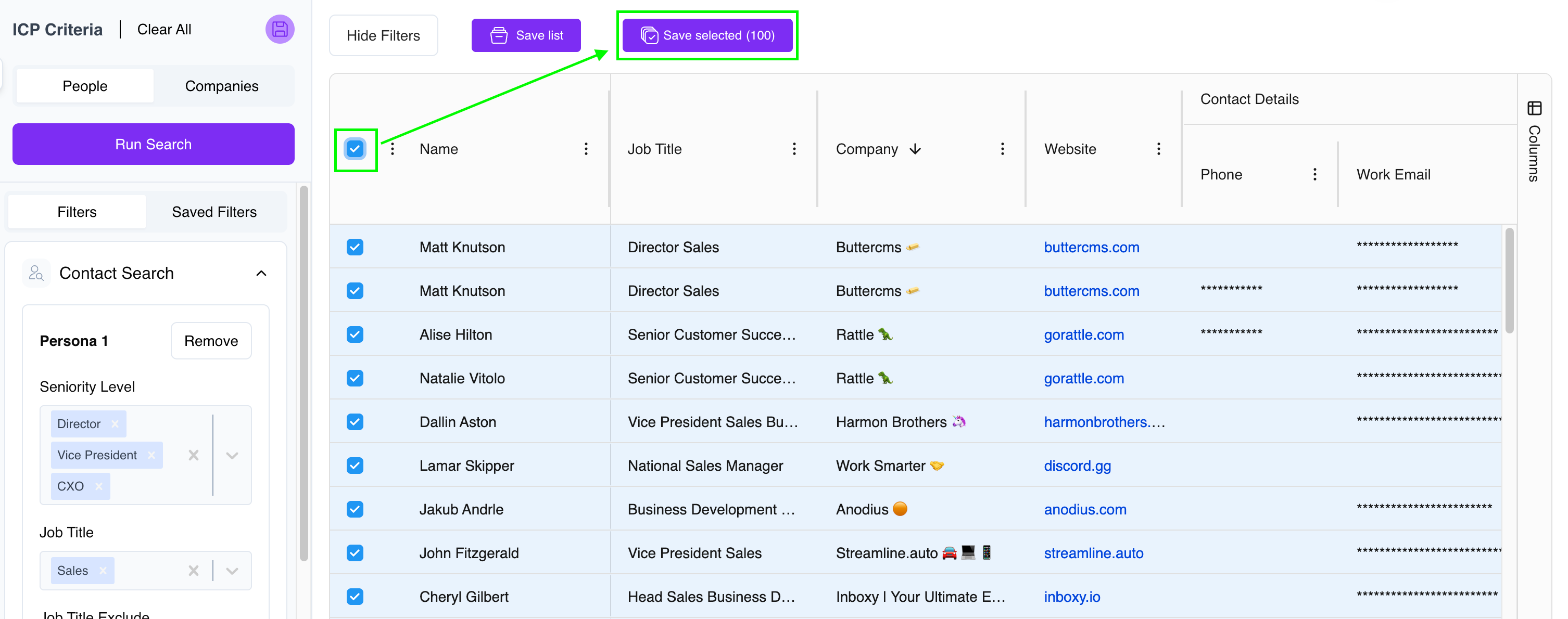
Save specific records: Select desired entries and click "Save selected"
Save or Clear Your Search
You can save your filters or reset your search at any time using the icons below:
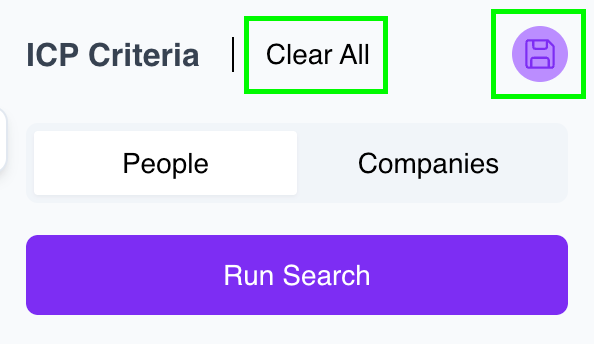
Include/Exclude lists from Search results:
The Lists filter allows you to refine your search results by including or excluding specific lists of prospects. This helps you target new prospects while avoiding duplicates or previously contacted groups.
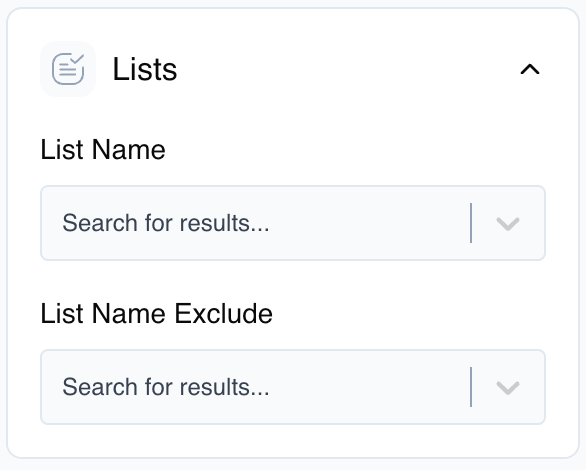
Including Lists in Your Search
Click on the Lists dropdown in the filter panel
Under List Name, click the search field
Type a list name or browse the dropdown menu
Select the list(s) you want to include in your search results
Your search will now return prospects that belong to the selected list(s)
Excluding Lists from Your Search
In the same Lists section, locate the List Name Exclude field
Click the search field and type a list name or browse options
Select the list(s) you want to exclude from your search results
Your search will now omit any prospects that belong to these excluded lists
Tips for Effective List Filtering
Combine both filters to include prospects from target lists while excluding those from "do not contact" or "current customers" lists
Use include filters when focusing on pre-qualified prospect groups you've already organized
Use exclude filters to avoid showing prospects you've already engaged with or determined aren't a good fit
Clear filters using the "x" icon within each field when you want to reset your search parameters
These list filters can be used alongside other search criteria to create highly targeted prospect segments.
Helpful Tips
Utilize multiple filters simultaneously to narrow your audience precisely.
Filters are easy to adjust, allowing flexible and iterative searches.
Clicking on search results provides deeper insights, helping refine your targeting strategies effectively.