Companies
Overview
The Companies page allows you to view, organize, and manage your company dataset within graph8.
From this page, you can:
Browse saved company records
Apply filters to refine results
Customize visible columns
Perform bulk actions
Accessing the Companies Page
To open your company database:
Navigate to Data → Companies from the top navigation menu
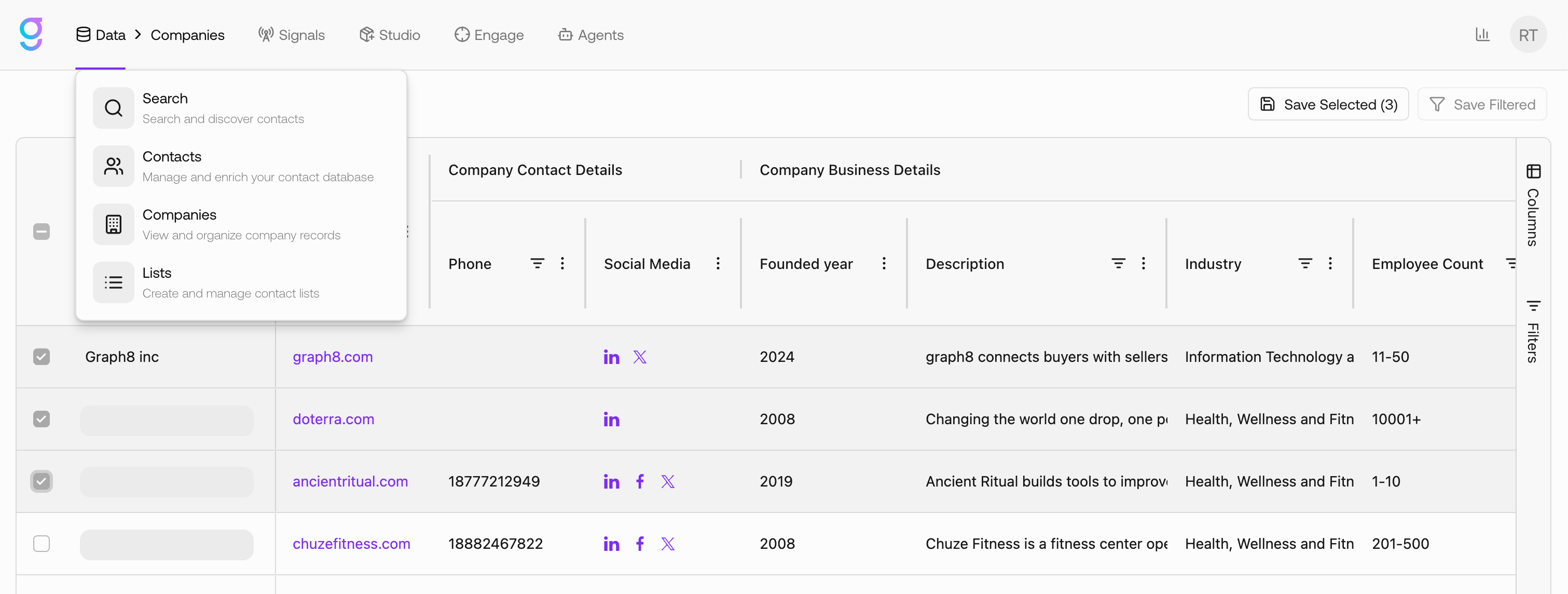
The Companies grid will display all saved company records available in your workspace.
Filtering Your Companies
Filters help you quickly narrow down your company dataset based on specific criteria.
To apply filters:
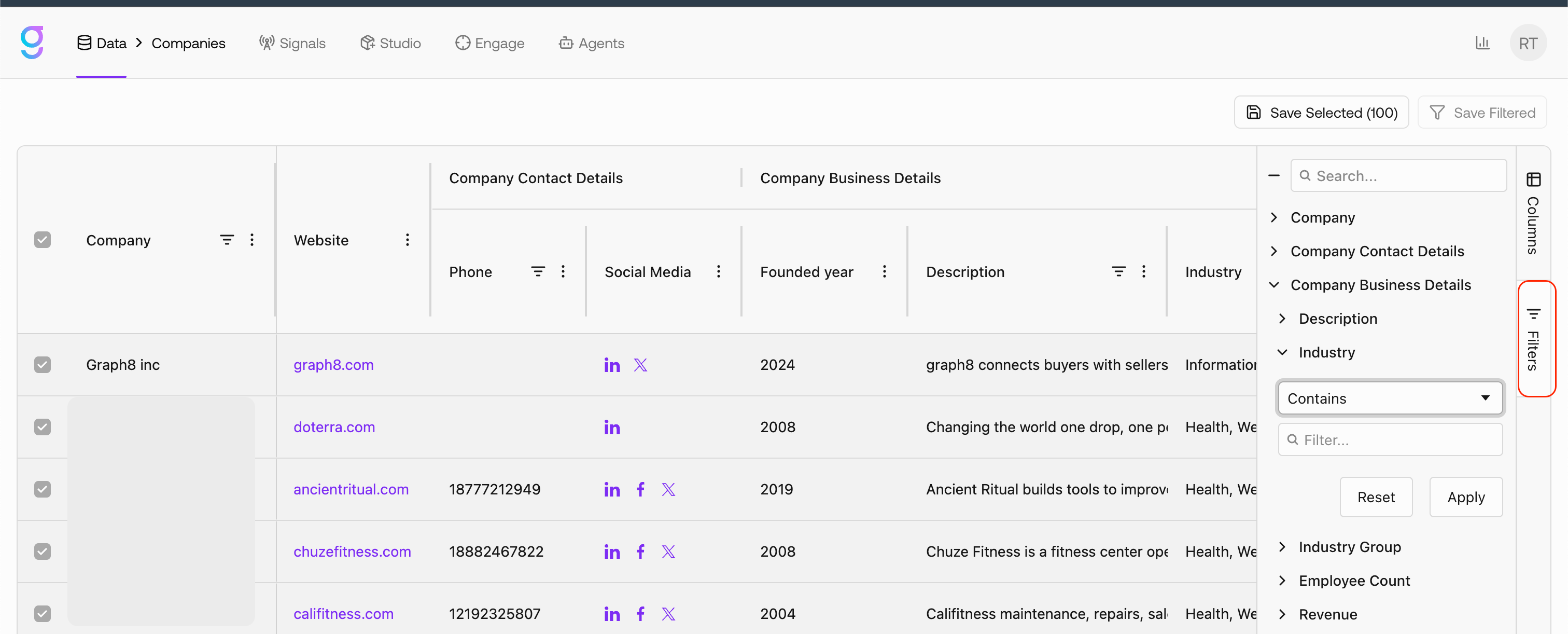
Click the Filters button on the far right of the page
Select the desired filtering conditions
Typical filter categories may include:
Company attributes (industry, size, location)
Company contact details
Firmographic data
Enrichment-related fields
The grid updates dynamically as filters are applied.
You can also use the filter search input to quickly locate specific filters.
Customizing Your View
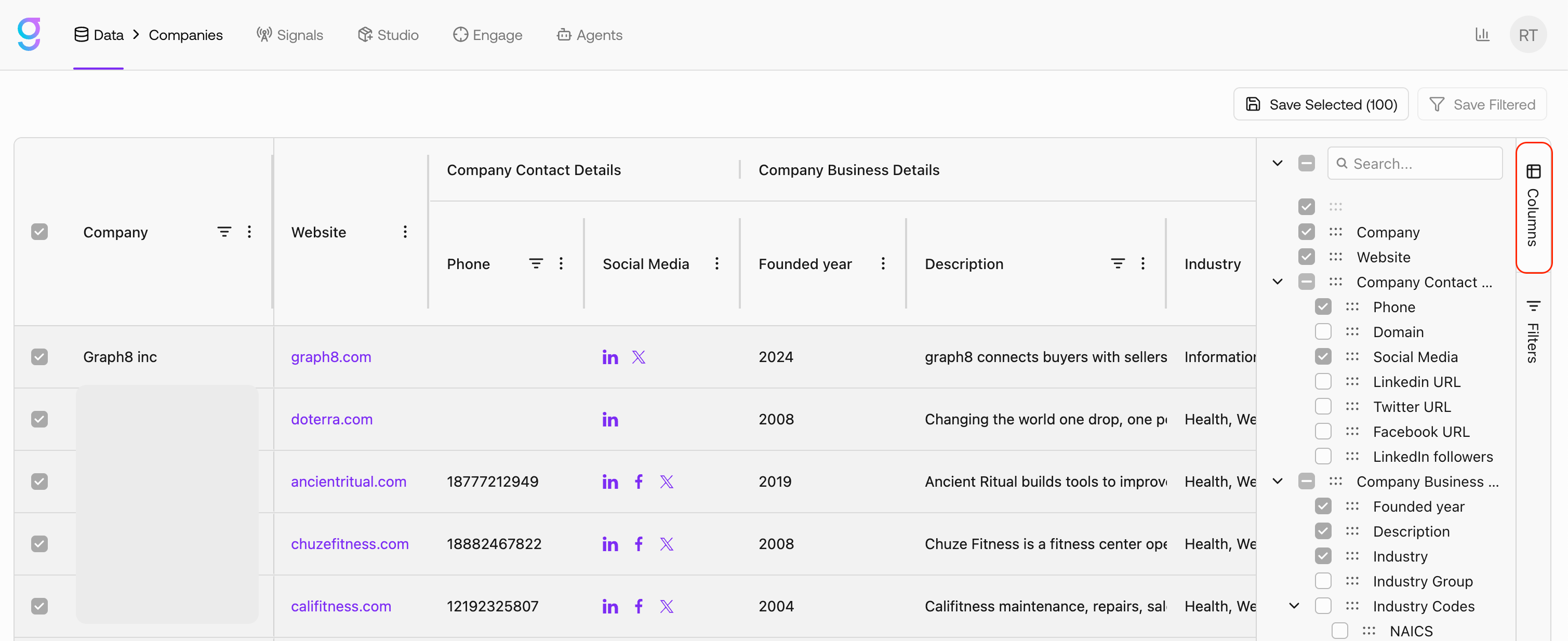
The Companies grid is fully customizable using the Columns panel.
To modify visible columns:
Click the Columns button on the far right of the page
Check or uncheck fields to show or hide them
Drag and drop columns to reorder them
Column preferences allow you to control which company properties are visible in the grid.
Changes are applied immediately to your current view.
Performing Actions
You can perform bulk operations on selected company records.
Selecting Companies
Check the selection boxes next to company records
Multiple companies can be selected simultaneously
bulk Selection can select up to 100 Companies
Available actions apply only to the selected records.
Available Company Actions
Depending on your workspace configuration, available actions may include:
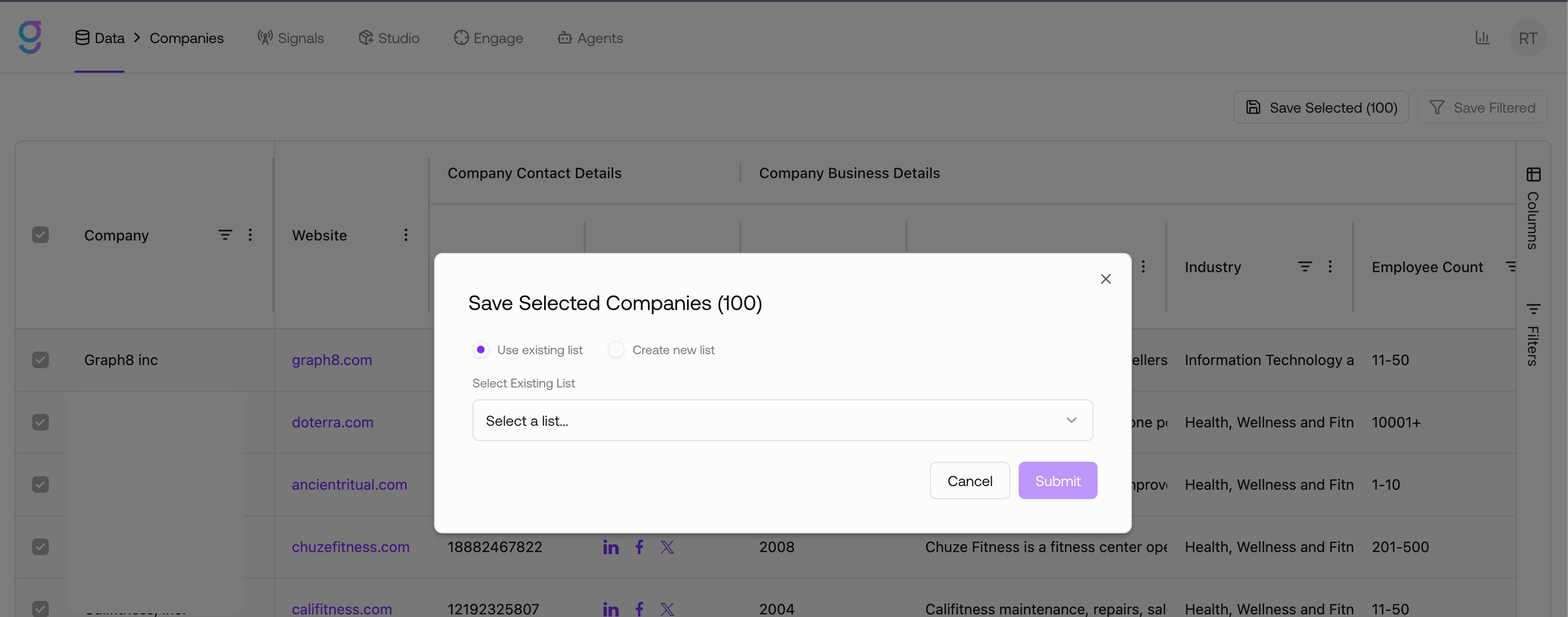
1. Save Selected
Saves the currently selected companies into a list.
When triggered:
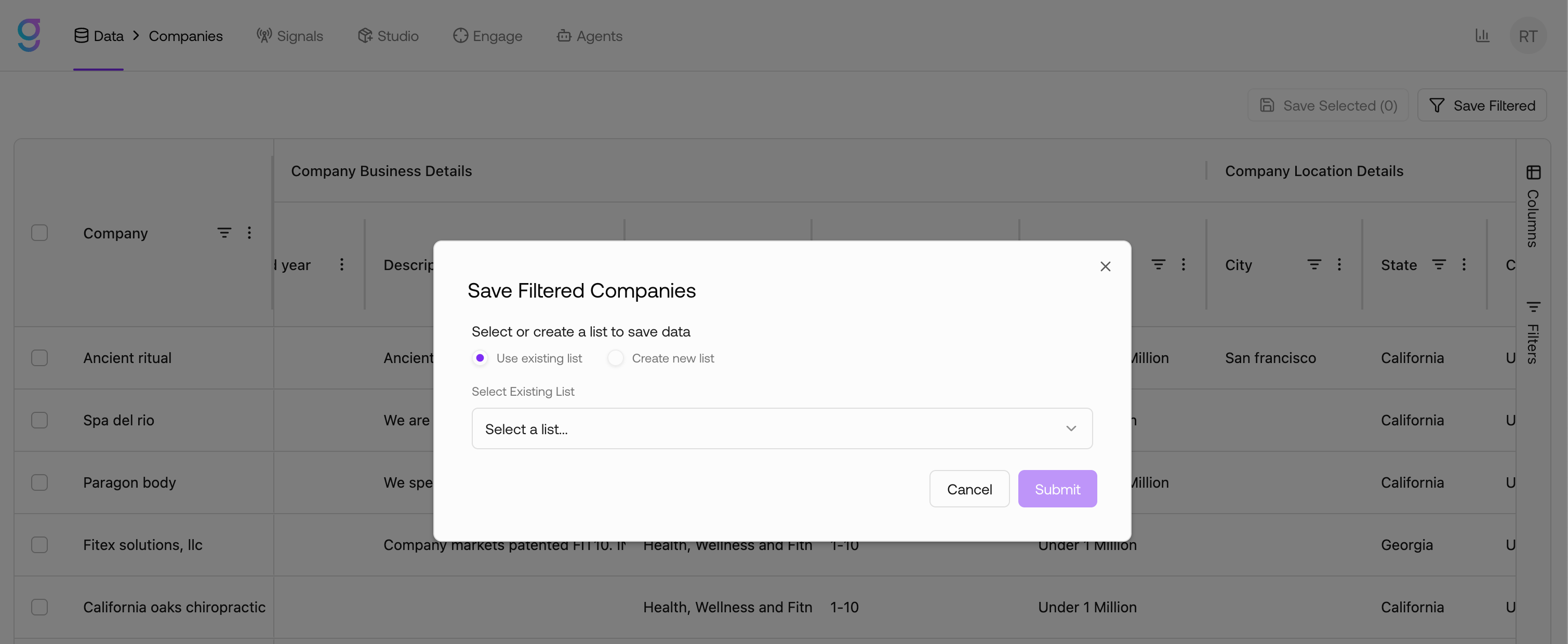
A dialog appears prompting you to choose how companies should be saved
Available options:
Use existing list — Add companies to a previously created list
Create new list — Create a new Companies list and store the records
If creating a new list:
Enter a List Name (required)
After submission:
Companies are stored in the chosen list
The list becomes accessible from Data → Lists
2. Save Filtered
Saves all companies matching the active filters, including records not manually selected.
This is useful when working with large datasets where manual selection is impractical.
When triggered:
The same list selection dialog appears
You can:
Add results to an existing list
Create a brand new list