Contacts
Overview
The Contacts page in Graph8 offers powerful tools to organize and personalize your contact database. This guide covers essential features including Filters, Columns, Actions, and AI-powered customization.
Viewing Your Contact Database
Navigate to Data: Click Data in the top menu.
Open Contacts: Choose Contacts from the dropdown.
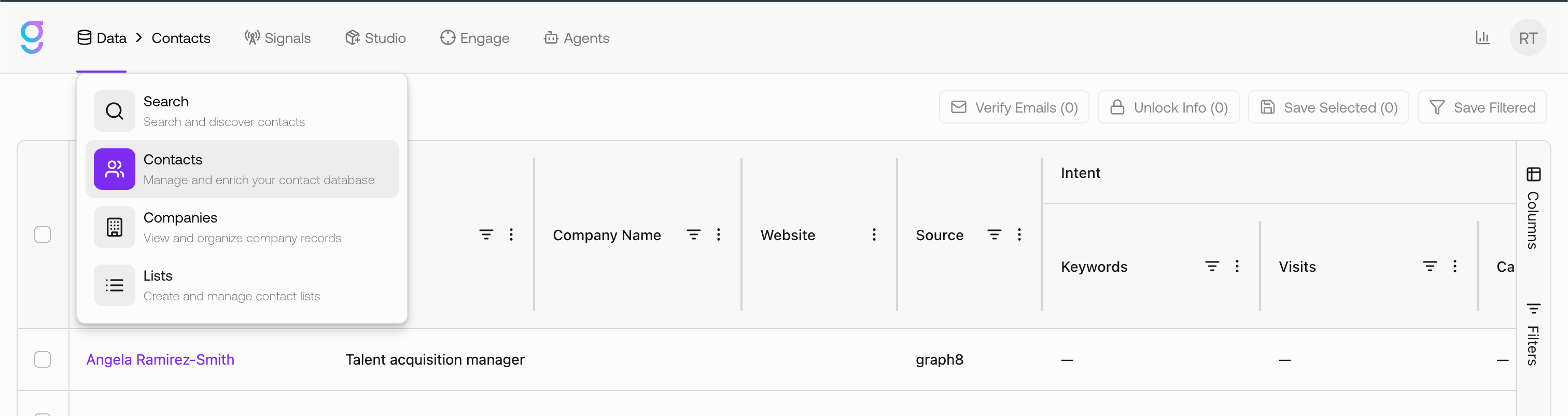
What You’ll See in Contacts
The Contacts page displays your master contact dataset, including records that were:
Uploaded via CSV
Saved from Search
Created via Visitors, Forms, or Integrations
Each contact may include:
Personal details (name, title)
Company information
Work email & phone
Enrichment & intent data
Validation / confidence indicators
Clicking any contact opens the full profile view.
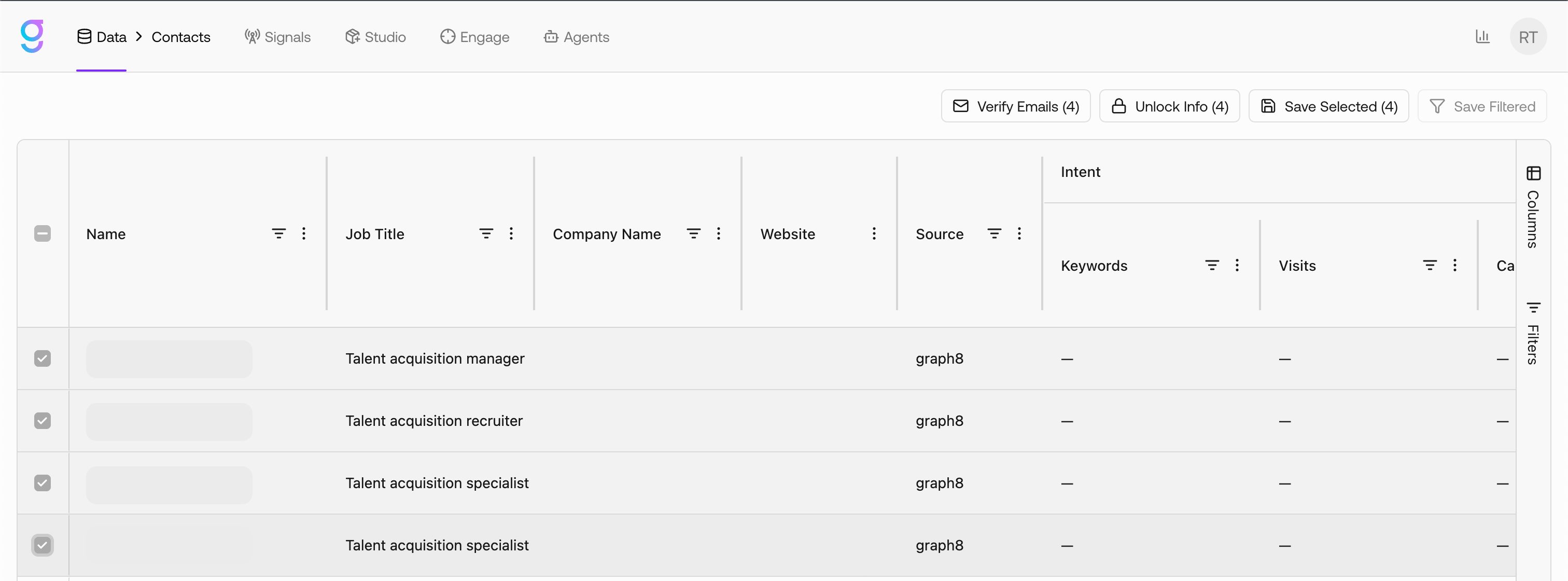
Filtering Your Contacts
Quickly narrow your contact list with targeted filters:
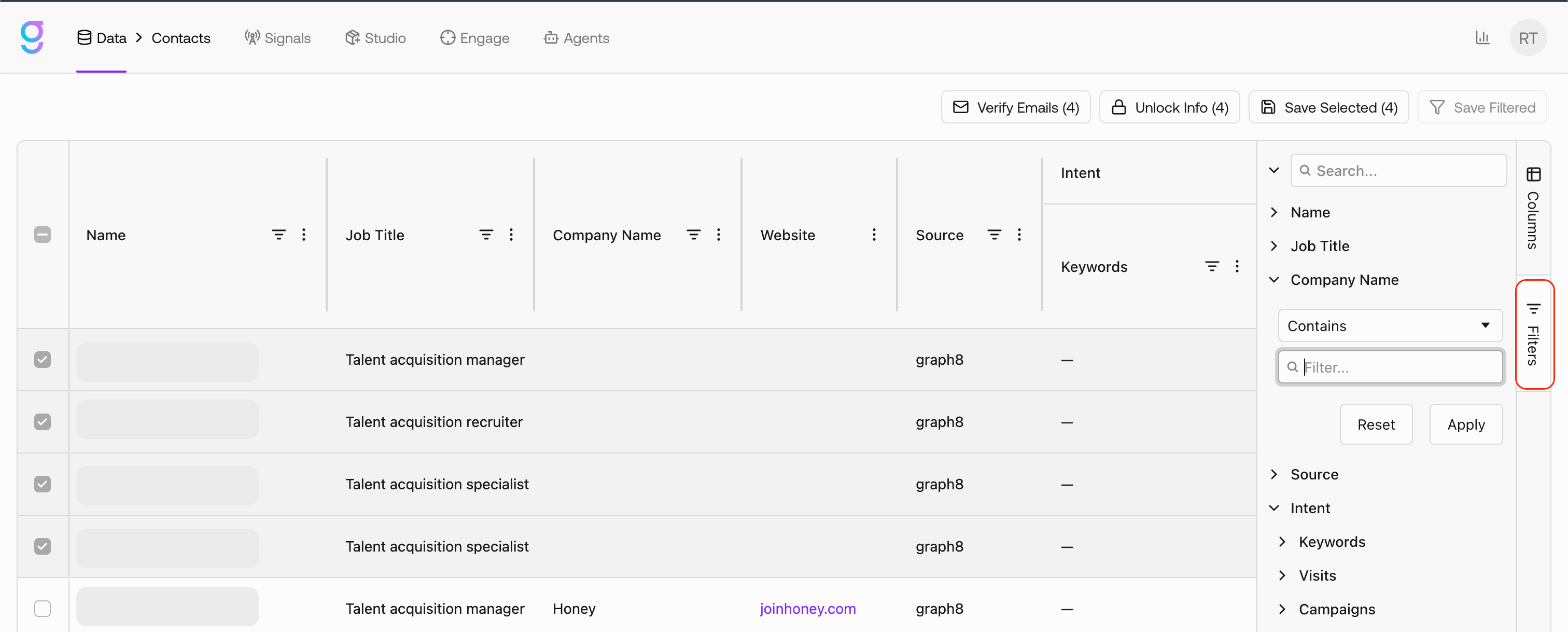
Click the Filters button.
Select your desired criteria (location, job title, company size, etc.).
Apply filters to view your refined results.
Use the search bar to quickly locate specific filters.
Customizing Your View
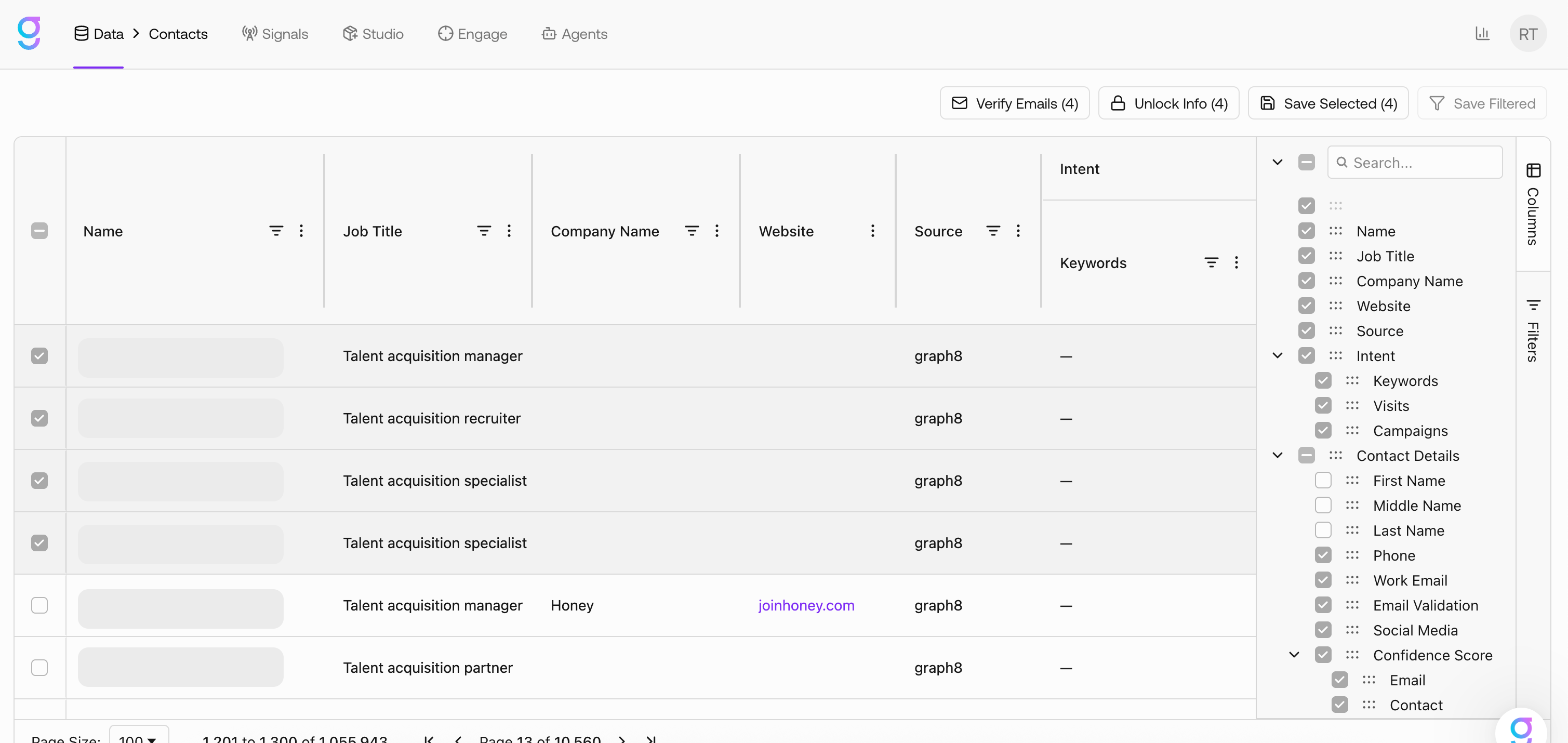
Tailor your contacts display with column management:
On the Contacts page, select Columns
Check or uncheck fields to show/hide information
Drag and drop columns to reorder them
Click Apply to save your layout
Use the search feature to quickly find specific columns
Performing Actions
The Contacts page allows you to perform bulk actions on one or more contact records directly from the grid.
To take action on contacts:
Select contacts by checking the boxes next to the desired records
The action bar at the top of the page will activate automatically
Available actions apply only to the selected contacts.
Available Contact Actions
Once contacts are selected, the top action bar provides several operations:
1. Verify Emails
Validates the work email addresses associated with selected contacts.
Typical outcomes include:
Valid / deliverable email
Invalid email
Risky / catch-all email (depending on provider logic)
This action consumes credits based on the number of processed contacts.
2. Unlock Info
Reveals masked or locked contact details.
Unlocked data may include:
Work email
Phone numbers
Additional enrichment fields
Unlocking consumes credits and permanently exposes the data for your workspace.
3. Save Selected
Saves the selected contacts into a list.
This action is used when you want to store specific contacts for later workflows such as enrichment, sequencing, or exports.
When triggered:
A dialog appears allowing you to choose how contacts should be saved
Available options:
Use existing list — Add contacts to an existing Contacts list
Create new list — Create a new Contacts list and store the selected records
If creating a new list:
Enter a List Name (required)
After submission:
Contacts are added to the chosen list
The list becomes available under Data → Lists
4. Save Filtered
Saves all contacts matching the active filters, including records that are not manually selected.
This action is ideal when working with:
Large result sets
Filter-based segments
Batch selection workflows
When triggered:
The same list selection dialog appears
You can:
Save results into an existing list
Create a brand new Contacts list
Important Notes
Actions operate only on the targeted records (selected or filtered)
Some actions consume credits
Credit usage depends on action type and record count
Locked data cannot be used until unlocked
Helpful Tips
Create filter combinations for different prospecting scenarios
Regularly update your column layout to focus on the most relevant information for your current campaigns