Sequences
Overview
Sequences are outreach campaigns that sales teams use to reach out to contacts over a planned period of time, with sequential touch-points like phone calls, emails, SMS, and other tasks. On graph8, you can customize each step in a sequence to engage your target contacts and help your sales teams speed prospects through your pipeline.
After you hone in on your ideal customer profile, use sequences to enroll your highest priority leads into tailored, automated, multichannel sales campaigns that help you start meaningful conversations and set up meetings to convert prospects into customers as efficiently as possible.
Sequences in graph8 allow you to:
Automate repetitive outreach tasks.
Maintain consistent follow-up with prospects.
Test different messaging approaches.
Coordinate multi-channel touch-points.
Track engagement and response rates.
Scale your sales efforts efficiently.
This guide will walk you through creating, managing, and optimizing sequences to maximize your sales team's effectiveness and drive better conversion rates.
Creating a Sequence
Getting started with sequences in graph8 is straightforward. Follow these steps to create your first outreach sequence:
Access the Sequences area:
From your graph8 dashboard, navigate to the "Engage" section in the left sidebar.
Click on "Campaigns" to access the campaign management area.
Initiate a new sequence:
Click the "+ New Sequence" or "Create Sequence" button (typically located in the upper right corner).
This will open the sequence creation interface.
Configure your sequence settings:
Enter a descriptive name for your sequence (e.g., "New Customer Welcome," "Demo Follow-up").
Select one or multiple mailboxes to use for sending emails in this sequence. If you don’t have a mailbox linked, please follow the instructions here.
Select the phone number you would like to use in your sequence. To purchase a phone, please follow the instructions here.
Select the Appointment Event.
Set your sending times and days (when emails will be sent).
Select your Campaign Agent.
Configure the sequence rulesets.
Save your initial sequence configuration:
Click "Create" or "Save" to establish your new sequence
You'll be directed to the sequence editor where you can add specific steps.
Pro Tips:
Use naming conventions that make sequences easy to identify (e.g., "[Target] - [Purpose]").
Configure your sequence to respect business hours in your prospects' time zones.
Start with a simple 3-5 step sequence before creating more complex campaigns.
Once you've created your sequence, you're ready to add the specific touch-points that will engage your prospects.
Enrolling Contacts in Sequences
To add contacts to a sequence, please review the article on prospecting to find leads. Once you have your lists built, you can add contacts to a sequence:
Click the three-dot menu (⋮) next to the list you want to use.
Select Send to Sequence from the dropdown menu.
Follow the prompts to select your desired sequence.
All contacts in the list will be added to your chosen sequence.
This streamlines your outreach process by quickly moving prospects into your engagement workflow.
Adding Steps to Your Sequence
To add steps to your sequence, click on the purple plus (+) button and select the desired step:
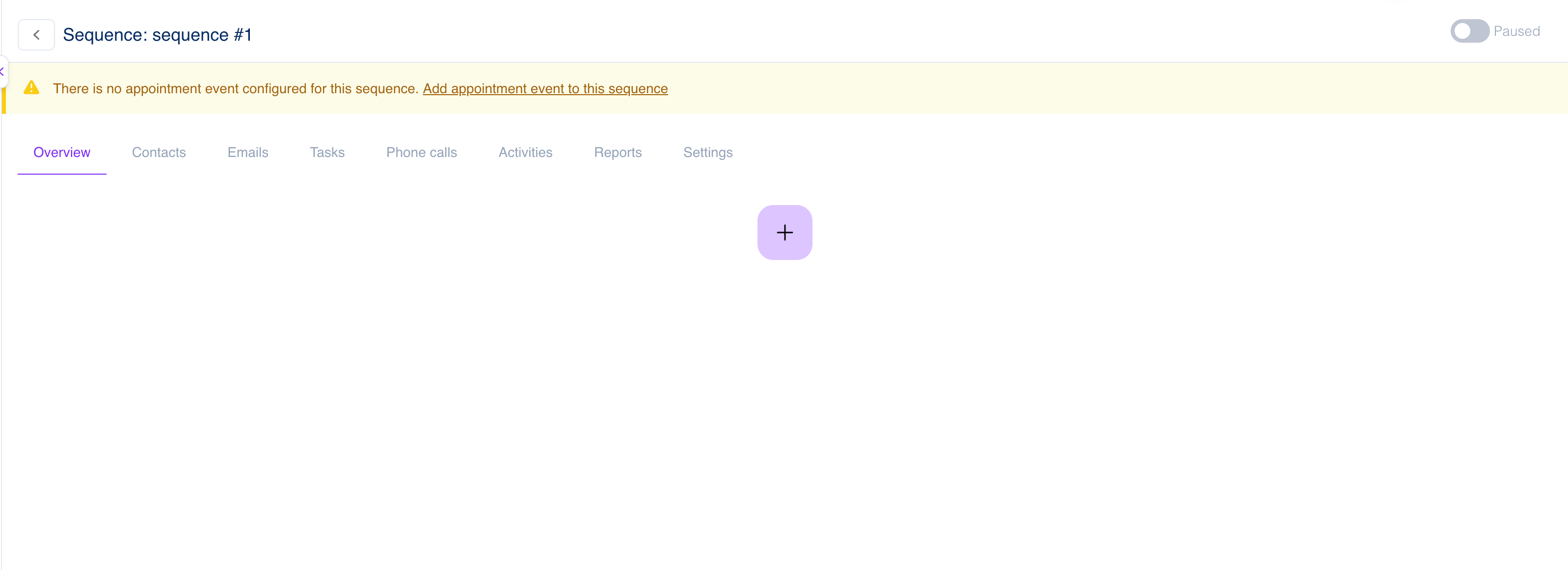
Please review the following article for information on the different steps: Sequence Steps
Executing Sequence
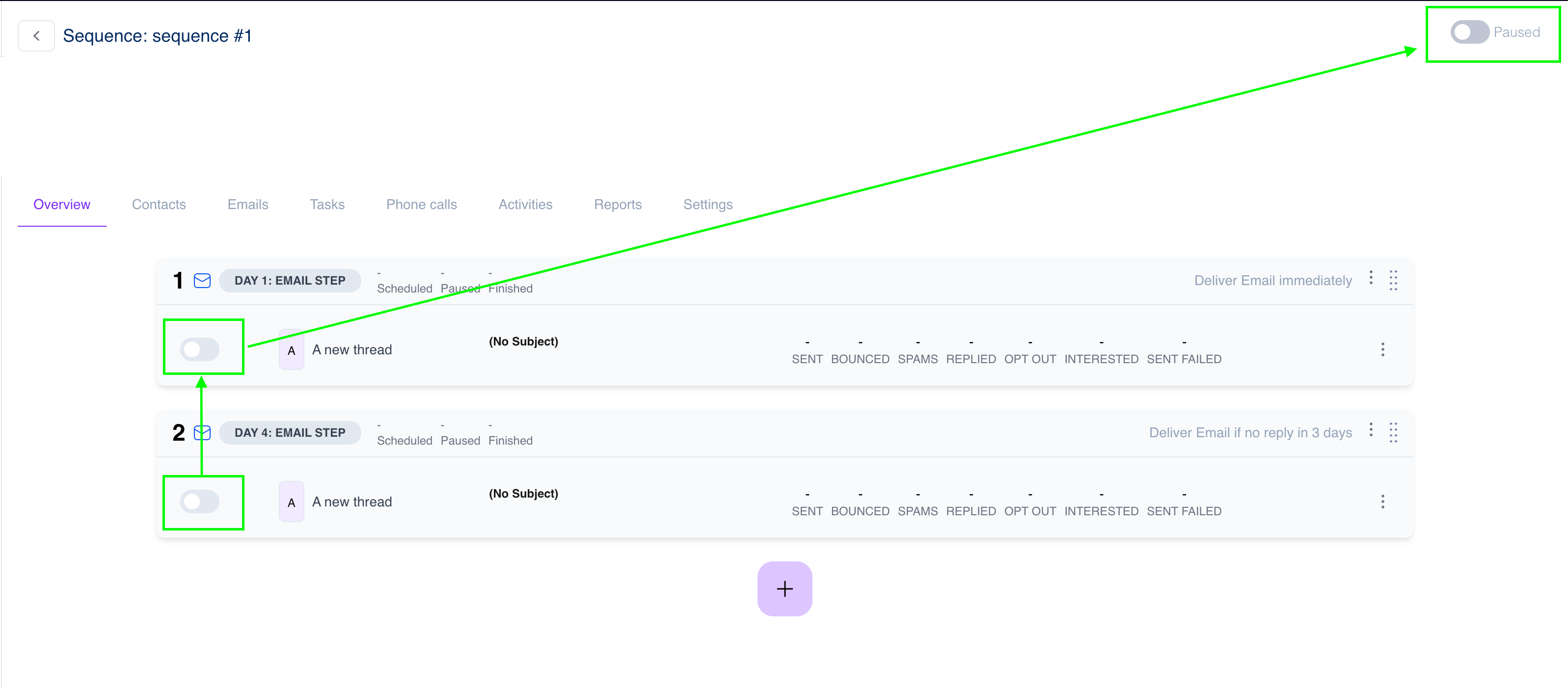
Once your sequence is ready, please enable all steps and after that, you can enable the sequence: