Connecting Outlook and Teams to graph8 Scheduler
Overview
The Outlook Calendar & Microsoft Teams integration with graph8 Appointments allows you to automatically sync your events and generate links for scheduled meetings. This ensures all your appointments are tracked, linked with conferencing details, and easily accessible by both hosts and attendees.
Prerequisites
An active graph8 account with the Appointments feature enabled
A work/school Outlook account
Admin permissions if managing team integrations
Connecting Outlook Calendar Step-by-Step Installation Guide
1. Access Appointments in graph8
Log in to your graph8 account
Navigate to the Appointments section from the main menu under Pipeline
Click on Apps from the left navigation
2. Open the App Store
In the Appointments dashboard, click on Apps in the left sidebar
Select App Store from the Apps menu
3. Install Outlook Calendar
Search for "Outlook Calendar" or locate it in the conferencing section
Click on the Outlook Calendar app tile
Click the Install App button
4. Grant Permissions
You’ll be redirected to a Outlook permissions screen
Select your Outlook account
Grant Schedule the required permissions:
View and edit events on all calendars
See and download calendars you can access
Click Allow to authorize
5. Confirm Calendar Sync
After allowing permissions, you’ll be redirected back to graph8
You should now see your calendar listed
Toggle on the calendars you'd like to sync
Choose which calendar to create events on by default
Connecting Microsoft Teams
Go back to the App Store
Search for or click on Microsoft 365/Teams (Requires work/school account)
Click Install App
Grant permissions when prompted (uses same Microsoft account as calendar)
New User Setup via Onboarding Flow
If you’re creating a new graph8 account:
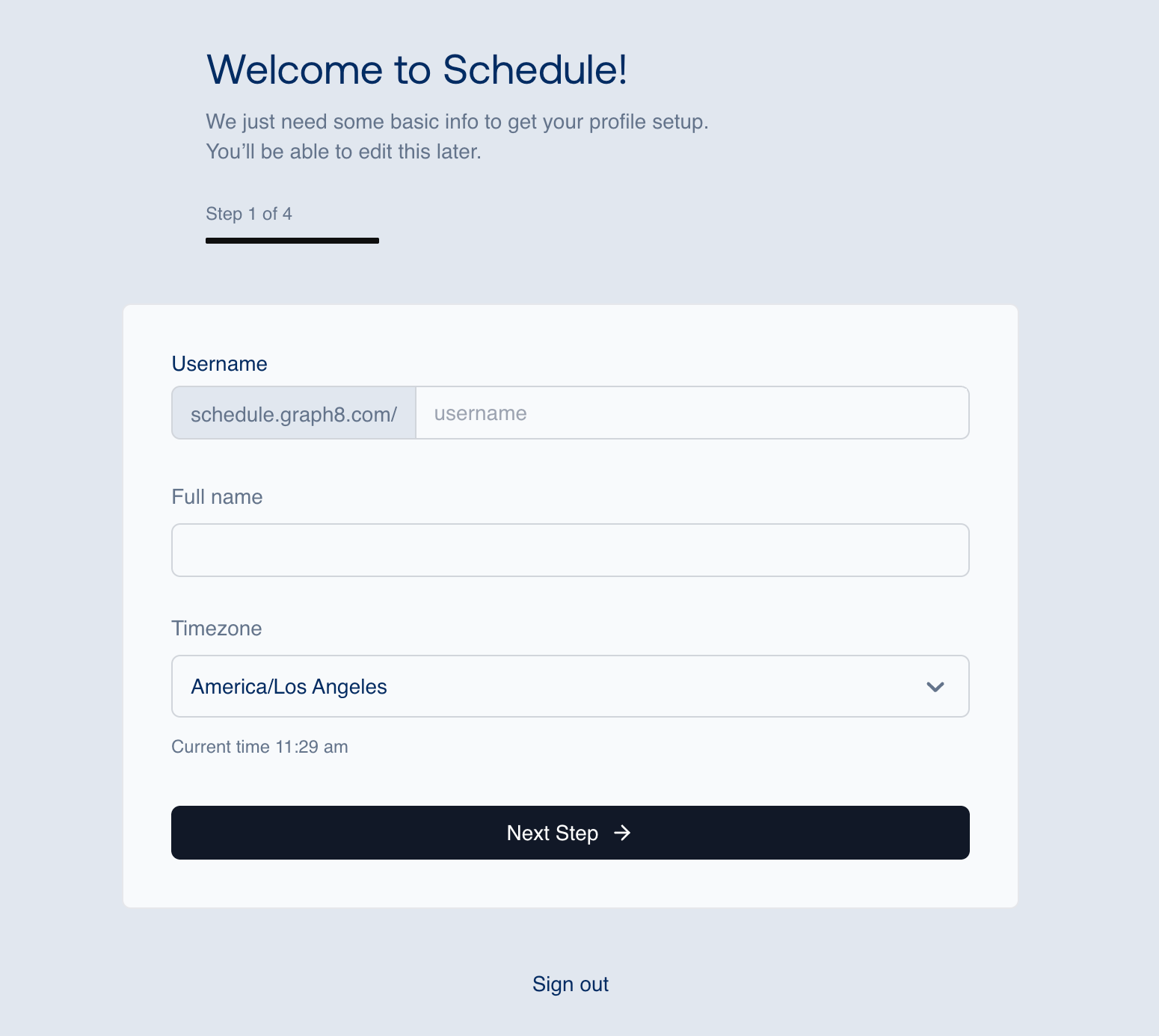
You’ll go through a 4-step setup wizard
Step 1: Set up your Basic Information (Username, Full Name and TimeZone)
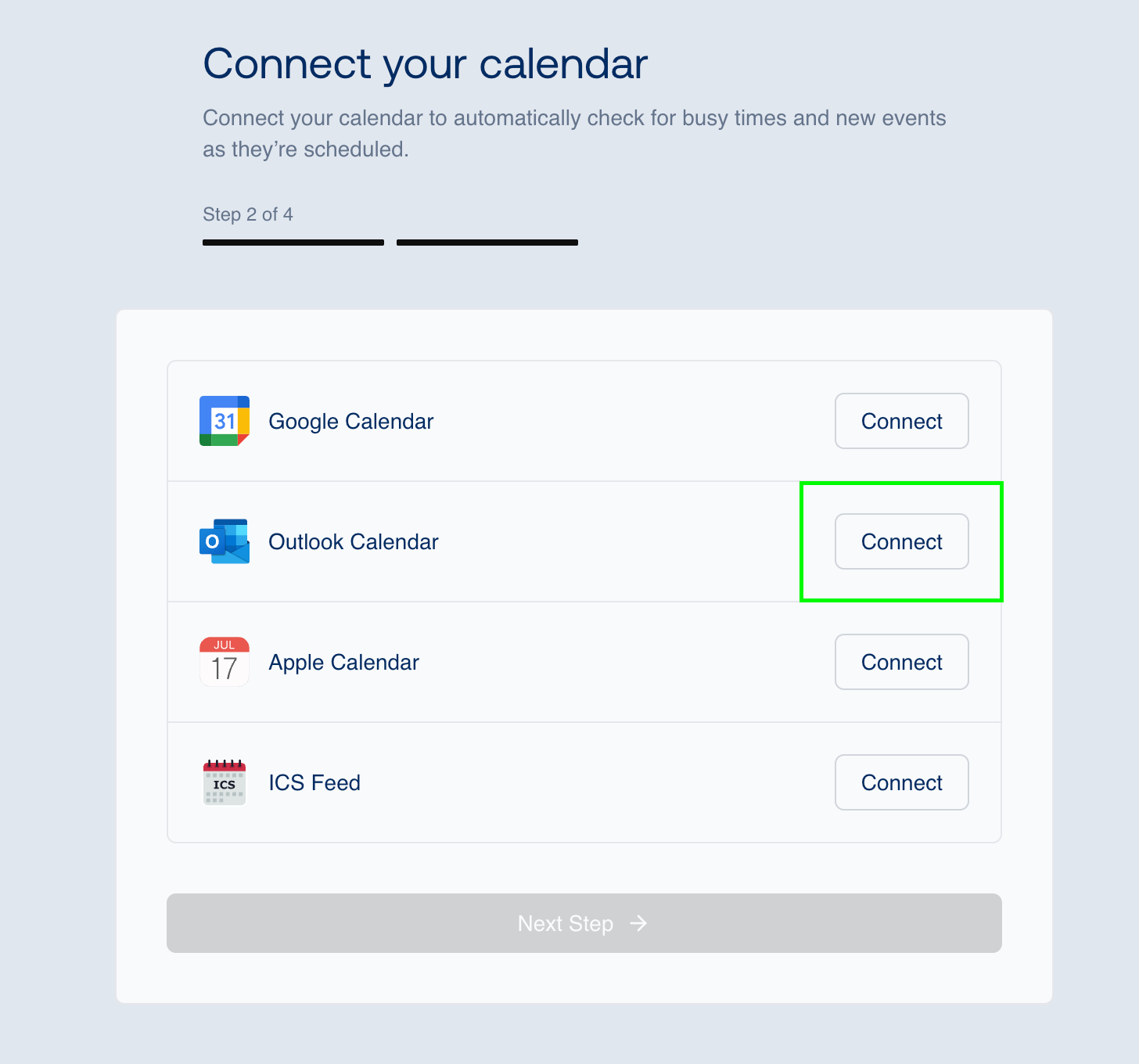
Step 2: Connect your Calendar
Choose Outlook Calendar
Authorize permissions as shown below
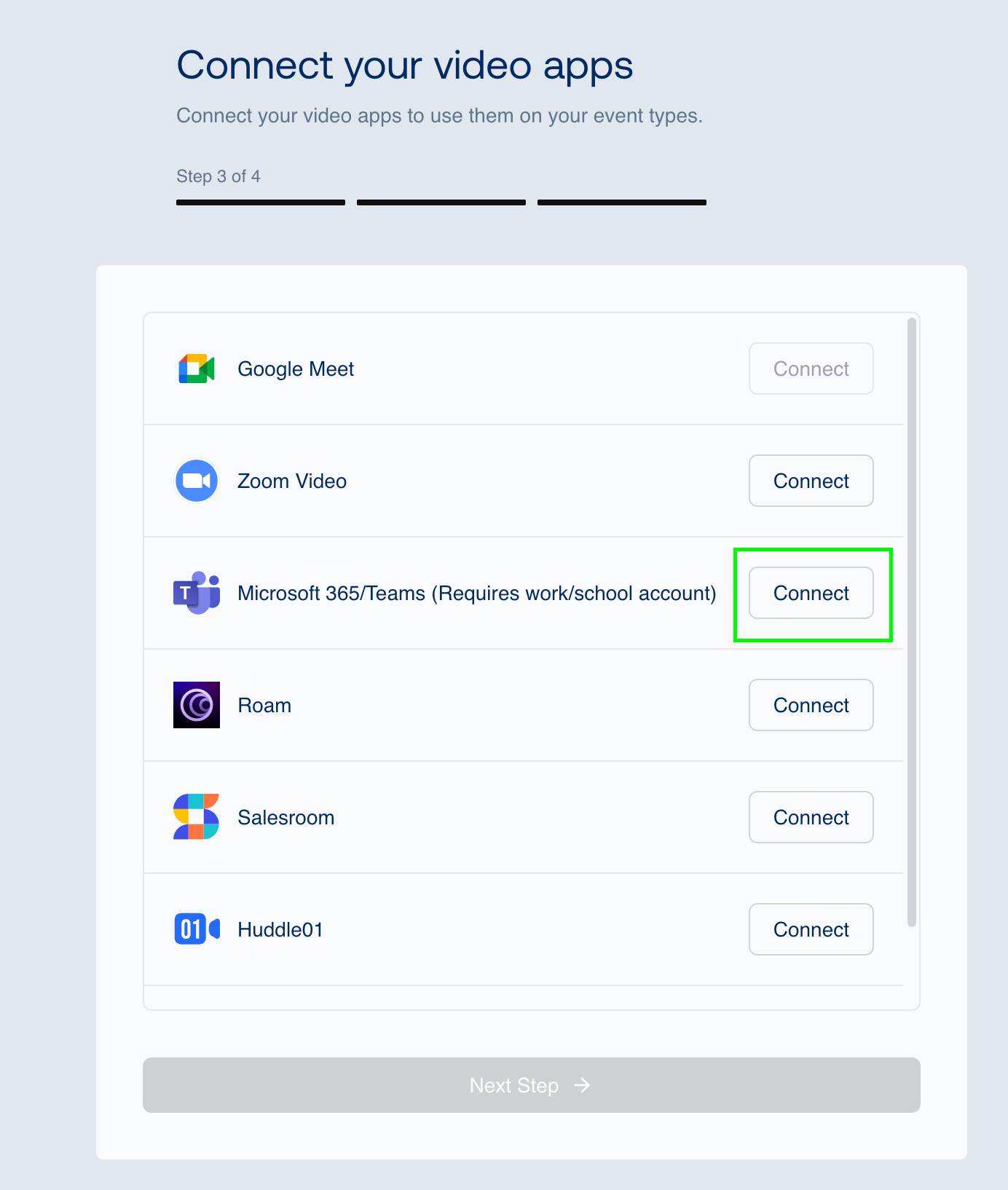
Step 3: Connect your Video App
Select Microsoft Teams
Confirm permissions
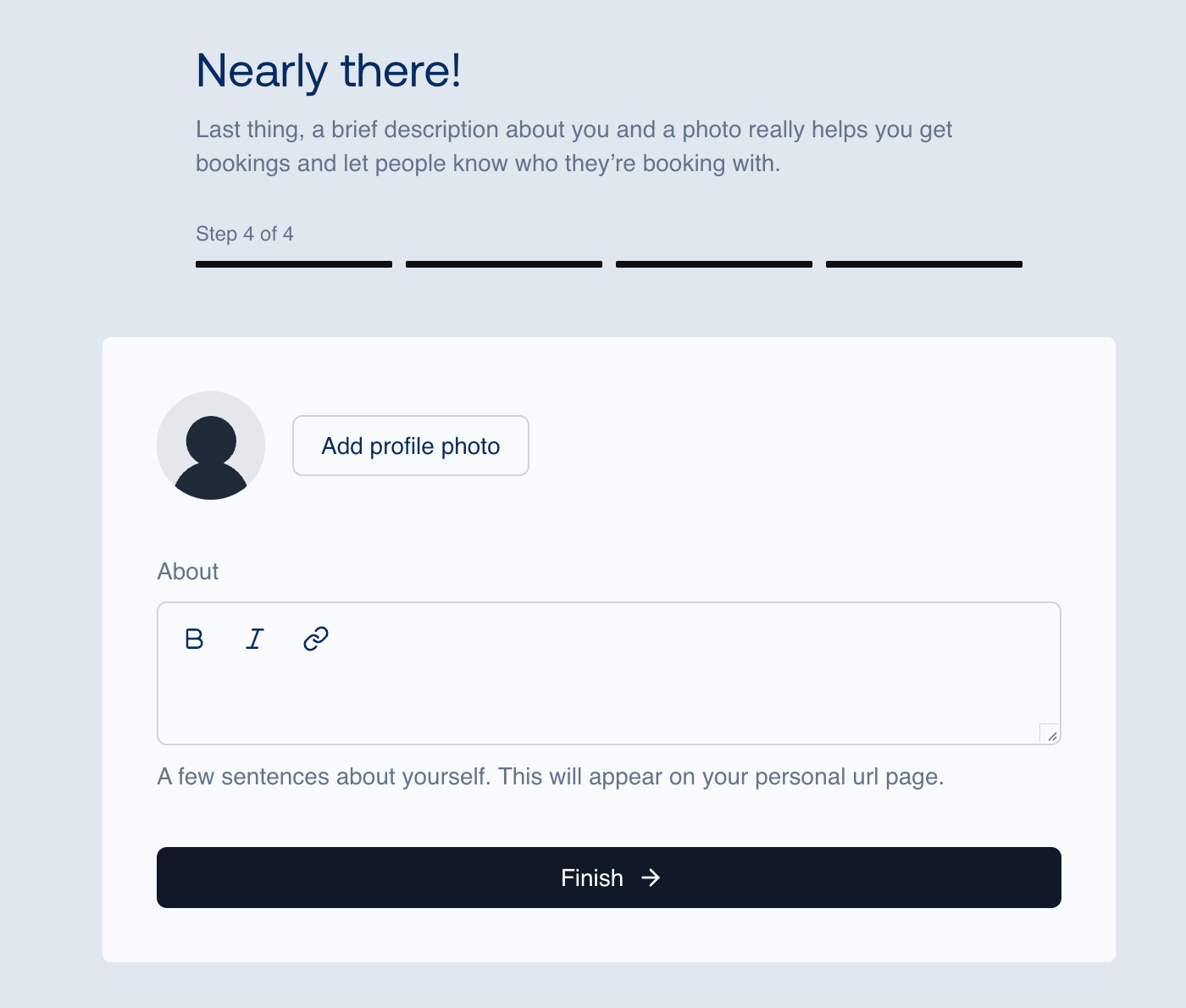
Step 4: Add your Profile Photo and About Page
Consent and admin approval
To connect your Outlook calendar or Microsoft Teams, your IT admin might need to approve it first. If you see a message about permissions or consent, please contact your IT department and ask them to grant access in Microsoft. For more technical details, you can refer to Microsoft's support articles on Azure Active Directory consent.:
Usage
Creating Appointments with Outlook Calendar & Microsoft Teams
Go to
Event Typesin AppointmentsCreate or edit an event type
Under Location, select Microsoft Teams
Set event title, duration, description, and scheduling URL
Save the event
graph8 will:
Add the event to your connected Outlook Calendar
Include conferencing info in the invite
Troubleshooting
Outlook/Teams Not Appearing in App Store
Refresh the App Store
Ensure your graph8 account has the Appointments feature enabled
Contact
[email protected]if issues persist
Authorization Issues
Make sure you're logged into the correct Microsoft account
Clear your browser cache and retry
Ensure you have permission to grant calendar/conferencing access
About Security & Privacy
Graph8’s scheduler uses the Outlook Calendar Free/Busy API to retrieve availability information. This means that we only access data on whether you are free or busy at a given time – no specific event details, titles, locations, or any other personal information is accessed or stored.
We never store your password.
All connections are handled through Outlook’s secure login page.
We only get access to your calendar availability (busy/free times and meeting events).
You can disconnect access at any time from your account settings or from your Microsoft security panel.
No one in our team can see your personal calendar details.
We take compliance and security very seriously. For more information on our privacy & security practices, please visit: https://graph8.com/privacy-policy/
Disconnecting Calendar or Conferencing Tool
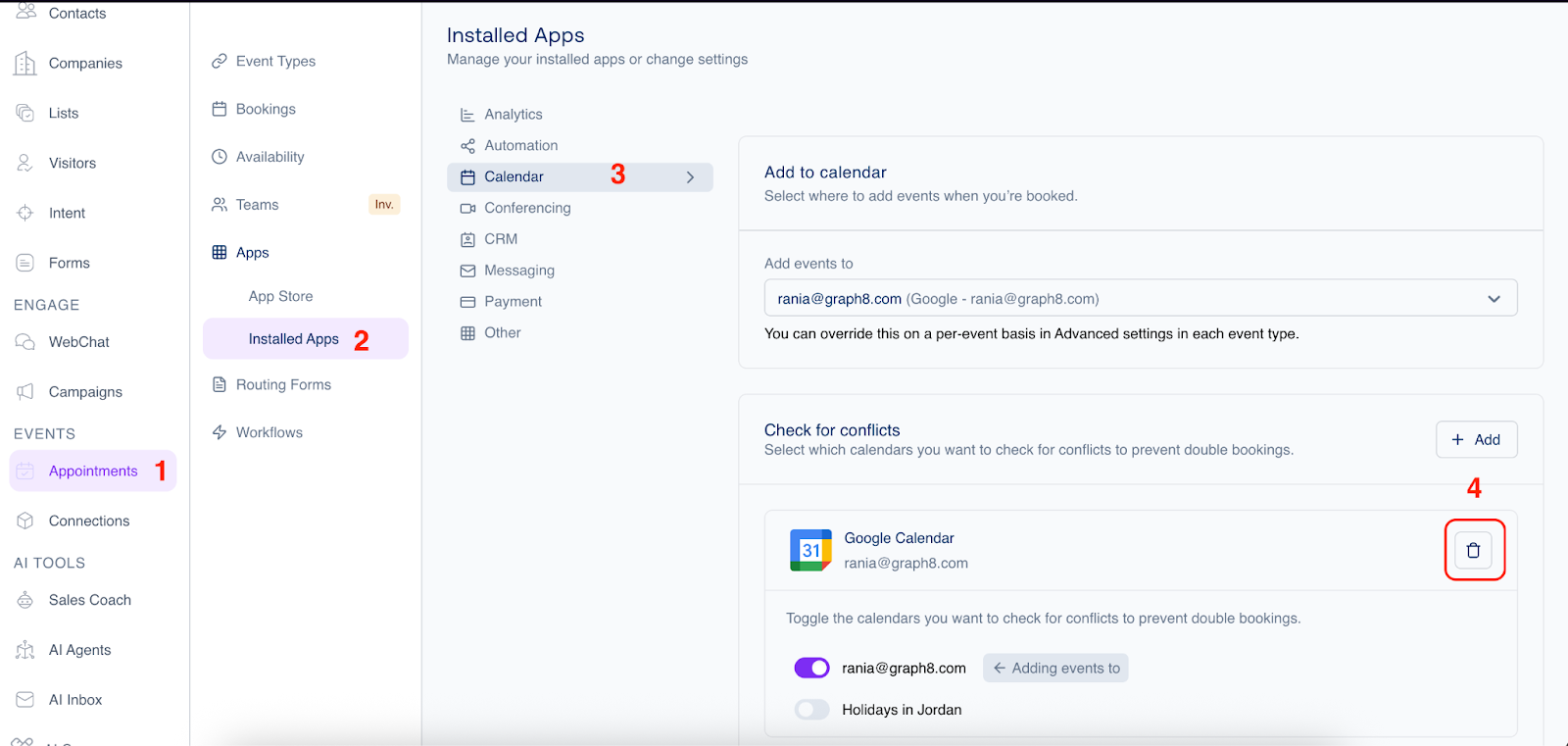
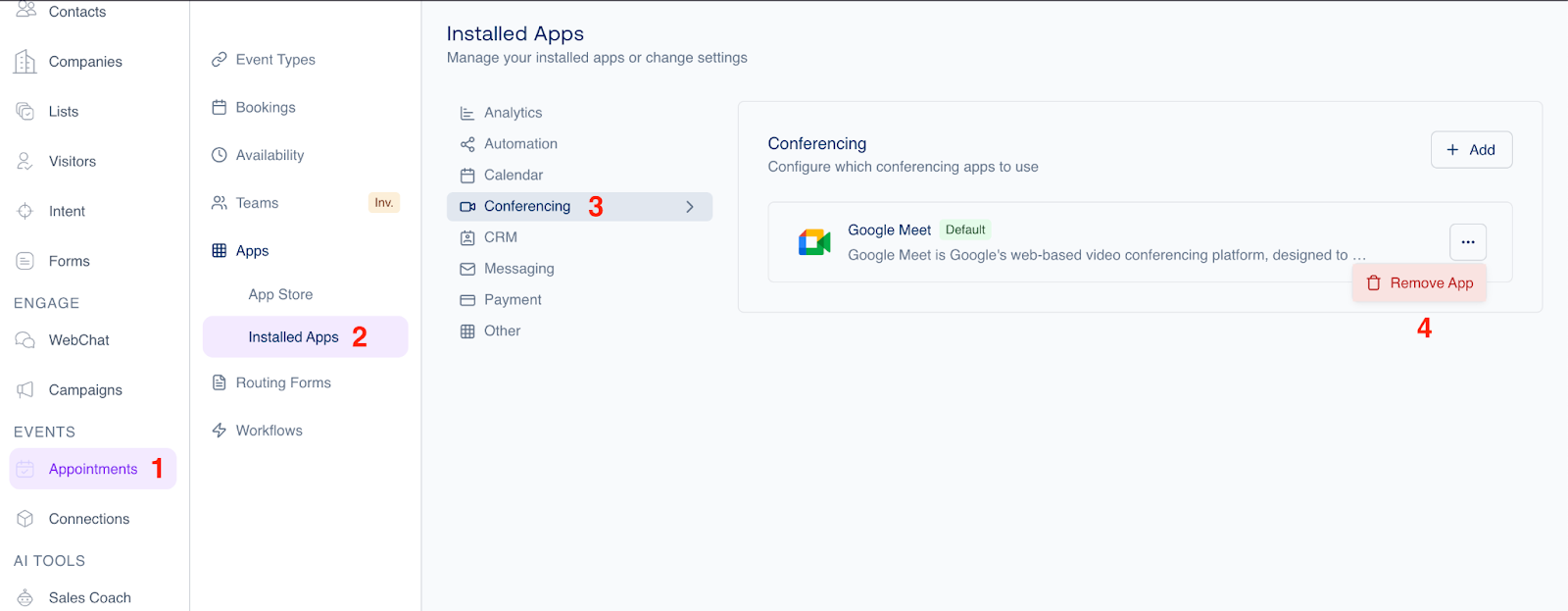
Go to
Appointments>Apps>Installed AppsFrom Calendar remove desired Calendar
From Conferencing remove desired conferencing tool
Support
graph8 Support: Use the in-app chat or email [email protected]
Google Support: Visit the Google Calendar Help Center